3. Login and Logout / Change Password
3.1 Login and Logout
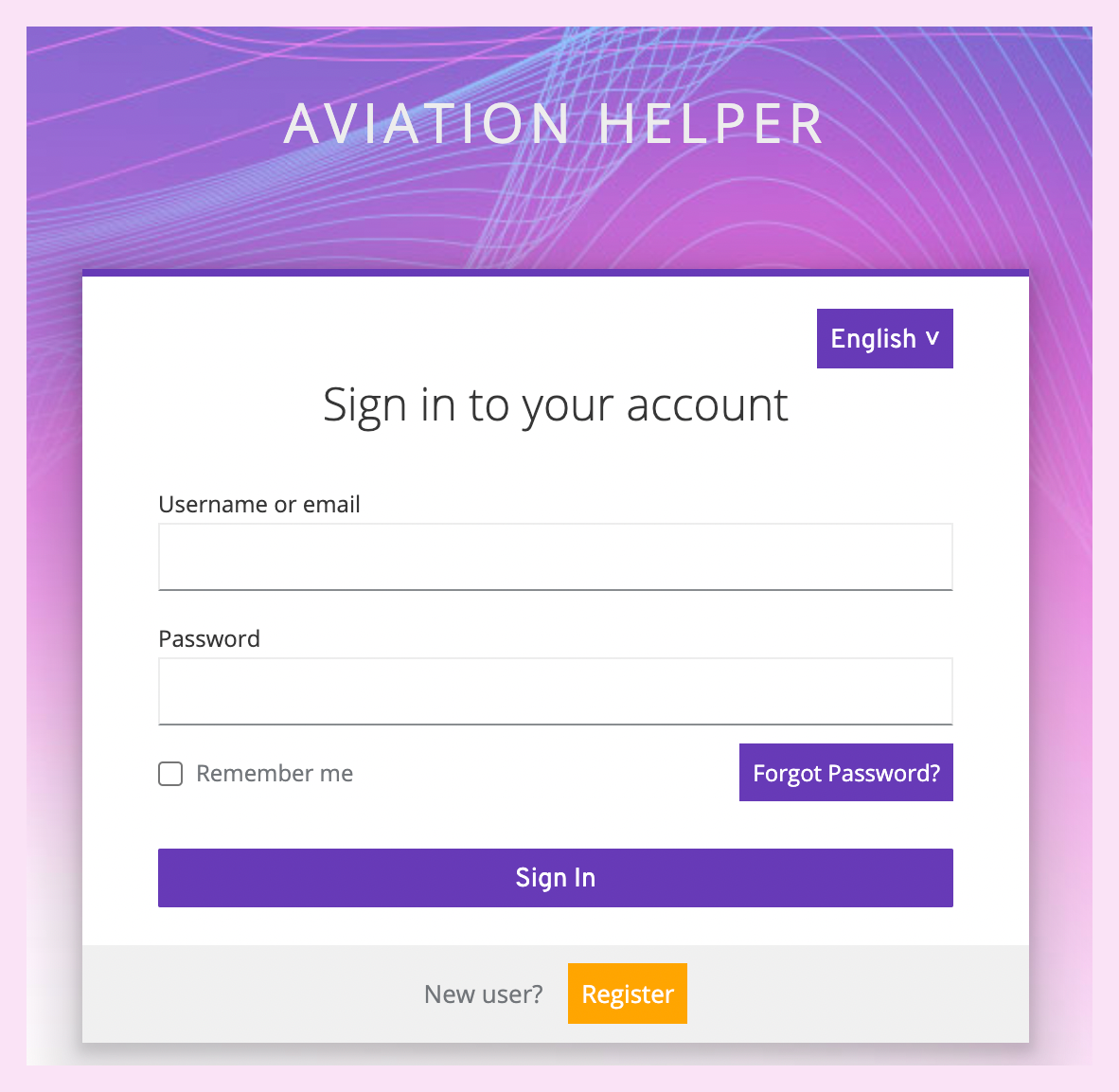
Each time it is accessed, the website checks whether the user is logged in. If not, the login mask appears:
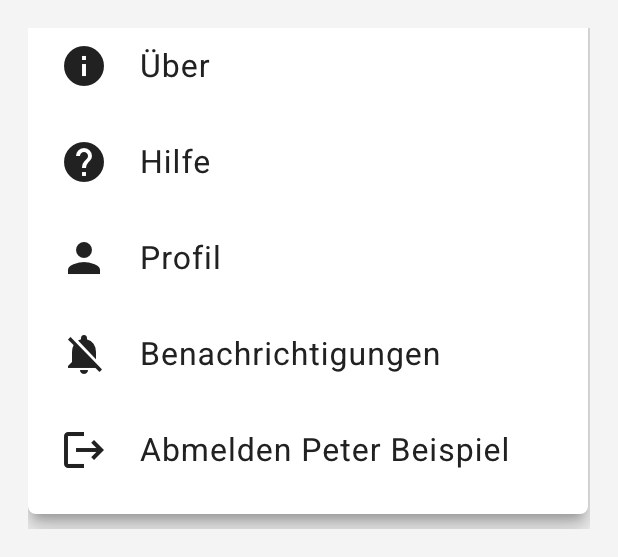
In order to safely log off from the application, you can select the option Log off ... in the menu at the top right:
3.1.1 Remember me
If you have set the "Remember me" flag, you do not have to re-enter the password every time you access the website, as the identity information (not passwords) is stored in a cookie in the browser. This always refers to the current browser, with a new device you have to login again. Or if you delete the browser history including cookies, the login mask will also appear the next time you access the website.
3.2 Change Password
To change your password, go under "Profile | Change Password". If you don't know your current password, use the "Forgot Password?" link. On the login mask you select the link "Forgot Password?". Then you have to define for which username or which email address, and then you will receive an email with a link to change your password.
3.3 Change Username or Name
To change your username or name, go under "Profile | Edit Account". After you have saved the changes, we recommend to refresh the browser content.
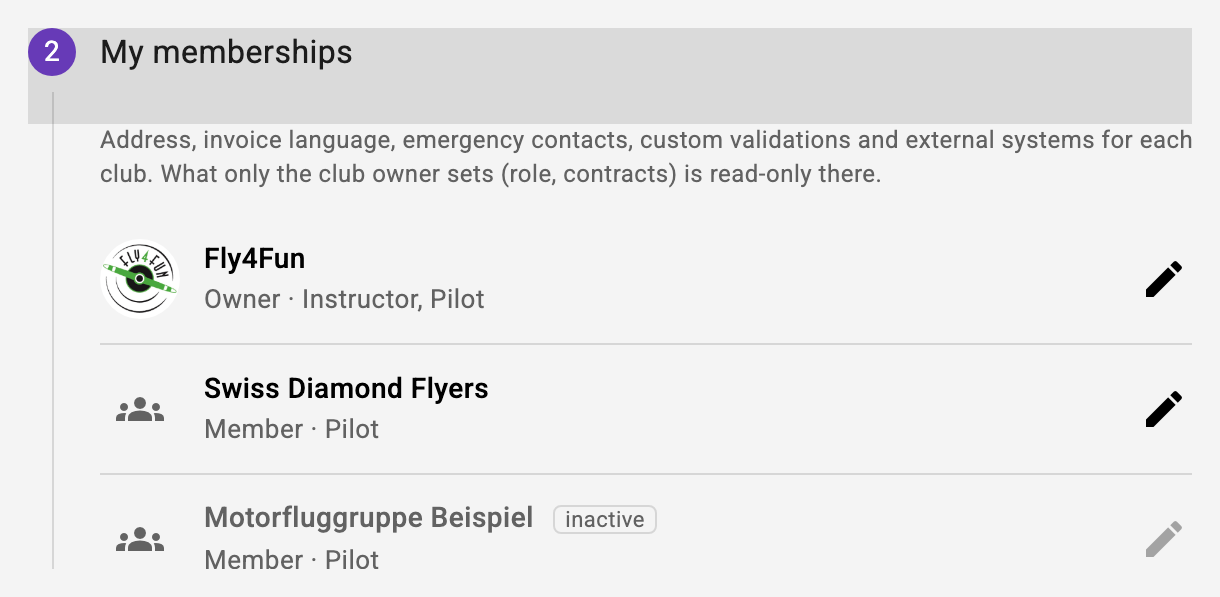
3.4 My Profile and My Memberships
The profile is reached top right via the account icon and "Profile". The step "My memberships" shows one line per club with role and classification. The pencil opens your own member settings of that club: salutation and address, phone, invoice language and invoice e-mail, emergency contacts, custom validations (e.g. medical), purchased billing packages and external systems. Save or Cancel returns to the profile. What only the club owner sets (role, classification, contracts) is read-only there; an inactive membership is shown greyed out without a pencil. If you fly assignments from the shop, Share my phone and e-mail with my guests releases your contact for the appointment e-mails to the guests (see 29.7) - only you can set it.