
14. Accounting and Invoice Run
Club owners find the menu item Accounting - the central place for invoice runs, open items and accounting exports. The familiar per-aircraft invoice run in the logbook remains available; both use the same logic.
14.1 Invoice run for the whole club
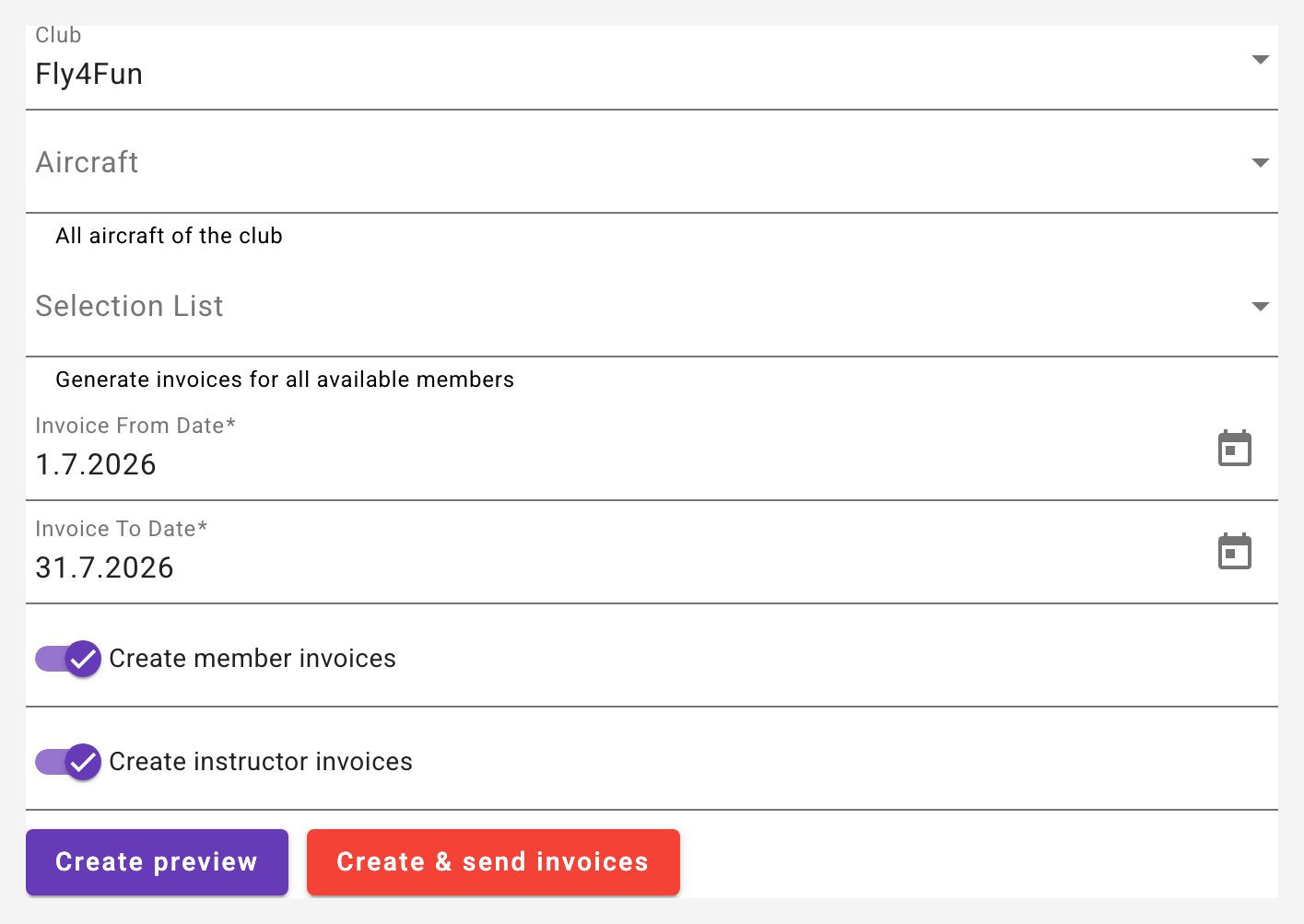
In the Invoice Run tab you pick the club, the aircraft (empty = all), individual members if needed (empty = all; inactive members are selectable), the period (prefilled with the previous month) and which invoice types to create: member invoices and/or instructor invoices. This also allows invoicing a single member across all aircraft of the club - or creating only the instructor invoices.
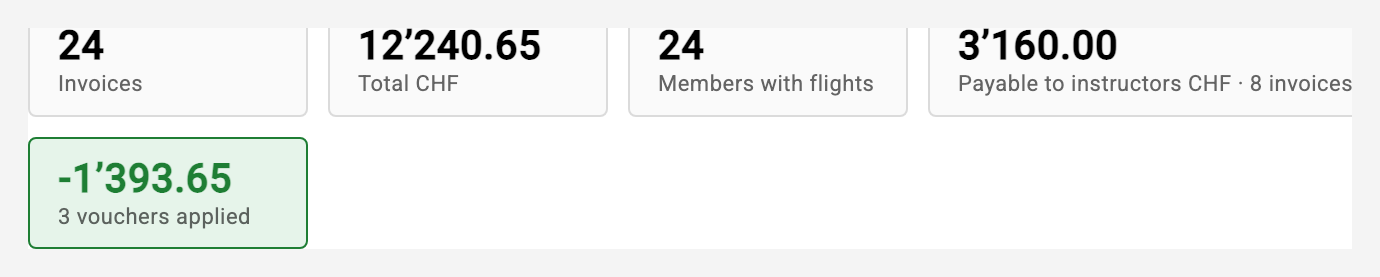
Create preview calculates everything without saving or sending anything: summary tiles show the number and total of invoices, affected members, the amounts payable to the instructors, applied vouchers and billed packages. The total is the amount the club charges its members - the instructor amounts are shown separately.
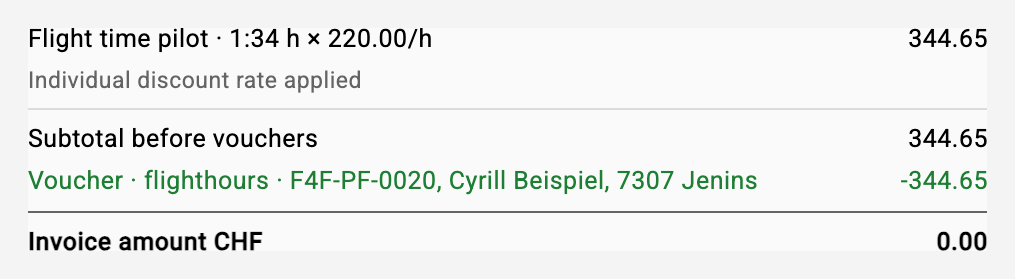
Every preview row can be expanded and shows the complete cost details: flight minutes times hourly rate (pilot, student, instructor including the time model), applied discount, billing packages, VAT and every deducted voucher with its remaining balance - exactly the same calculation that ends up on the PDF.
Create & send invoices then creates the invoices aircraft by aircraft - the progress is visible per aircraft, and the finished PDFs can be opened directly from the result list. Each member receives the invoice as usual (see 14.4).
Good to know: If a member flew on several aircraft in the period, an hour credit voucher and the purchase price of a billing package are correctly applied only once in the preview - in aircraft order, exactly like the effective run.
Periods already invoiced: If an invoice already exists for a member and aircraft whose period overlaps the run - for example after leaving the club mid-month with an invoice up to the day of leaving - the preview shows it right in the row: which invoice, which period, how many days overlap. The row is then excluded and does not run, so the same flights are not invoiced a second time. To run it anyway, tick the box in the Run column; the preview recalculates immediately.
Non-homebase fuel: If the club bills fuel bought away from home, the preview lists the uplifts that are still open, grouped by aircraft - who refuelled when and where, and how much. Generate vouchers asks for the price per litre or gallon and creates the vouchers for all uplifts of that aircraft; they are dated on the flight day and therefore fall into the current period. The preview then recalculates and deducts them. Uplifts that should not go through a voucher can be removed from the list with the icon next to it.
14.2 Invoice run in the logbook
The per-aircraft run (logbook → printer icon) now shows the same summary tiles and the expandable cost details. Two things are new:
- Create instructor invoices: the checkbox is on by default. Deselect it if you e.g. only want to recreate the member invoice of an instructor without sending his instructor invoice to the club again. Conversely, the member invoices can be deselected to create only the instructor invoices; at least one of the two types must be selected. The Regenerate action in the invoice list does the right thing automatically: a member invoice is recreated without the instructor run, an instructor invoice without the member run.
- Inactive members appear in the selection list (marked "(inactive)") - if you deactivate a member and only invoice at the end of the month, you can still select them.
14.3 Open items
The Open Items tab shows the club selected in the dropdown at the top - the same club selection as for the invoice run and the exports. At the top are the activity key figures of the current month across all aircraft of the club: number of flights, flight time, instruction time and the number of different pilots/students.

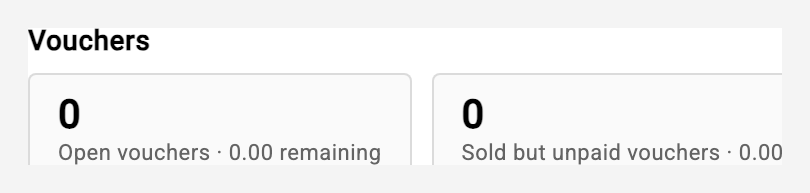
Next to them are the voucher key figures: open vouchers (remaining balance still to be flown) and sold but still unpaid vouchers. Below that stands what was paid in the current month, by payment method - bank, TWINT, card, cash - with amount and count; this lets you reconcile the cash balance against the app at month end. A tile "not recorded" counts vouchers paid before the payment method was introduced (catch up: Vouchers). Since direct payments on flight assignments the cash tile counts vouchers and passenger flights together - one cash balance -, and a third tile shows "Flown, not paid": completed assignments with neither a voucher nor a payment, with the sum of the agreed prices (a lower bound when a price is missing). Record them in the assignment book or in the report (see 18.9).
Below follow all unpaid invoices of the club across all aircraft, oldest first; invoices open for more than 30 days carry a red age mark. Directly from the list an invoice can be marked as paid or re-sent. When marking, a dialog asks for the payment method and the payment date - as for vouchers, but with "Bank" preselected because the QR bill is the normal case; for invoices paid in cash or via TWINT you change the choice. The chosen date becomes the invoice's payment date.
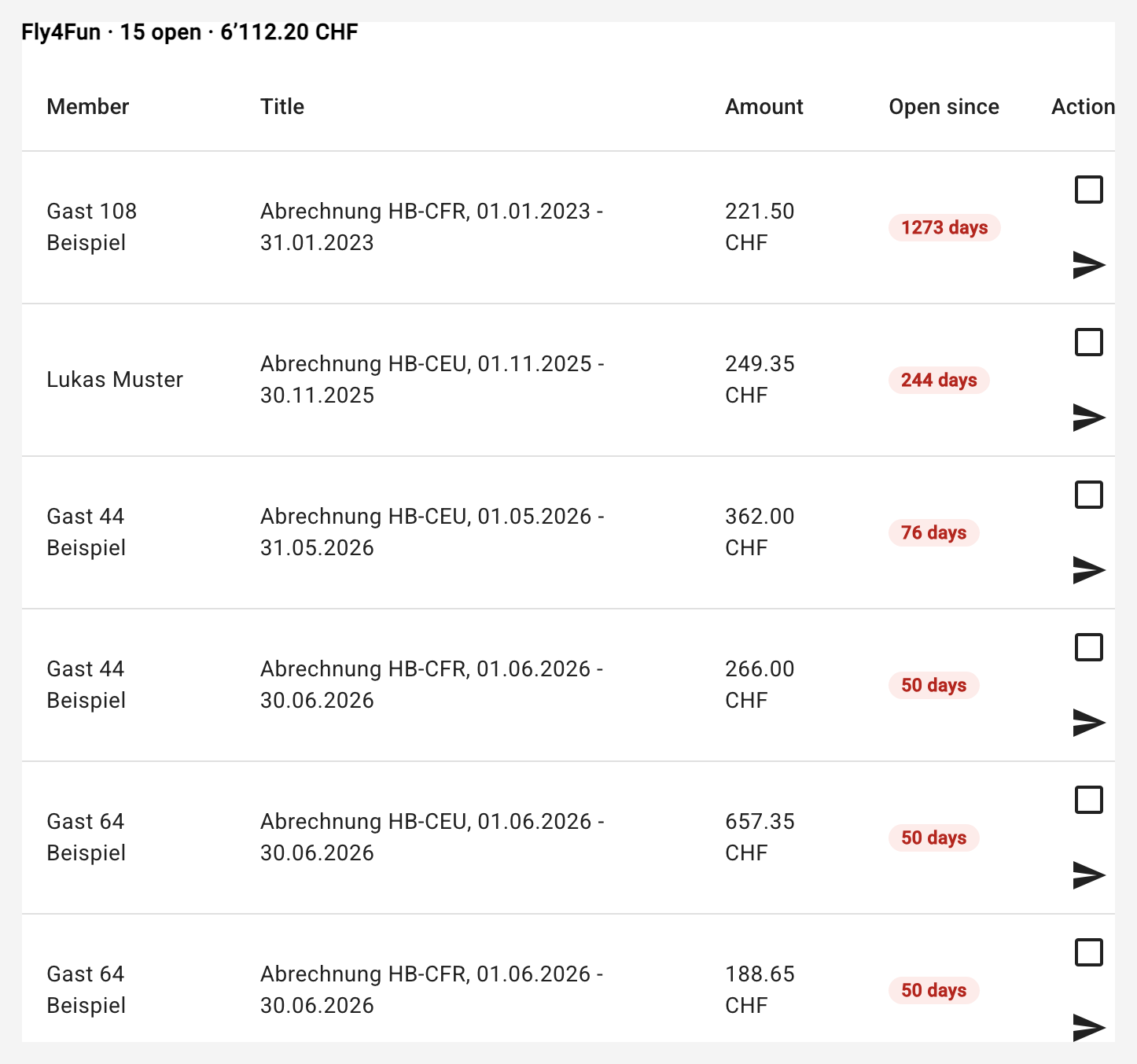
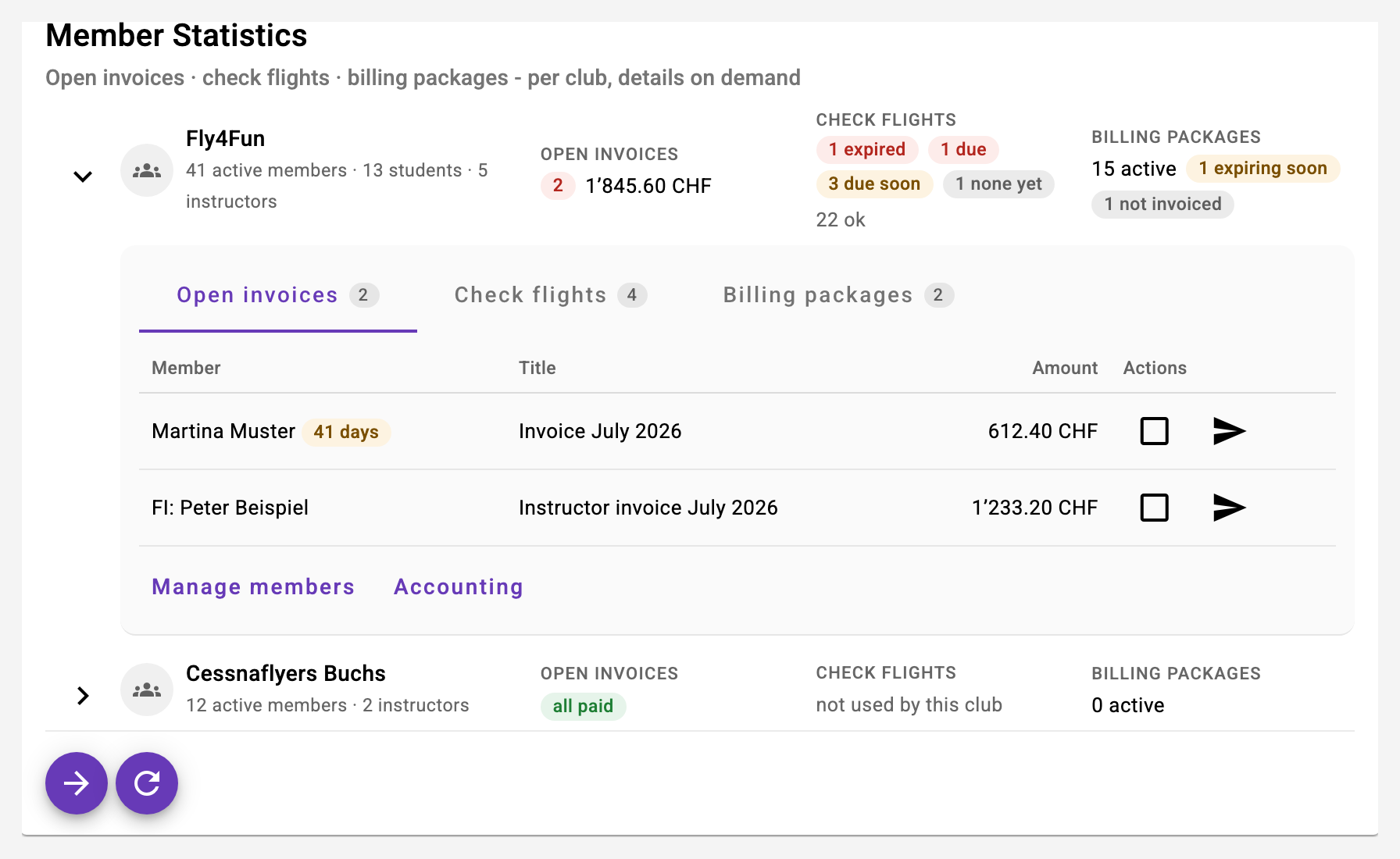
The same overview is part of the Member Statistics card on the dashboard - expandable per club, with the same buttons, for club owners only (see 25).
14.4 Delivery: push and e-mail
When creating and when re-sending, the member now additionally receives a push notification ("New invoice from ...") - clicking it opens the invoice directly as a PDF. The link in the e-mail also leads directly to that invoice. The notification type can be switched off individually under notifications (see 9.3).
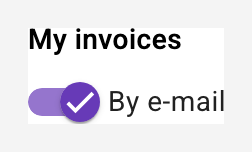
The e-mail can be switched off there as well ("My invoices") - but it is only actually suppressed if at least one device is registered for push notifications. Without a registered device the e-mail is sent anyway: an invoice must never get lost. Instructor invoices continue to go to the club by e-mail; the instructor additionally receives the push notification.
14.5 Exports for bookkeeping
The Exports tab creates one file for the whole club (all aircraft) in one of the three formats CSV, MT940 or ISO 20022. You choose what goes in: member invoices, instructor invoices (marked as expense), voucher sales (as income, with the payment date), passenger flights paid directly (type "Passagierflug", description type - guest - pilot, also with the payment date) - and whether only pending invoices are exported; with "only pending" the paid passenger flights are left out. The CSV now carries a header line with type, currency and status columns, making it directly usable in spreadsheets or accounting software. The last column is the payment method (bank, TWINT, card, cash, other) - empty when not recorded; MT940 and ISO 20022 carry it as a text suffix in brackets.
14.6 Report: VAT, instructors and marginal activity
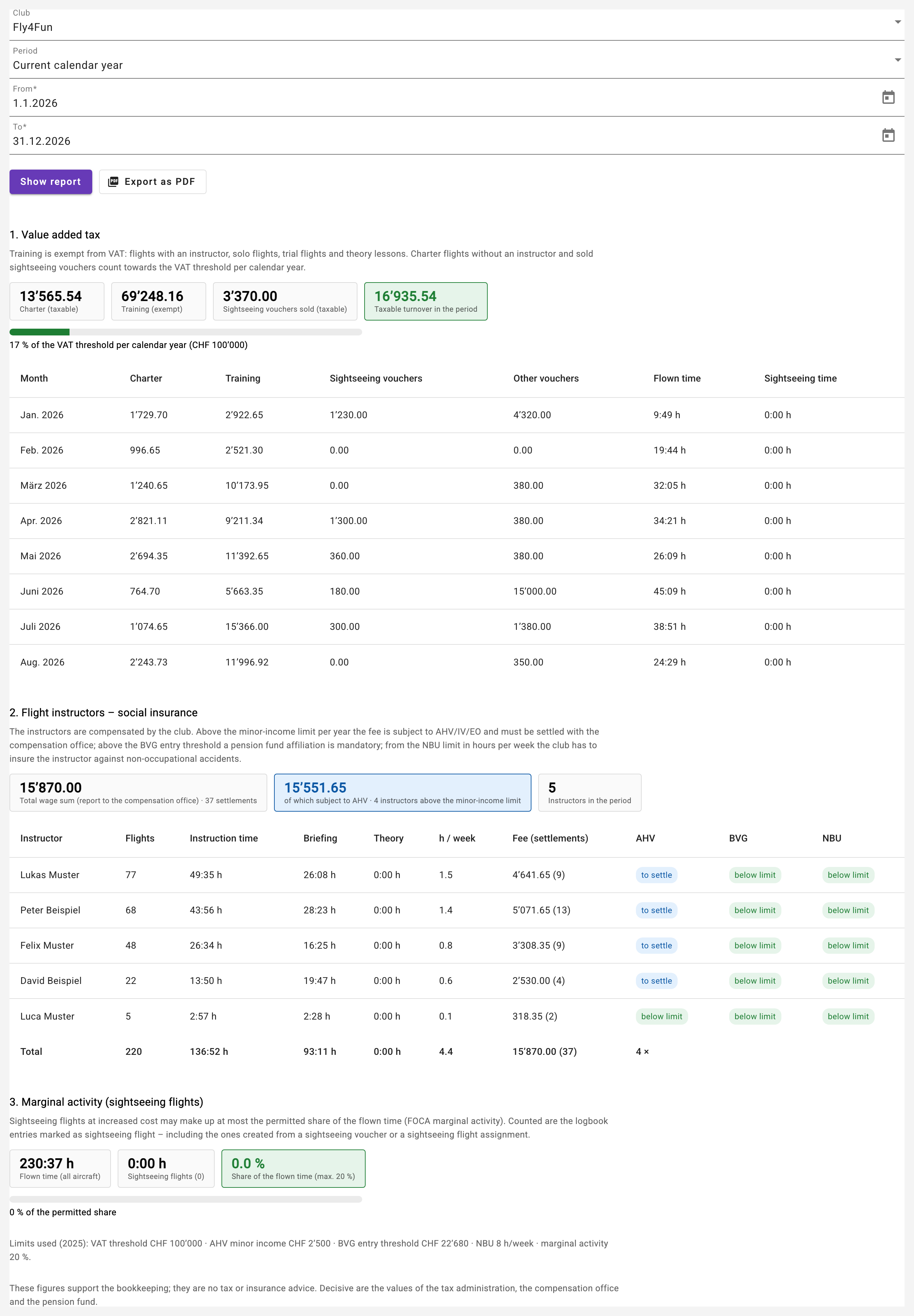
The Report tab summarises for one period what the bookkeeping needs at the end of the year - for one club, selectable as current or previous calendar year, last twelve months, current quarter or a custom period. Show report calculates the figures, Export as PDF delivers the same figures as a document for the accountant.
Value added tax. For a flight school everything related to training is exempt from VAT: flights with an instructor, solo flights of student pilots, trial flights and theory lessons. Charter flights (without instructor) and the sale of sightseeing flights - vouchers and directly paid sightseeing assignments, by payment date - remain taxable; a directly paid trial flight is training and is shown as its own tile. The report splits every invoice into a charter and a training share based on its flights, shows both sums per month and the taxable turnover against the threshold of CHF 100'000 per calendar year - green below 80 %, yellow up to 100 %, red above. The invoicing itself stays unchanged; nothing has to be marked separately.
Instructors. Per instructor the report lists flights, instruction, briefing and theory hours, the derived hours per week and the compensation paid by the club (sum of the instructor settlements of the period). Three markers show where social insurance has to be checked: AHV above the minor-income limit (CHF 2'500 per year - settle with the compensation office), BVG above the entry threshold (pension fund affiliation), NBU from eight hours per week (insure against non-occupational accidents). The limits used are printed in the report; the authorities' values are decisive. Above the table stand the total wage sum (all instructor compensations of the period) and the part of it subject to AHV - the sum that is reported to the compensation office and settled on account; the table closes with a total row. In the PDF, sections 2 and 3 each start on a new page.
Marginal activity. A club registered with the FOCA for marginal activity may offer at most 20 % of its flown time as sightseeing flights at increased cost. The report shows the flown time of all aircraft, the sightseeing time and the share against this limit. A sightseeing flight is a logbook entry with the switch Sightseeing flight (marginal activity): it is set automatically when a sightseeing voucher is redeemed or a sightseeing flight assignment is completed; by hand only the club owner or a member classified as sightseeing pilot can set it - sightseeing flights with relatives and friends belong here as well.
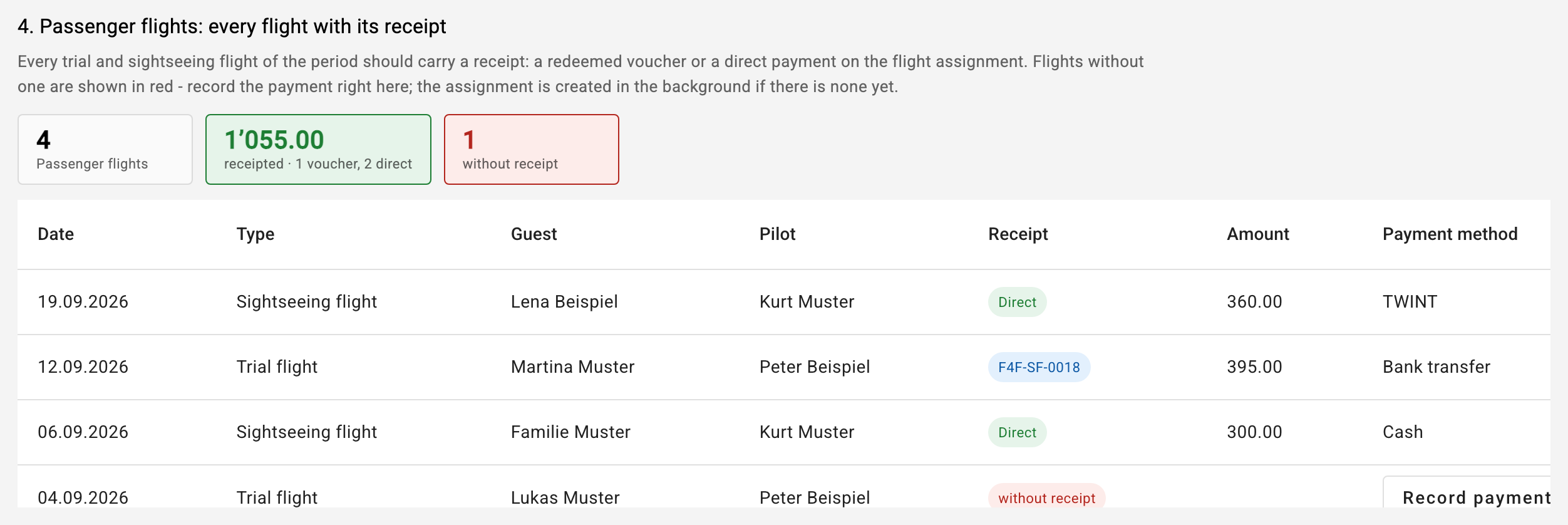
Passenger flights. The fourth section puts every trial and sightseeing flight of the period next to its receipt: the redeemed voucher (with number, amount and payment method), the direct payment of the flight assignment - or, in red, "without receipt". Completed assignments that were "marked as flown" without a logbook entry are listed as well. Three tiles sum it up: number of flights, receipted amount (voucher/direct) and the count without receipt. Record payment on a red row opens the same dialog as in the assignment book; if the flight has no assignment yet, one is created in the background as completed (guest from the trial student, for a sightseeing flight the name is asked, pilot from the entry) - so older flights can be recorded too (see 18.9). The section is part of the PDF as well.
Without invoice, without flag. Below it the report lists the possible passenger flights that carry no flag yet: flights with "No invoice" that are neither maintenance nor trial nor sightseeing flights - typically the older entries from before the flags existed, whose payment is only noted in the comment. The list shows date, aircraft, crew and comment. Mark as sightseeing flight only sets the flag; the flight moves up into the reconciliation, where you record the payment. A trial flight needs the trial student as a contact: Open entry leads to the logbook entry - set the switch, choose the contact and save; the report is back afterwards. This list is a work list and not part of the PDF.
14.7 Payment reference on the invoice
Every QR-bill now carries a payment reference - an identifier that designates this one invoice, for example RF07 AHR2 4984. It appears on the payment part, in the invoice header, and in the invoice list below the period.
What it is good for: Anyone who scans or photographs the QR-bill in e-banking automatically carries the reference along - it therefore comes back on the bank statement. When reconciling incoming payments, it tells you at a glance which payment belongs to which invoice, even when two invoices have the same amount. Previously there was only a text such as "Invoice HB-CEU, 01.08.2026 - 31.08.2026", which the payer could overwrite.
There is nothing to configure. The type of reference is decided by the IBAN the invoice is drawn on: an ordinary account produces a reference of the form RF... (creditor reference), a QR-IBAN produces a 27-digit QR reference. If you order a QR-IBAN from your bank and enter it in the club settings or on the aircraft, you automatically get the QR reference from then on.
Voucher invoices carry a reference as well. It is not to be confused with the voucher number (e.g. F4F-RF-0028) printed on the voucher itself.
What stays without a reference: Invoices sent before the introduction keep their PDF and do not get a reference afterwards - the recipient already holds a document without one. In the preview there is no reference yet as long as the invoice does not exist; it comes into being with the invoice. When regenerating an invoice that already exists, it is visible in the preview too.
IBAN check: When saving an IBAN - in the club settings, on the aircraft or for individual instructor billing - it is now checked for validity. A transposed digit is caught immediately instead of only when an invoice can no longer be produced. The IBAN may be written in groups of four as usual.
14.8 Payment reconciliation with the bank statement
Optional module. Instead of marking every payment as paid by hand, you upload the bank statement from your e-banking - the app matches the incoming payments to the invoices via their payment reference.
How it works: In e-banking, download the bank statement as camt.053 for the desired period (some banks call it "credit notification camt.054"; both work, as do several files or a ZIP at once). In the Payments tab, choose the file and click Check file. A preview appears - nothing is stored yet. Only Book writes.
What the preview shows: Tiles with the number of credits, how many movements are matched unambiguously, how many need confirmation and how many stay without a reference. Below that, every movement with date, payer or recipient, reference, amount and assignment - ordered by certainty: first Matched, then To be confirmed, then Without a reference, last Already booked, by value date within each group. Tapping a tile shows only that group, tapping it again shows all. Ticked rows are booked even while they are hidden.
Only the unambiguous ones are ticked: reference found, amount exact to the cent, invoice open - or one of your own payouts that is exact to the cent. Everything else is a suggestion you confirm yourself - better one more click than a wrongly closed invoice. The states:
- matched - will be written when you book.
- payout - a debit that settles a submitted instructor settlement (see Paying out flight and theory instructors); will be written when you book.
- amount differs - partial payment (the invoice stays open, the rest is visible) or overpayment (the invoice counts as paid); for a payout, the debit differs from the amount of the settlement.
- suggestion - no reference, but amount and payer name match an open invoice. If others qualify as well, pick the right one under Choose document.
- several possible - several open invoices have exactly this amount. Pick the right one under Choose document; the row is then ticked.
- already paid - the reference hits an invoice already marked as paid. Possibly a double payment.
- reversal - an earlier payment was taken back.
- no reference - membership fee, donation, refund. If you want to book it anyway, tick it; it is then stored without a document.
What gets booked: The invoice receives the value date from the bank as its payment date, not the day of the click, and the payment method Bank - a payment method recorded by hand stays as it is. Voucher invoices are treated the same way.
What is stored - and what is not: The uploaded file is never kept. A bank statement contains everything that happens on the account; the whole file is read, but only the credits and the debits of your own payouts are stored. All other debits, bank charges and private movements are counted and discarded. Payments without a document reference disappear by themselves after 90 days; matched ones stay as long as their invoice - they are its proof of payment.
Uploading the same file twice changes nothing. Every booking carries the bank's own reference; one that is already booked is recognised as such and not offered again. This also holds when two statements overlap in time.
Wrong statement: If the account in the file is none of the club's accounts, a warning appears with the (shortened) account number. Check whether you picked the right file.
Missing statement: If submitted payouts are debited to an account whose statement is in none of the files - an aircraft account, for example -, a notice names that account. Upload its statement as well, otherwise those payouts stay "submitted".
Undoing an assignment: In the list of booked payments there is an undo icon per row. The payment is deleted and the invoice is open again, unless another payment covers it.
What the module does not do: It never initiates payments and needs no bank contract, no interface and no credentials. The route deliberately goes through a file you download yourself.
14.9 Paying out flight and theory instructors
Part of the payment reconciliation module. If you have been typing your instructors' settlements into your e-banking one by one, you now create them as a single payment file and upload that file in your e-banking.
The app never triggers a payment. It creates a file in the pain.001 format that every Swiss bank understands. You release the payment as usual in your e-banking, with your two-factor confirmation. No bank contract, no interface and no credentials are needed.
How it works: The Payouts tab lists the club's instructor settlements. Use Settlements from and until to narrow the period - the last twelve months are preselected so the list stays readable; what counts is the period the settlement covers, not the date it was created. Everything that can be paid out today is ticked. The Hide paid switch below hides settlements that have been paid; it is on and stays the way you last set it. Optionally set an execution date - leaving it empty means "as soon as possible". Then click Create payment file: the file is offered for saving right away, and you upload it in your e-banking where it says "import payments", "file upload" or "pain.001".
Three states, not two:
- open - nothing has been initiated yet.
- submitted - the file has been created. That is not yet a payment: your e-banking may reject it, and you may leave it untouched.
- paid - the money has left the account, with the date of the debit.
The return path runs by itself: Every payment in the file carries an identifier that the bank returns on the bank statement. At the next payment reconciliation the debit appears ticked as a payout in the preview, and Book sets the settlement to paid - with the bank's value date. If an aircraft account is debited, that account's statement is needed as well.
Even without individual entries: Many banks show only the collective debit on the bank statement, without the individual payments below it. The app recognises it by the identifier of the payment file and splits it into the settlements of that file that debit this account. If their total matches the collective debit to the cent, all of them are ticked; otherwise they appear under To be confirmed. If you paid a settlement in your e-banking via its QR code instead, the app recognises the debit by the settlement's reference.
Changed in e-banking: If you change a payment from the file in your e-banking, for example to another account to debit, the bank drops the identifier. If the amount matches to the cent and the message or the recipient matches an open settlement, the debit appears as a suggestion under To be confirmed - only you tick it. Since the file debits the right account per settlement, changing it is no longer necessary.
Confirming by hand: If you keep transferring yourself or do not want to use the file, tick the settlement as paid with the check symbol. The undo symbol takes the confirmation back.
Where the account number comes from: From the instructor's individual instructor billing (member management, step "Role and classification"). The list shows it shortened - a full account number does not belong in an overview.
Which account is debited: Each settlement is paid from the account the members of that resource pay into. If the aircraft has its own IBAN, it is that account; if the resource bills via the club (simulator, theory lesson) or the aircraft has no IBAN, it is the club account. The Debit column shows it per row. The file contains one payment block per account - you still upload a single file, and each bank statement shows one collective debit.
Name and address of the recipient are in the file, as banks require from November 2026: the instructor's separate billing address if one is recorded (its first line is taken as the name, for example their company), otherwise their member address.
If a settlement cannot go into the file, the reason appears in its row and it cannot be ticked:
- no IBAN on file - the instructor has no individual billing IBAN.
- the IBAN cannot be read - most likely a transposed digit.
- a QR-IBAN cannot receive this payment - a QR-IBAN requires a QR reference and is meant for receiving invoices, not for payouts. The instructor enters their ordinary IBAN there.
- the amount is zero - there is nothing to pay out.
- the account to debit is a QR-IBAN or missing - a QR-IBAN cannot be debited. Enter the ordinary IBAN at the aircraft or the club.
Anything that is left out for another reason is reported row by row after the file has been created - an already paid settlement, for example.
What the file contains: The recipient's name and account, the amount, and the title of the settlement as the message, so the instructor can see on their statement what the money is for. The club's account comes from the club settings.
Each debited account's statement shows a single collective debit instead of many individual entries - the file requests it that way on purpose.
14.10 Payment reminder
Part of the payment reconciliation module. If you want it to, the app reminds members about open invoices - once per invoice, by e-mail and push.
By default no club sends reminders. The deadline is the switch: as long as Payment reminder after (days) in the club settings, step Billings, is empty, nothing happens at all. Enter 30, for example, and every invoice that is still open 30 days after its invoice date is reminded.
Check first who it would affect. The Open items tab in accounting has a Payment reminder section. There you can try a deadline without saving it - the list shows exactly the invoices that this deadline would remind today. Nothing is sent from that page; reminders only go out once the deadline is saved in the club settings.
Once only, never a second level. Anyone who does not pay after the reminder needs a conversation, not another automated message. The date of the reminder stays on the invoice.
An old backlog does not cause an avalanche. Reminders only go out within 30 days after the deadline has passed. So if you switch reminders on today, it affects the current month - invoices that have been open for half a year are left alone.
Who receives no reminder:
- anyone who has paid part of it - a booked partial payment shows that the person has responded.
- instructor settlements - that is a debt of the club, not a claim against a member. They live in the payouts tab.
- invoices without a PDF - what was never sent is never chased.
- anyone who turned off invoice e-mails - the push still arrives, it has its own switch on the notifications page.
Why this belongs to the module: A reminder is only as reliable as the payment status it rests on. With payment reconciliation, "paid" is a fact from the bank statement instead of someone's recollection. That is why the field only appears with the module licensed - otherwise a forgotten manual entry would chase somebody who paid long ago.
What the message contains: title, date and amount of the invoice, the payment reference (if the invoice already carries one) and a link that opens it directly. Plus a note that all is well if the payment happens to be on its way.