7. Capzlog.aero Integration
If you keep your flight log in electronic form at capzlog.aero, you can now send the logbook entries of the aircraft directly to capzlog.aero. This saves time and is also less error-prone. In order for this to work, the following 2 conditions must be met:
- The club must be registered with capzlog.aero as "Auto-Import".
- You as a pilot have to configure the auto-import with the club
Capzlog.aero Club Integration
ATTENTION: This point only has to be carried out once by the club owner!
The club owner(s) can email Capzlog.aero (info@capzlog.aero) and ask for an integration key for the club. It is best to include the club logo and the URL for the website in the request.
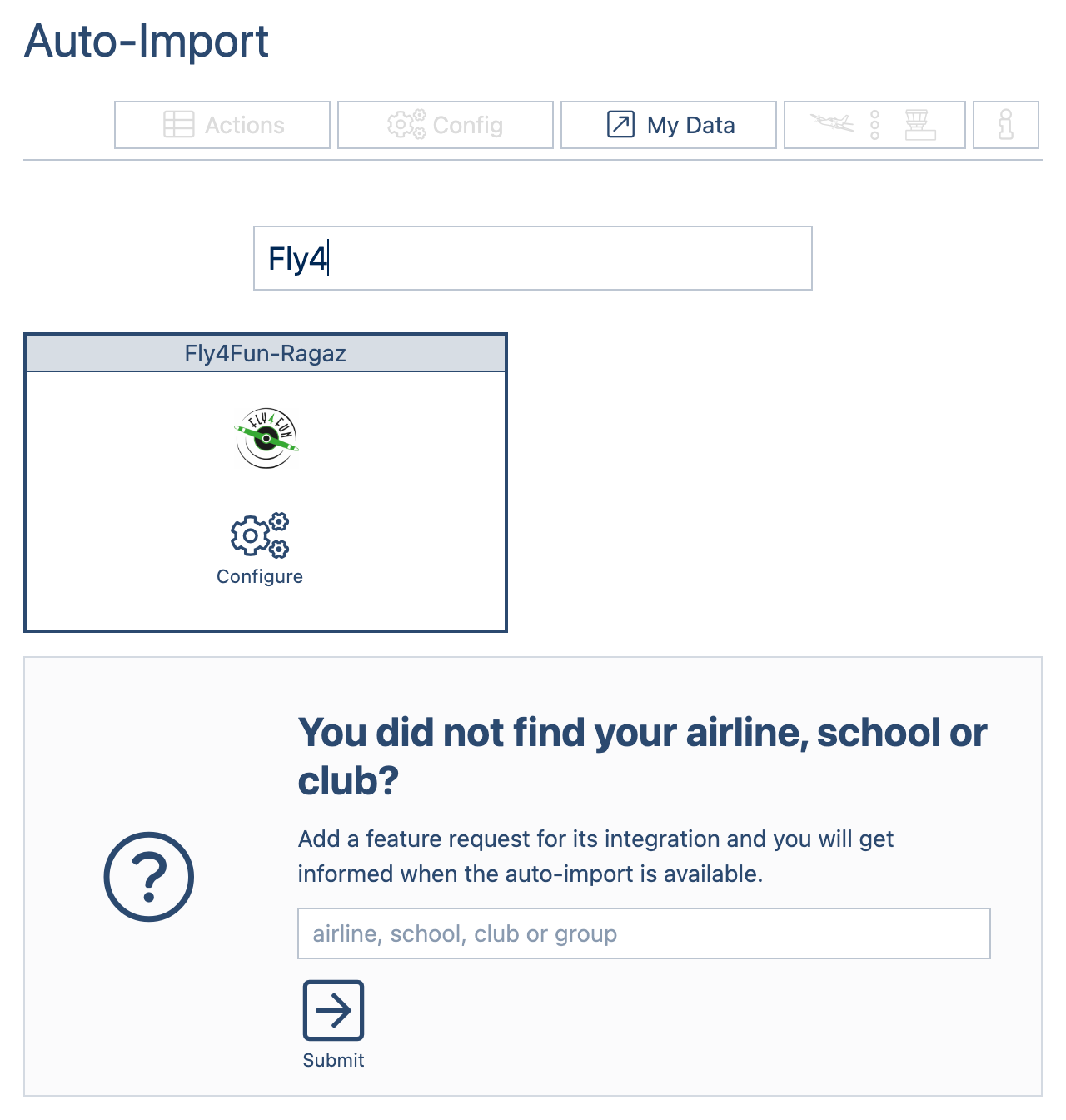
Or alternatively, if the owner or a member of the club already has Capzlog.aero access, go to "Preferences | Auto-Import" and look for the club, if it doesn't exist, submit the feature request at the bottom of the page.
You can also see the example here:
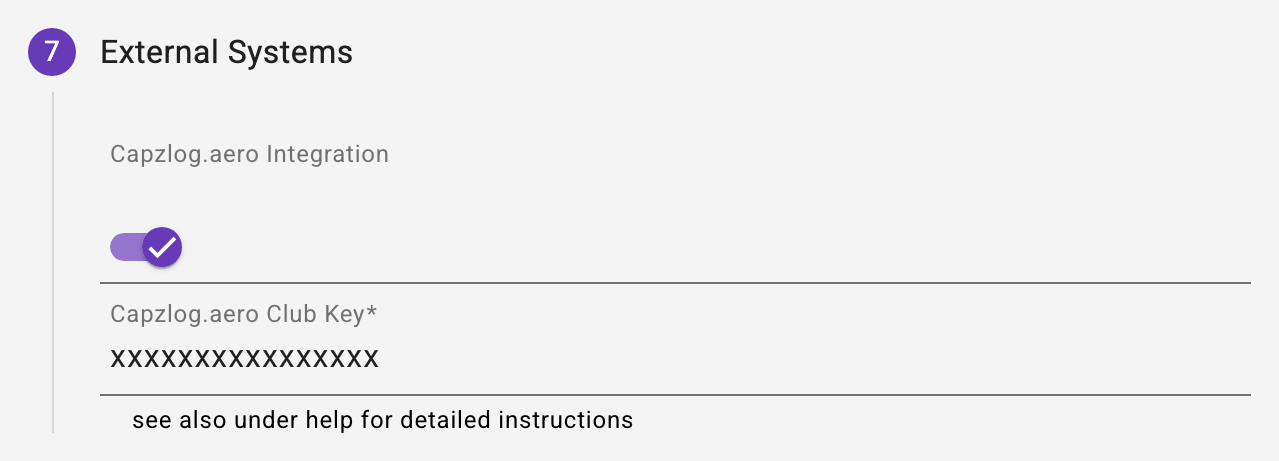
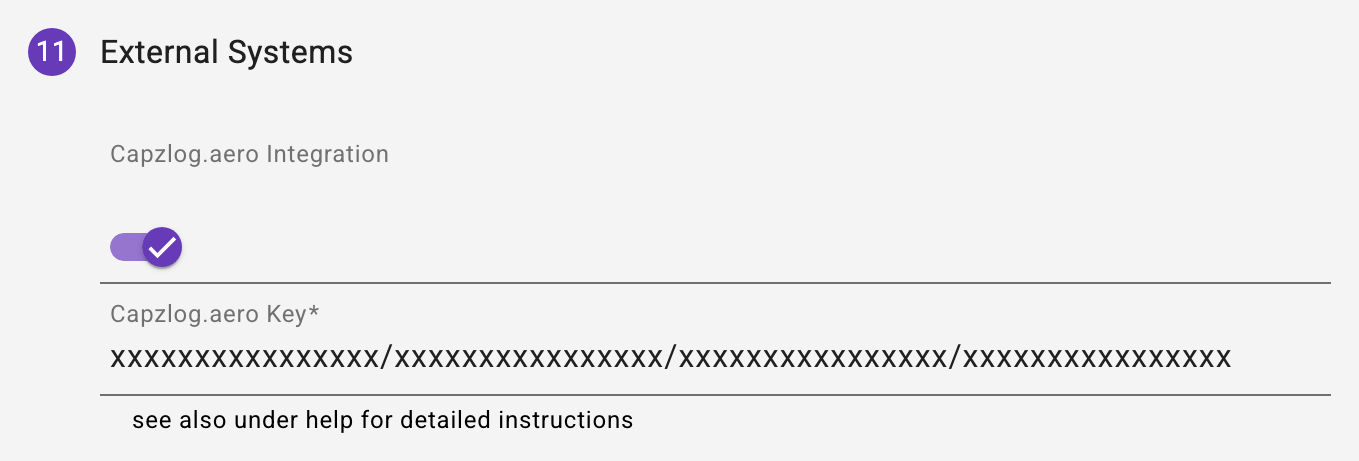
If the club has been activated by Capzlog.aero, you will receive the key for the club by e-mail. You have to enter this in the Aviation-Helper under "Clubs | External systems":
From now on, members using the electronic logbook can configure the club in their account under Auto-Import. See the next section.
Configure Auto-Import in Capzlog.aero for Members
Every member who has subscribed to the electronic logbook can now look for the club under Capzlog.aero, in their account, under "Preferences | Auto-Import". Here in the example the club Fly4Fun-Ragaz:
Then click on "Configure" at the club, the following mask appears:
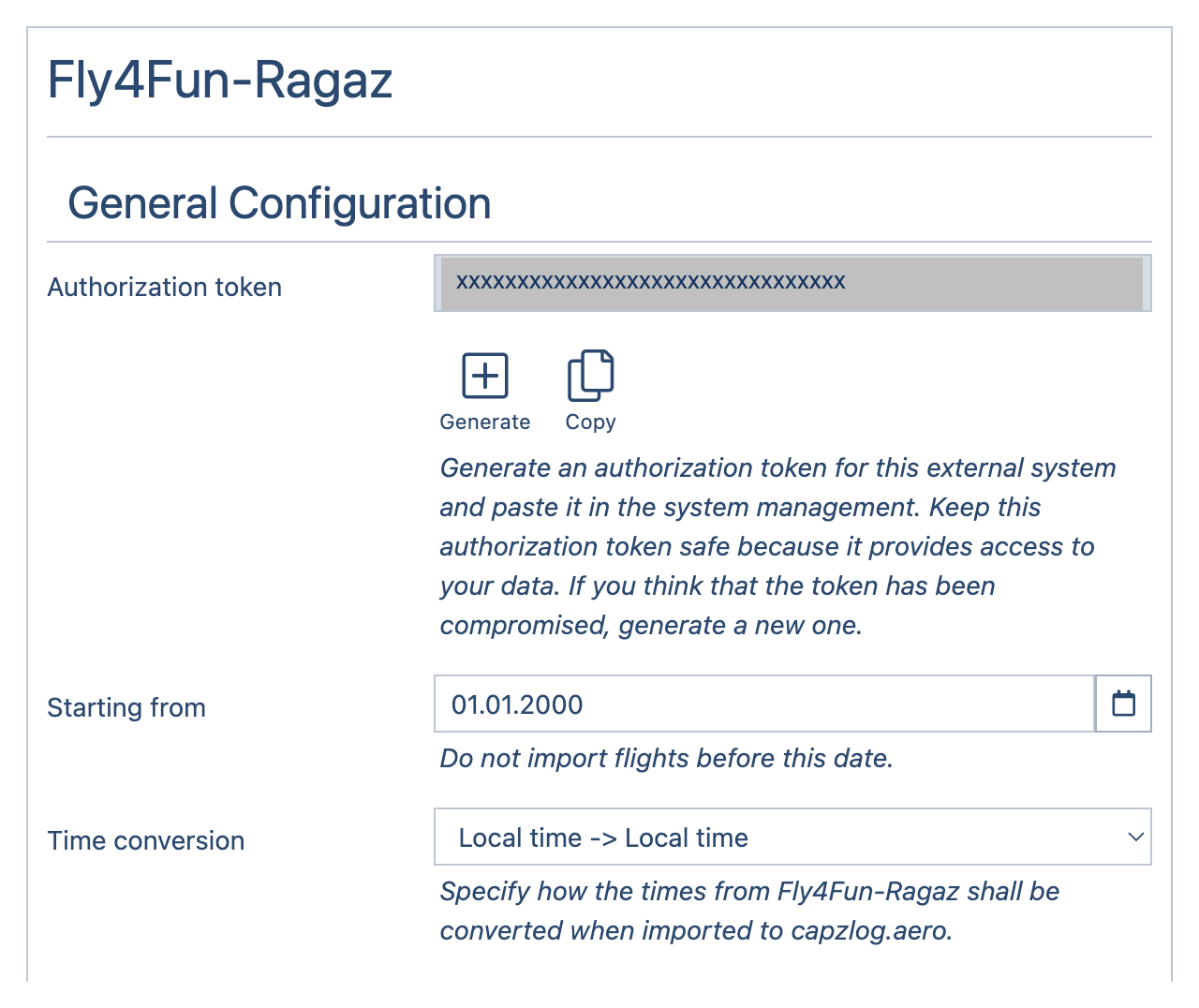
A new "authorization token" must now be generated here. By the way, such token can be regenerated at any time. After a new token has been generated, it must be copied and pasted in the Aviation-Helper in your own member settings under "Profile | My memberships | pencil at the club | External systems" (see 3.4):
From now on, when saving logbook entries, the data will be sent to Capzlog.aero. You can see whether an entry has been synchronized in the logbook overview:
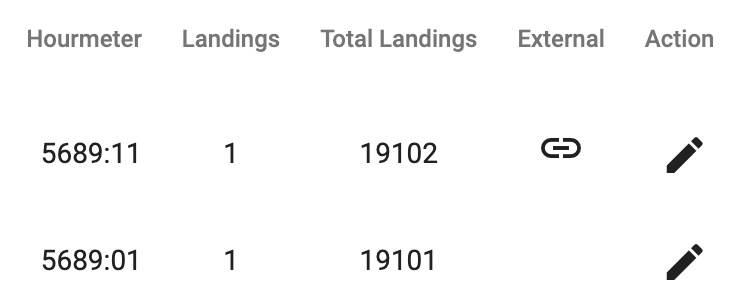
In this example, the first entry has been synchronized, which can be seen from the small "chain symbol". If you select an instructor when making an entry and he has also activated the electronic flight log, you will see 2 symbols:
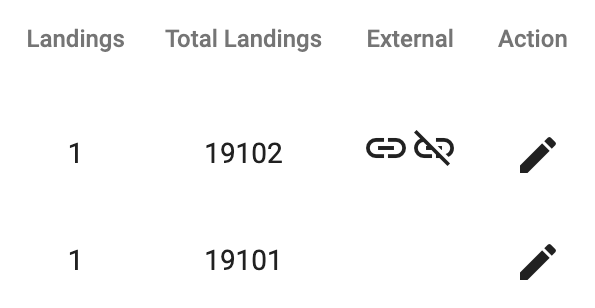
In this example, the second icon indicates a problem. See "Synchronization Problems" below.
An entry sent to Capzlog.aero MUST be confirmed there. If you click on "Cockpit" in Capzlog.aero, a message appears to confirm entries:
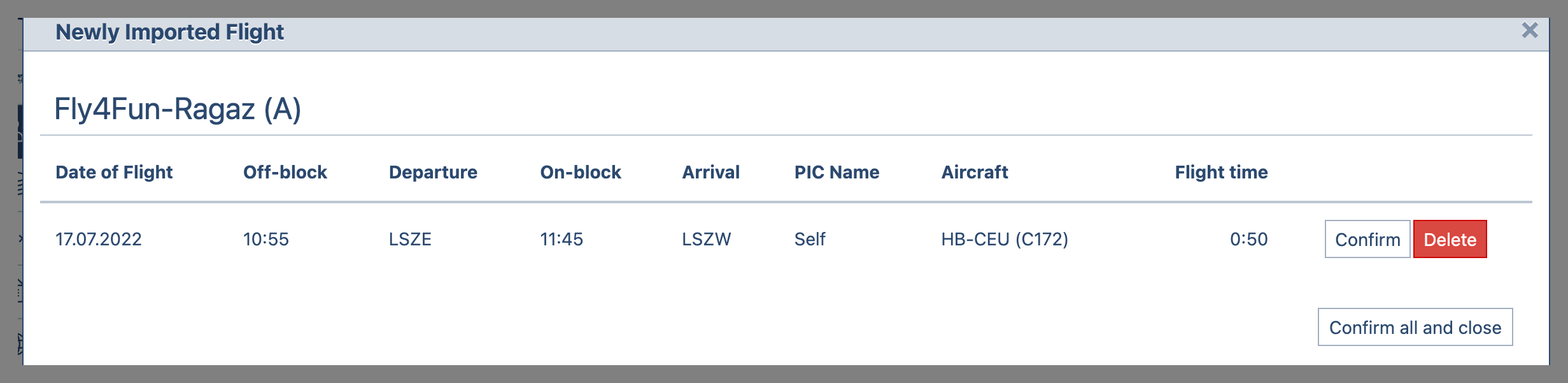
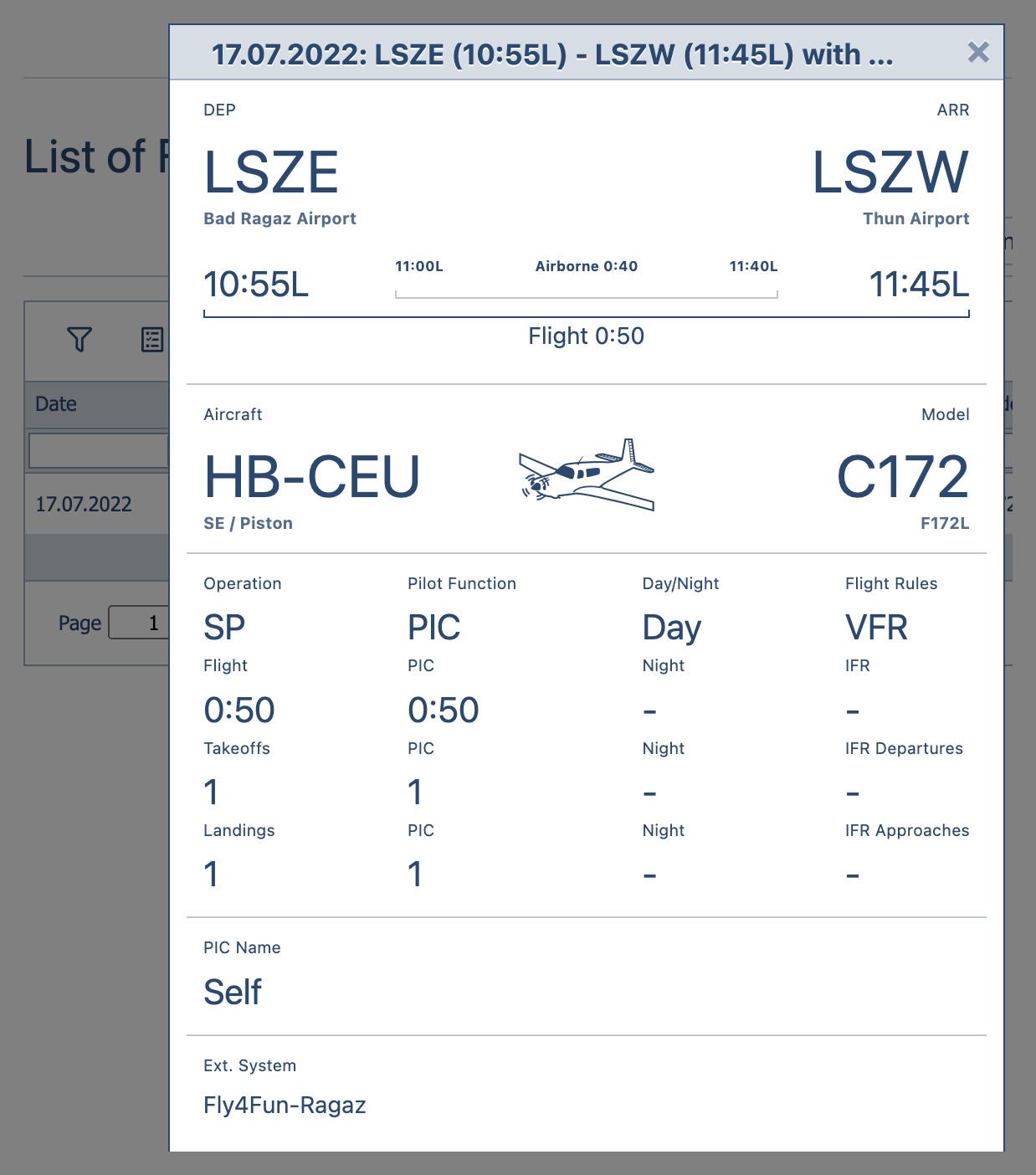
The entries are then visible under "Data | Flights". Here's an example:
Synchronization Problems
If capzlog.aero rejects a flight, the logbook shows a crossed chain icon. Hover over it (or tap it) to see the reason, for example:
- The member's key does not match the club key -> Under Clubs | External Systems you need the identifier capzlog.aero issued for the club - not the personal token of a member.
- The member's key is invalid or has expired -> Create a new token in capzlog.aero under "Preferences | Auto-Import" and enter it in the membership - members can do this themselves under Profile | My memberships.
- capzlog.aero could not be reached -> Send it again later.
- Changed or deleted by hand in capzlog.aero -> Once an entry has been changed there, it can no longer be overwritten.
Once the cause is fixed, a click on the icon sends the flight again - the club owner as well as the pilot and the instructor of the entry may do this. The club owner also finds all rejected flights under Clubs | External Systems and sends the selected ones at once. Do not select flights that were already entered in capzlog.aero by hand - otherwise they appear there twice. A flight that is sent again keeps its identifier, so capzlog.aero creates it at most once.
Resend data to Capzlog.aero
When saving the logbook entry in Aviation Helper, the data is sent again to Capzlog.aero and updated there. The exception is when the data in Capzlog.aero has been manually adjusted or deleted. Then a "crossed out chain symbol" appears in the status -> See also Synchronization Problems
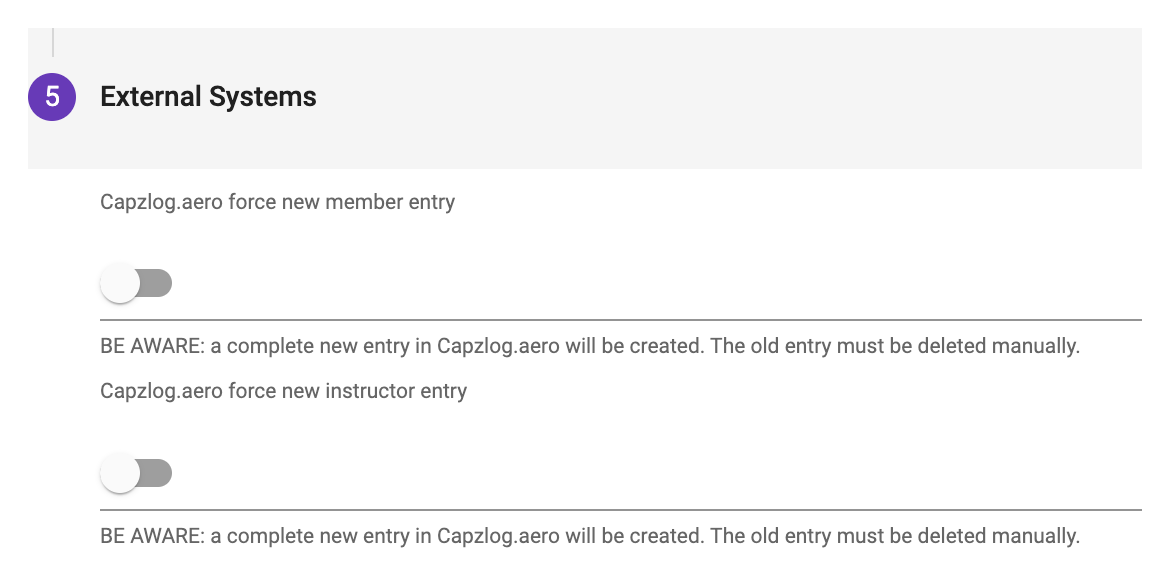
If you want to send the entry again as a completely new entry, you can set the flag at the bottom of the logbook entry under "External systems". ATTENTION: A new entry with a new ID is effectively generated in Capzlog.aero, the old entry then has to be manually deleted from Capzlog.aero!!!
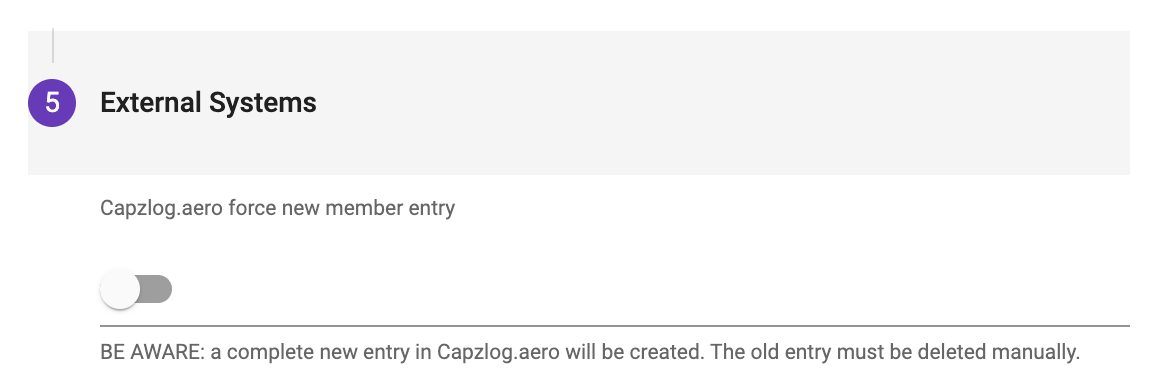
If the instructor is also using Capzlog.aero, you can even select which entry you want to send as "new":