
18. Flight Assignments
License: This chapter requires the Flight assignments module (which builds on Passenger flights). If it is not enabled for your club, neither the menu entry nor the dashboard card appears. You can see your club's modules in the club settings under "License of this club".
Requests for trial and sightseeing flights run through an assignment book instead of phone calls and chats: the club owner records the request, the permitted pilots see it on their dashboard, and whoever accepts first gets the assignment.
18.1 Who may fly what
In the member administration under Classification the owner defines who gets asked:
- Trial Flight Instructor - is offered trial flight assignments. Requires the "Instructor" classification.
- Sightseeing Flight Pilot - is offered sightseeing flight assignments. Requires the "Pilot" classification.
The two are independent: an instructor is not automatically a sightseeing pilot and vice versa. Whoever does not carry the classification gets no requests - an external instructor who only stands in stays out of it without missing anything else.
Important: the classification decides who gets asked - not who may fly. Recording a trial flight in the logbook is still open to every instructor of the club.
18.2 Recording an assignment
Menu entry Flight Assignments, then "New assignment":
- Choose the type (trial or sightseeing flight) - it determines who gets to see the assignment.
- Search the guest or create them directly - the same club contacts as for a trial flight in the logbook.
- Passengers and, if there is one, the voucher - see below.
- Price (optional) - what the guest pays for the flight; preset with the last price of this type of flight. Without a voucher the pilot sees it as "to collect", and it is required at the latest when marking as paid (see 18.9).
- Preferred dates: one or more dates, each with a time of day (all day, morning, afternoon, evening).
- Note for the pilot - everything they should know beforehand. If the chosen voucher carries a desired route or remark, it is already filled in here (route first) - you can add to it or change it.
- Instructor or Pilot (optional) - if you already know who will fly.
About the voucher: Only vouchers matching the type of flight are offered - trial flight vouchers for a trial flight assignment, sightseeing vouchers for a sightseeing one. Every entry is marked paid or unpaid; unpaid ones can be attached on purpose, because a voucher is often sold only shortly before the assignment is recorded and not paid for yet. Expired vouchers are hidden at first - the switch "Show expired vouchers" brings them in when you want to make an exception. What counts as expired is measured against your earliest preferred date, not against today: the flight happens later.
Redeemed vouchers never appear - they are used up. And the voucher on an assignment is a link, not a redemption: it is still redeemed when the flight is recorded in the logbook.
Below the form you see how many pilots the posting reaches. If it says zero, nobody carries the matching classification yet.
Assign directly instead of posting: If you already know who will do the flight, pick that person right here. The assignment is then taken from the moment you post it - nobody sees it as open, and only the chosen person is notified. The list contains exactly those qualified for this occasion, and only active members: trial flight instructors for a trial flight, sightseeing pilots for a sightseeing flight. Changing the occasion clears the selection - a different group is qualified then.
If it does not suit them after all, they hand the assignment back and it is posted normally. And someone without the classification - the external stand-in - can still be assigned afterwards through "Assign directly".
Assignment from a booking in the voucher shop: If the assignment comes via Record flight assignment from a "Book directly" booking (see 29.5), the form is already filled in - type, guest (the contact of the booking), passengers, preferred dates, price and the note with route, extras, weight and the guest's text. In addition there is the checkbox Send a QR invoice to the guest: when set (preselected if the guest wanted to pay by invoice), Aviation Helper issues a voucher for the guest over the price when posting, attaches it to the assignment and sends the QR invoice by e-mail - the voucher is then redeemed when the flight is recorded; the voucher selection is hidden for that. Without the checkbox the assignment only carries the price and the guest pays at the airfield (see 18.9). With the posting, the booking under Vouchers › Inquiries counts as done and shows Open assignment.
Assignment from a voucher: If you create the assignment with Create flight assignment in the voucher list, the form asks for the e-mail and phone of the person flying; if the person on the voucher is also the buyer, the fields are prefilled. If the contacts already contain someone with the name on the voucher, a dialog asks Same person? - only if you pick that contact explicitly do its e-mail and phone apply; otherwise a new contact without either is created. The same name is not the same person, and the e-mail "Your flight is booked" would otherwise go to a namesake. What you enter is stored with the guest's contact when saving - that is where the e-mail "Your flight is booked" goes later (see 29.7); without an e-mail no e-mail is sent, not to the buyer of the voucher either.
18.3 Taking an assignment
The permitted pilots receive a push notification and an e-mail (both can be switched off under Notifications). Their dashboard shows the "Flight Assignments" card with type, guest, preferred dates and note.
Before taking it the guest appears with a shortened surname and without contact details - enough to decide. After taking it the pilot sees phone number and e-mail and can arrange the date directly.
One tap on "Take it" is enough. If two pilots accept at the same time, exactly one gets the assignment; the other no longer sees it. Whoever posted the assignment gets a message about who took it - and only they: if a single owner looks after an assignment, the others should not be notified as well.
Whoever cannot make it after all hands the assignment back with "Hand back" and a reason - it is then offered again, and whoever posted it is informed.
18.4 Flown and overview
Once the flight has taken place, the pilot records it in the logbook - the assignment then closes by itself (see 18.7), disappears from all working lists and only remains behind the "Closed" filter.
In the assignment book the owner sees all assignments with filters by status. Open assignments show "open for X day(s)" - that is where to follow up. If nobody responds within three days, the app reminds the pilots automatically, exactly once.
The owner can also assign an assignment directly (button with the person icon) - deliberately even to someone without the classification, so a stand-in stays available in an emergency. This is recorded on the assignment. Cancelling is possible at any time with a reason; a pilot who already took it is notified.
The button with the history icon unfolds right below the assignment what happened to it - taken, handed back, changed, flown, cancelled.
18.5 Changing an assignment
As long as an assignment is open or taken, the pencil icon lets you change it - the most common case is a voucher forgotten when it was recorded. Guest, number of passengers, preferred dates, note and voucher can all be changed.
Two things stay locked on purpose:
- The assigned pilot is not touched by a change. They keep the assignment; assigning and handing back still go through their own buttons.
- The type, once somebody has taken the assignment: trial and sightseeing flights depend on different classifications, and the assigned pilot may well not carry the other one. To change the type, have the assignment handed back, or cancel it and post it again.
A completed or cancelled assignment can no longer be changed. If you do need to, reopen it first with "Reopen". There is one exception: on a completed assignment without a voucher, the gift icon lets you attach a voucher afterwards - for the forgotten or late voucher. If the assignment was closed by a logbook entry, the voucher is redeemed on that flight at the same time (it must be paid, still open and valid on the flight date - the same rules as in the logbook); if it was "marked as flown" without a logbook entry, it is only linked. The assignment then counts as receipted (see 18.9).
Every change shows up in the assignment's history. The assigned pilot gets no separate notification for it - the most common case is the voucher added afterwards, and that concerns the billing, not the flight. So if dates or the note change, tell them yourself.
18.6 Annual sightseeing pilot check
Sightseeing pilots also need an annual check with an instructor. It works like the club check-flight and the proficiency check: an instructor of the club marks the flight in the logbook as a sightseeing pilot check, and the date is written to the pilot's record. The button only appears if the pilot of the entry carries the "Sightseeing Flight Pilot" permission.
The owner sets the deadline in the club settings under "Security rules" (Max. days since last sightseeing pilot check). If the field stays empty, your club does not require a check - that is the initial state.
Important when switching it on: on the day you set a deadline nobody has a date yet - and without a date no sightseeing pilot is offered assignments any more. So first enter each sightseeing pilot's last check date in the member administration (field Last sightseeing pilot check, visible to the owner only), and set the deadline afterwards.
Once the check expires, the pilot disappears from the recipients of new sightseeing assignments and can no longer take one - this is enforced on the server, not merely hidden. They see the warning 30 days beforehand and permanently afterwards in their "Flight Assignments" card.
There is deliberately no counterpart for trial flight instructors: an instructor has their own recurrent training.
18.7 Closing an assignment from the logbook
The most convenient way to complete an assignment is the flight itself: when recording the logbook entry, the field Fulfils flight assignment appears. It lists the assignments the pilot of this entry has taken - on saving, the chosen assignment closes automatically and disappears from the working lists.
The field only appears if the club has the module and the pilot has taken any assignments at all. If you deselect the assignment while editing, it goes back to "taken" - that way an accidental link can be corrected.
For a trial flight the field lists only the assignments of the chosen trial student as soon as there are any - and if the pilot has exactly one, it is pre-filled together with its voucher (see 15.1). If you pick an assignment by hand, its voucher is proposed as well, as long as the voucher field is still empty.
The button on the card is therefore called "Record flight" - it takes you straight to the logbook. An assignment can still be marked as flown without a logbook entry, but only in the owner's assignment book: that is where tidying up exceptions belongs, not in the pilot's daily routine.
Two further shortcuts help in daily use:
- Find a slot on a taken assignment leads into "I want to fly" - with the guest's preferred dates as the search range. If the assignment comes from the voucher shop, it searches for the length of the flight plus 30 minutes for preparation and taxiing (45 flight minutes = 1 h 15 min, as its own button under the duration), otherwise one hour; and it only suggests aircraft with enough seats for the pilot and the passengers. You immediately see which aircraft are free on exactly those dates, and the reservation is linked to the assignment when you save it (see 18.8).
- Create flight assignment in the voucher list (icon next to edit/delete) creates an assignment from an open trial or sightseeing voucher: type, guest and voucher are pre-filled, you only add the preferred dates. The guest is taken from the name on the voucher - the person it was given to; who bought it is added as a note for the pilot, together with the desired route and remark of the voucher. Deliberately a button and not an automatism - a voucher is often bought months before the first date request.
- Sell a voucher on every running assignment without a voucher (ticket icon) goes the other way round: the voucher form opens pre-filled with the kind of flight, the guest as the person on the voucher and their contact as invoice receiver; after saving, the voucher is attached to the assignment and the page returns to the assignment book (see Vouchers).

18.8 Scheduling the flight
A taken assignment gets its date through an ordinary reservation. The quickest way is Find a slot on the dashboard card: the search shows the assignment above the criteria, and in the reservation form the field Flight assignment is already selected. You can also reserve by hand and pick the assignment in that field yourself.
The field only appears when there is something to link: as a pilot you see the assignments you have taken; as an owner you see all taken assignments of your club, and the pilot of the reservation switches to the person who took the chosen assignment. The server checks the same rule on saving - a reservation can only be linked to a taken assignment whose pilot flies it.
Once a date is set, the dashboard card shows it in green and the main button becomes Open reservation; in the assignment book it appears in the Dates column above the preferred dates. In the timeline (see 2.4) the reservation carries the tag flight assignment with type and guest - the assignment's own preferred-date entry disappears, because it has been answered. Whoever posted the assignment gets a notification when a date is set, moved or removed.
If the reservation is deleted, the link is released, the assignment stays taken and its preferred date returns to the timeline. When handing back or cancelling an assignment that has a date, the dialog asks whether to delete the reservation too; the checkbox is ticked so that the aircraft does not stay booked for a flight nobody flies any more. Every change to the date appears in the assignment's history.
Inform the guest by e-mail: For a club with the voucher shop, the checkbox Inform the guest by e-mail appears below the field Flight assignment, preselected. Saving a confirmed reservation sends the guest the e-mail "Your flight is booked" with date, meeting point, contact and calendar entry; if the reservation is still requested, as soon as it is confirmed. When moving, unlinking or deleting, and when handing back or cancelling, the same checkbox decides whether the guest gets "New date" or "Cancelled". If the guest has no e-mail, a note replaces the checkbox; the e-mail never goes to the buyer of the voucher. More in 29.7.
18.9 Direct payment: price, paid and payment method
A trial or sightseeing flight without a voucher is usually paid directly - cash, TWINT or card at the airfield, often to the pilot. So that the accounting sees it, the flight assignment carries the same payment as a voucher: price, paid, payment method, payment date and a note. The voucher remains the receipt for the advance sale, the assignment is the receipt for the direct sale.
In the assignment book the line below the guest says who carries the receipt: the voucher number, or for the assignment itself "360.00 CHF · unpaid" and, once paid, "360.00 CHF · TWINT · 02.10.2026 · note". A flown assignment without a payment is shown in red as "flown · no payment recorded" - exactly the cases nobody saw before. The filter "Unpaid" lists every assignment without a receipt, whatever its state.
Marking as paid: The checkbox in the actions column opens the dialog you know from the voucher list, with the amount and currency on top (preset with the price of the assignment), the payment method (bank, TWINT, card, cash, other), the payment date (today, may be backdated, never in the future) and a note - e.g. "via pilot to the treasurer". Nothing is saved without a payment method and an amount. A filled checkbox resets the payment after a confirmation: payment method and date are removed, the price stays. While an assignment is paid its price cannot be changed - mark it as unpaid first.
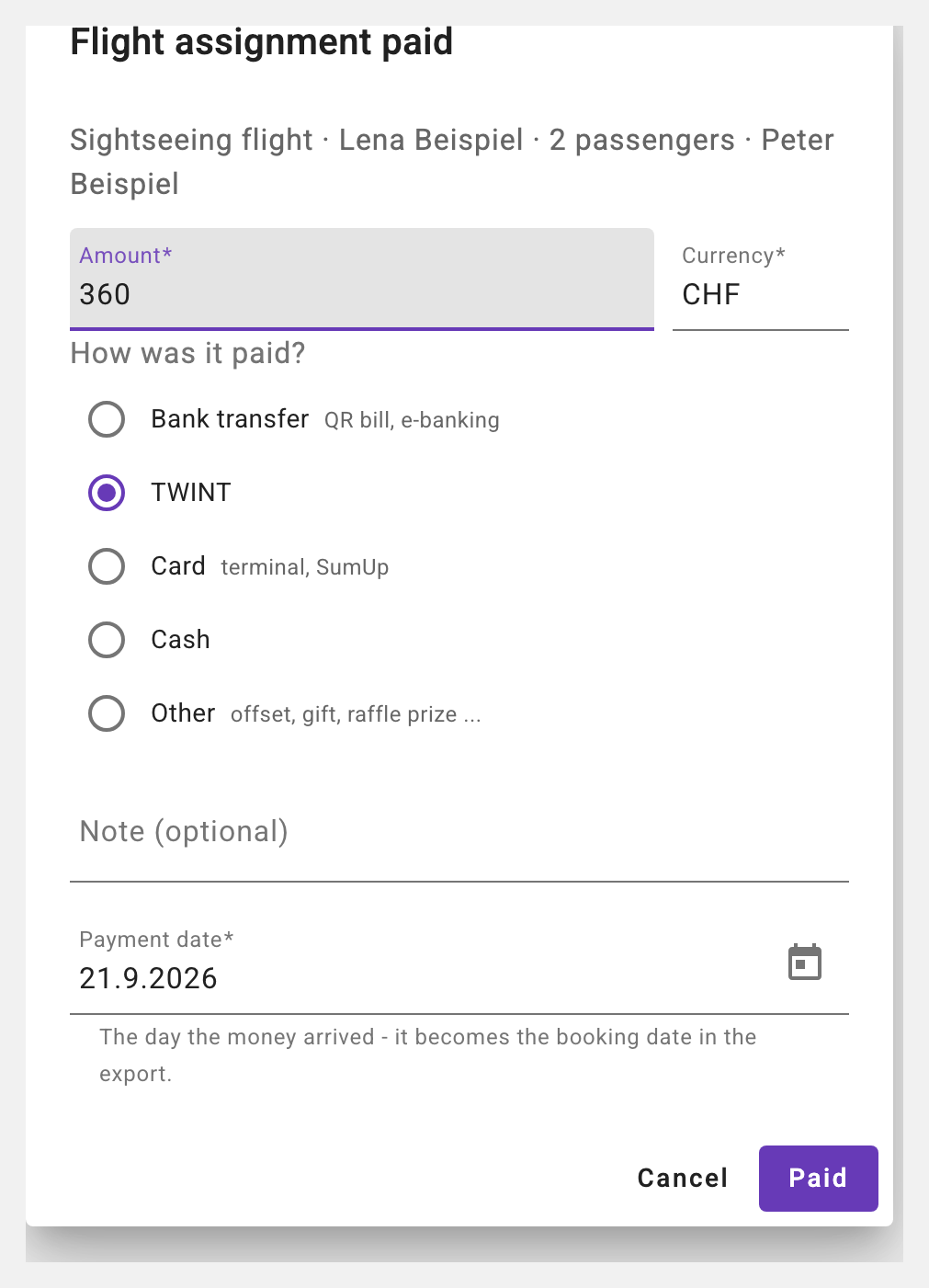
Who may: The assigned pilot may set "paid" - they took the money and know how. Changing or resetting a recorded payment is reserved to the owner. Every payment appears with amount and method in the history of the assignment.
The logbook asks: When a logbook entry closes an assignment that has neither a voucher nor a payment (see 18.7), the same dialog appears right after saving - "How did the guest pay?". The entry is already saved by then; Cancel has no consequences, the assignment stays under "Unpaid" in the assignment book. The same applies to "Mark as flown" in the assignment book.
On the dashboard card the pilot sees "to collect: 360.00 CHF" for an assignment without a voucher - already in the posting, so they know what to take; once paid it says "Paid".
Surcharge: If a voucher is attached to the assignment, the field is called Surcharge - for the case of three passengers flying on a voucher for one person. A voucher assignment without a surcharge does not count as unpaid; the voucher carries the payment. The actions column therefore shows no paid checkbox but the icon Record a surcharge (card with plus).
Where direct payments appear in the accounting (cash tile, export, report) is described in 14.