11. Training Record (Syllabus)
License: This chapter requires the Training module. If it is not enabled for your club, the cards and steps described here do not appear. You can see your club's modules in the club settings under "License of this club".
The paper syllabus lives in the app: every lesson carries structured goals, an assessment by instructor and student, and checks per training level. Everything is tied to the assigned syllabus revision - if a newer revision appears later, the student keeps working on the assigned one, including all recorded assessments.
11.1 Syllabus progress on the dashboard
Instructors and club owners see the "Syllabus Progress" card on the dashboard with a member selection; students see their own progress under "My Syllabus Progress".
At the top sits the history: a curve with the lessons per month since the dossier was assigned, next to it "X of Y lessons", a trend arrow and "last lesson N weeks ago". The arrow compares the last three months with the three before; while a dossier is younger than six months it reads "new". For a training spanning several years, thin vertical lines mark the turn of the year. On the right are the targets of the syllabus - flight hours, solo hours and landings. Whatever the syllabus does not require is not shown: if a level asks for no solo time, its solo bar is missing.
The syllabus title shows how many assessments are still open - open means: a flight is assigned to the lesson, but no status has been set yet. This doubles as the work list for transferring past lessons from the paper syllabus.
If a member has several courses assigned (for example the basic training and the familiarisation on another type), each course is a collapsible section: the title is the switch, and when collapsed the title, the pills and the «…» menu stay visible. Which courses are open is remembered by the browser, as with the training levels. With a single course there is no switch - the section is open as before.
The training levels sit below, behind "Show levels"; whether they are open is remembered by the browser for next time. Every collapsed level carries a strip of dots - one dot per lesson, in its colour:
- grey - open, no flight assigned yet
- blue - flown
- orange - assessment open
- green - performed
- red - not performed
A green dot with a red ring means: lesson performed, but at least one goal not achieved; with an amber ring: a goal only partially achieved. The core always shows the state of the lesson, the ring the worst goal.
At the end of the strip the checks of that level (see 11.3) appear as a counter per colour - a green square with the number of fulfilled checks, an orange one with the open ones, a red one with those not fulfilled. Hovering shows the names. There are at most three counters, even if a level carries ten checks; the individual checks are listed in the expanded level.
Expanded, a level shows its targets, its checks and below them one row per lesson: the state symbol in the colour of the dot from the strip, the name and the flight time. Above the list a legend names the states that occur in this level - so no tooltip is needed, which a touch device does not have anyway. If a goal of a performed lesson was not achieved or only partially, a small marker with the count follows the name (red: not achieved, orange: partially) - otherwise such a lesson would look like one without any objection. Clicking the row opens the lesson with its flights, the assessment and the button to record one; the info button there shows content, goals and target times (briefing, flight, debriefing, landings).
11.2 Assessments
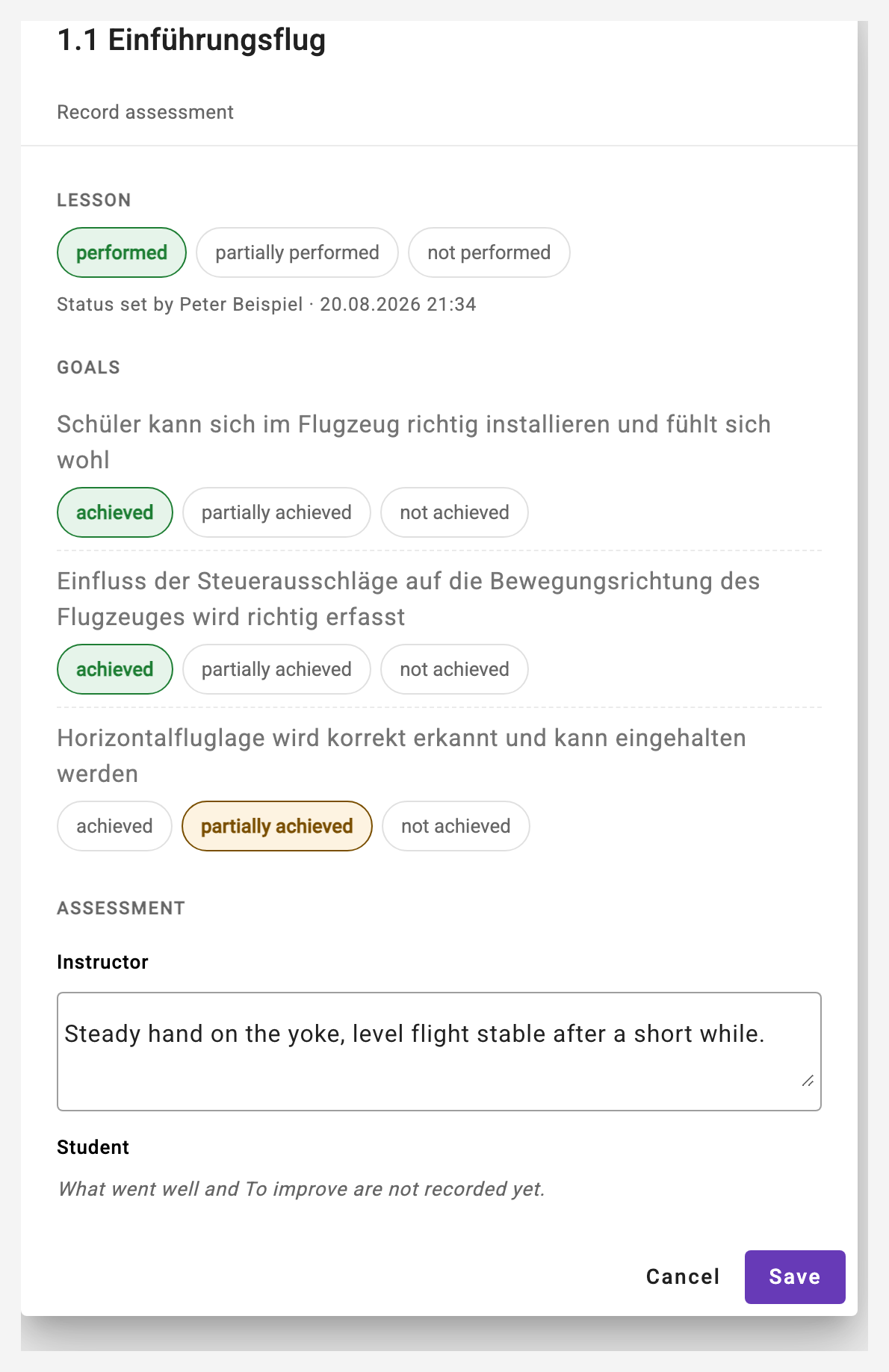
The assessment is recorded during the debriefing - via the pen button next to the lesson. Who may fill in what is strictly defined and enforced by the server:
- Lesson (performed / partially / not performed) and the goals (achieved / partially / not achieved): the instructor only. Whoever sets the status is recorded with name and date.
- What went well and To improve: the student only.
- Instructor remarks: the instructor only.
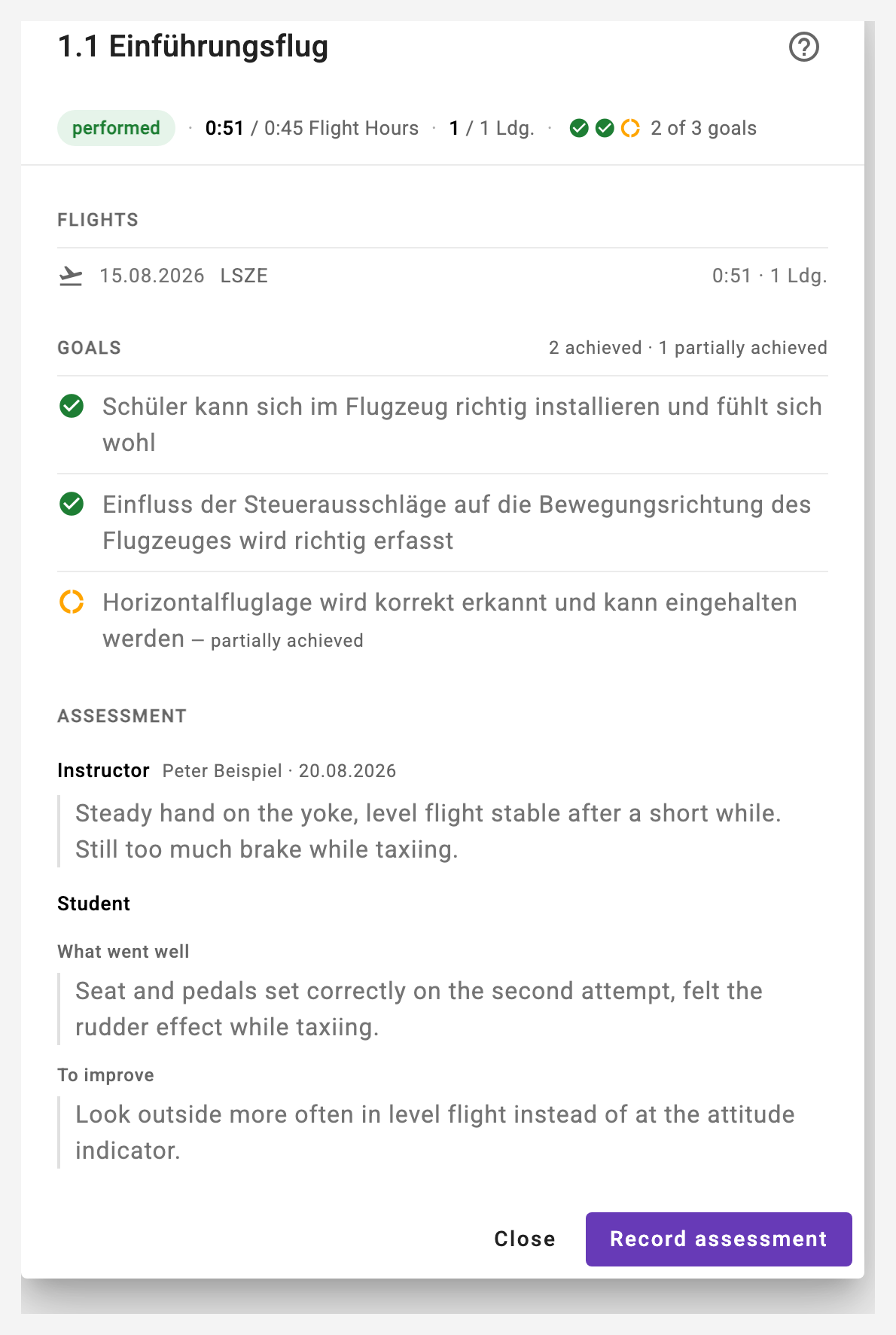
The recorded assessment then sits in the lesson dialog - for student and instructor:
Individual training levels can treat assessments as optional (setting in the syllabus administration) - the "open" reminder is then skipped, recording is still possible.
11.3 Checks per training level
Every level can carry checks, for example "theory subjects completed internally" or "radio phraseology in the circuit mastered". The kinds:
- Manual checks are confirmed by the instructor with a button and an optional comment - who confirmed when stays visible.
- Flight with another instructor is evaluated automatically from the logbook entries: the check is fulfilled as soon as at least two different instructors appear among the flights of the level. The instructors involved are shown.
- Checks of the type "Pilot" exist in a self-directed syllabus: the pilot confirms them (see 11.15).

11.4 Excel and PDF export
Next to the syllabus title sits the "…" menu (three dots). It gathers everything that concerns the record as a whole: the exports, sending it to the student, the archive and the completion (see 11.9). The reload button of the card stays next to it.
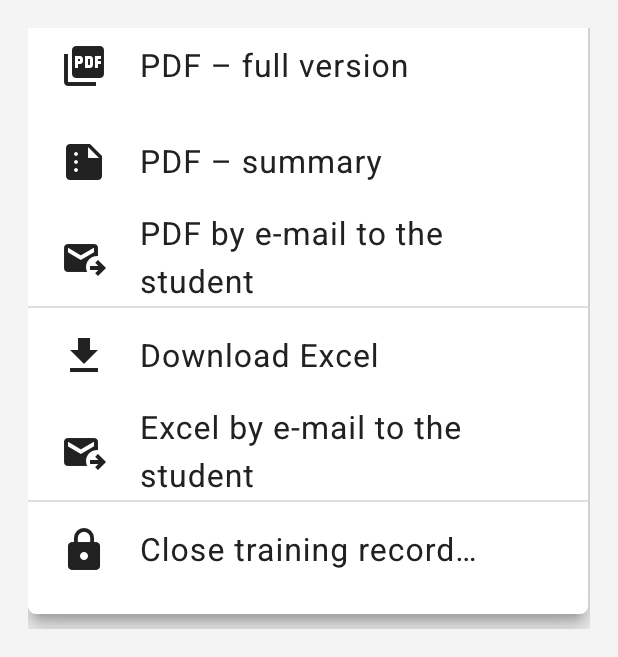
- PDF – full version and PDF – short version: the training record as a PDF in the style of the MFVS syllabus, opened in the app's PDF preview, from where it can be downloaded. The full version contains the cover sheet, the record and overview (form 01) with key figures and history, the course requirements check sheet (with cross-country flight and archive list), the overview of the training levels, one level sheet per level and one lesson sheet per flown lesson with flights, debriefing and the lesson's flight path images and photos, the summary of flight hours (section 5.2, landscape), the overview of the solo flight authorizations with the forms 02 as annex A, and the closing and document record (document no., version). The short version is the same without level and lesson sheets and without the annex - around ten pages, without flight path images or photos; it is the version for the FOCA. Lessons without a flight and without photos get no sheet; flights in a simulator without FSTD certification are listed with "not counted". Flight path and photos follow the debriefing on the lesson sheet (see 11.13); if an image no longer fits on the page, it moves whole to the next page. If a record has very many images, the app prints them somewhat more compressed so that the PDF can be archived and e-mailed; should the archive version (see 11.9) still be too large, it leaves out the photos first and, in the extreme case, all images.
- PDF by e-mail to the student: sends the record as a PDF to the student - only instructors and club owners see this entry. If the PDF is larger than 14 MB, the e-mail goes out without the attachment and tells the student where to download the record in the app; the app reports this after sending. The same limit applies to the e-mail when closing or discontinuing (see 11.9) - it then points to "Archived records…"; the app shows no separate notice there.
- Download Excel and Excel by e-mail to the student: the Excel export as before. The overview sheet follows the familiar paper template (target/actual per dual and solo, total rows per level), extended with the status of every lesson and the checks; the assessments with all texts are on a second sheet, the check sheet on a third (see 11.7). Here too, the e-mail is for instructors and club owners only.
A download comes in the language of the person requesting it (billing language of their own membership); the e-mail to the student and the archive (see 11.9) are produced in the student's language. Students download their own record themselves, as PDF or Excel - the e-mail entries are visible to instructors and club owners only.
11.5 Templates and the club layer
A syllabus is either a platform template (maintained centrally, for example the PPL(A) course following the association's programme) or an own syllabus of your club. Templates are not copied but granted: the operator enables them for your club in the licence area - only schools entitled to use a template receive it (copyright of the association). When the template is updated later, the update reaches all clubs at once; nobody has to redo anything.
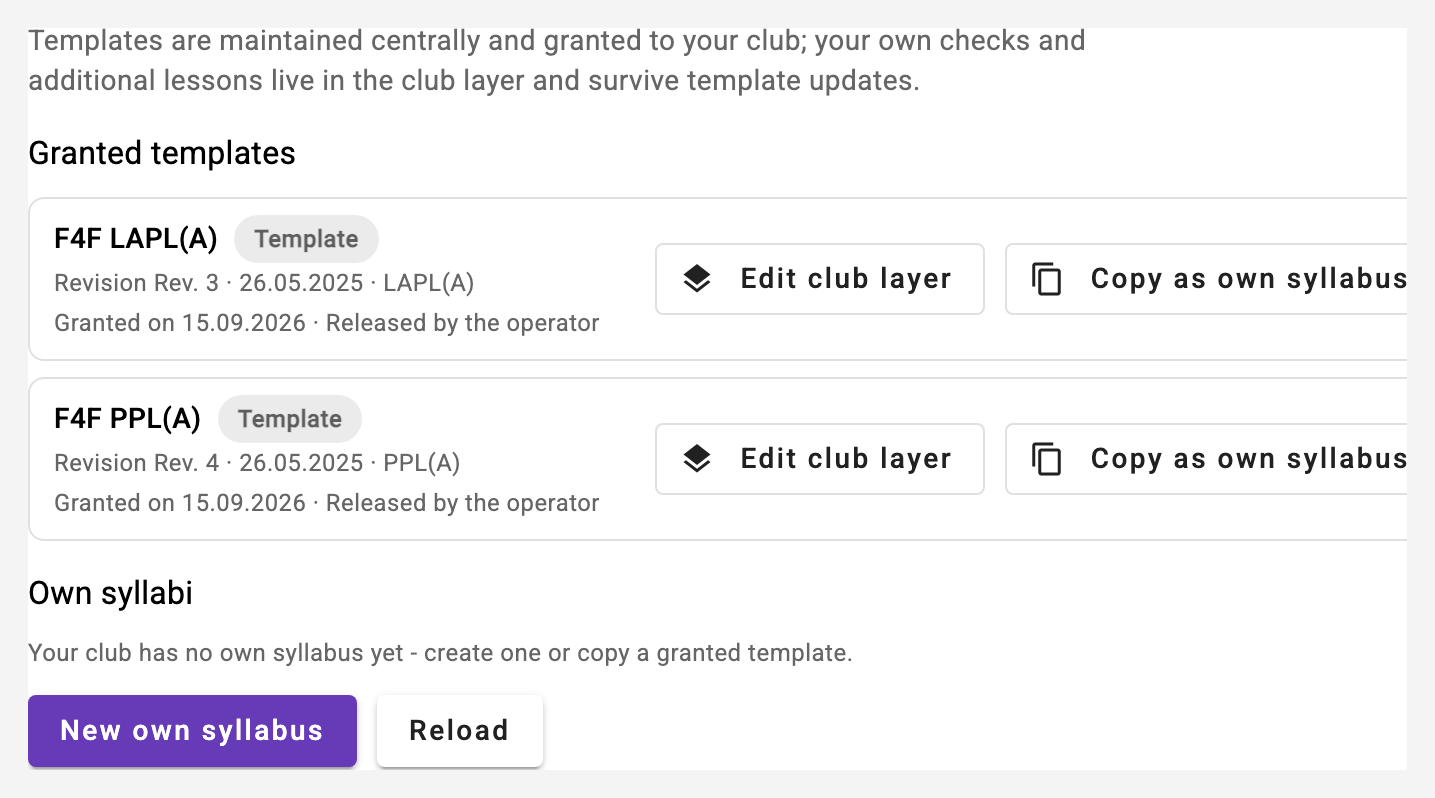
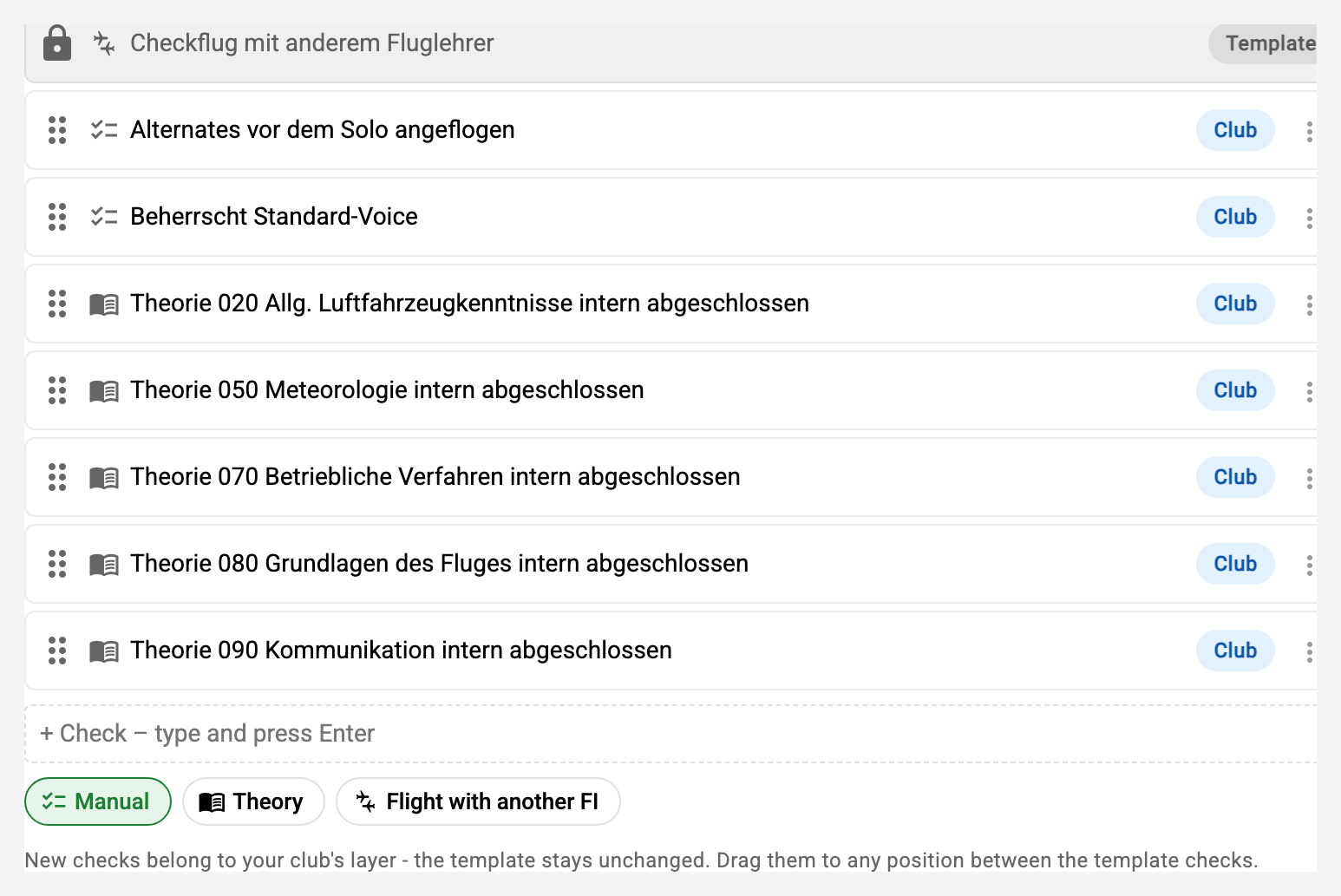
Your own additions live in the club layer on the template: own checks per level, additional lessons and a note of the club for each level. They survive every update of the template and are visible only to your students. The club owner maintains them in the club settings, step "Training": "Edit club layer" opens the template in the same editor, its levels, lessons and checks are read-only there (lock, badge "Template"), your own rows carry the badge "Club", can be edited and dragged to any position between the template rows. A club check remembers which template check it follows: when the operator reorders the template or a new revision appears, it moves along; if that check disappears, it slides to the end of the level.
If you want to shape the template completely yourself, copy it with "Copy as own syllabus": the copy belongs to the club, the club layer becomes ordinary rows, and the copy no longer receives template updates. An own syllabus can also be created from scratch ("New own syllabus"). Only own syllabi and granted templates can be assigned.
An own syllabus can also be copied ("Copy" in its row): the copy is a new own syllabus with the same levels, lessons and checks, revision 1, without grants - it opens straight in the editor, where it gets its own title. That is how the familiarisation on one aircraft type becomes the familiarisation on the next. Export saves an own syllabus as a definition file (JSON) - for your own records, for another club or to move it from the test system to production; Import creates a new own syllabus from such a file. The file is checked before anything is created: an unknown field or a level without a title is refused with line and reason, and nothing half-finished remains.
PDF opens a syllabus without an assignment as a PDF in the preview of the app - in the look of the training record, but blank: to show it, send it or keep the record by hand. There are two scopes. The blank copy contains all forms of the training record (training record form, check sheet, level and lesson sheets, summary of the flight hours, closing) with empty boxes and writing lines; every lesson has a sheet with topic, preparation, TEM topic and learning objectives. The programme shows only the levels and lessons, without forms and continuously - meant for people who are interested in the course. Both carry the mark "not a training record", have no document number and are not archived; the record itself remains the training record (see 11.4). The button is available for own syllabi and for granted templates, there with the club layer of the club. Instructors find the same two entries in the dossier menu of an assigned syllabus ("Syllabus – blank copy", "Syllabus – programme").
Editing a syllabus
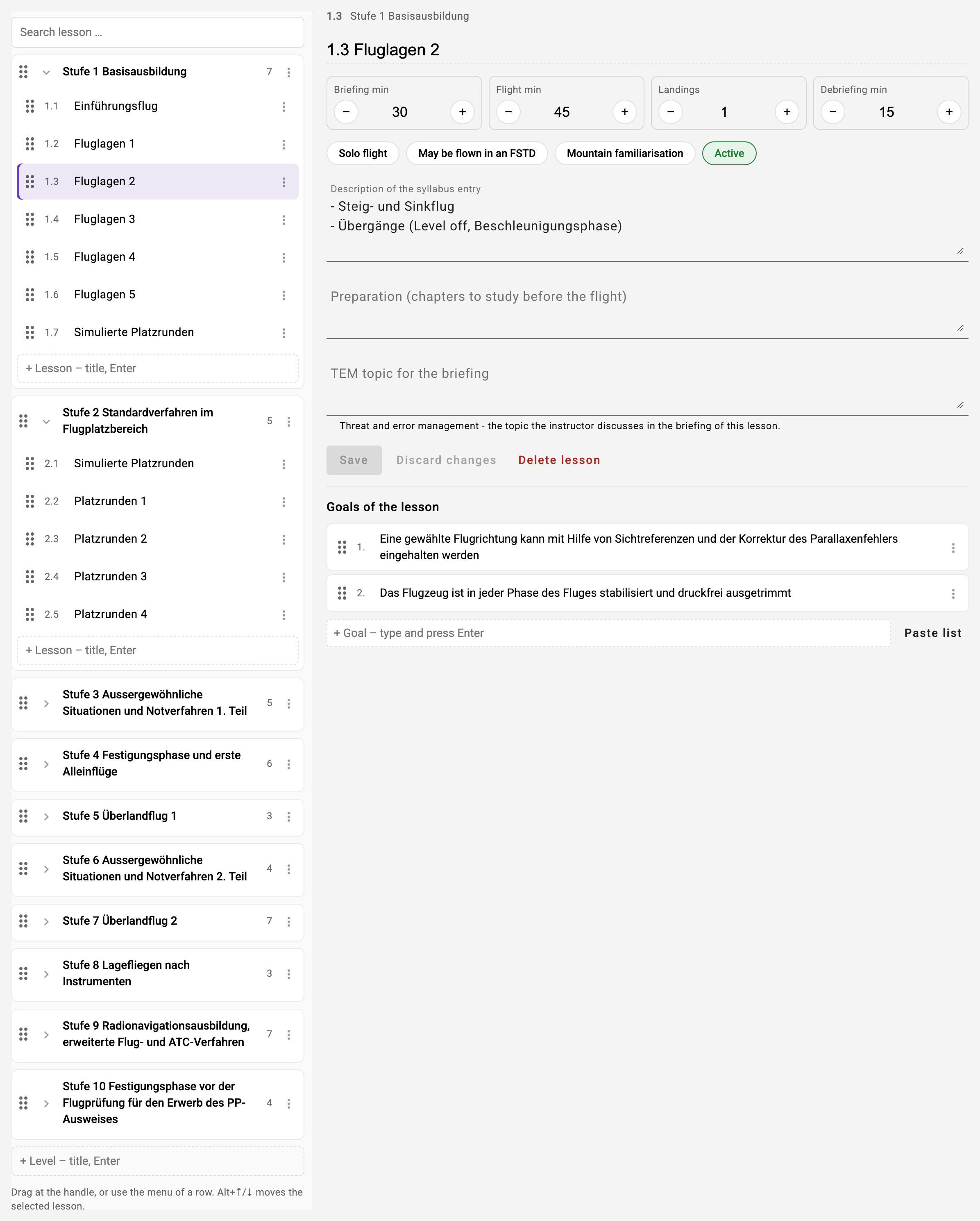
On the left the editor shows the outline of the whole course: the levels with their lessons, each with a short code from its position (3.2 = level 3, lesson 2). A click on a level or lesson opens its details on the right for direct editing: the title in the header, briefing, flight, landings and debriefing as tiles with +/−, solo, FSTD, mountain familiarisation and active as switches, below them the texts and the goals. "Save" stores the changes; switching away with unsaved changes asks first.
- Moving: levels, lessons, goals and checks can be dragged at their handle, lessons also into another level. Every move is saved at once and can be taken back with "Undo". Without dragging, use the menu of a row (Move up, Move down, Move to level) or Alt+↑/↓.
- Ongoing training: the order may change at any time - the students' progress belongs to the lesson, not to its position. Moving a lesson into another level is only possible as long as nobody has been assessed in this syllabus; after that it belongs in a new revision.
- Number in the title: if a title carries its own number ("1.1 Introductory flight") and it no longer matches the position after a move, the outline shows a warning sign. The title is not changed automatically.
- Quick entry: "+ Lesson" at the end of each level and "+ Level" at the end of the outline - type the title, press Enter, go on with the next. "Paste list" takes goals from a list, one line per goal; numbering such as "1." or "a)" is removed and goals that already exist are skipped.
- On a phone the outline is the first level and the details the second ("Outline" leads back). The handles appear only after "Sort", so swiping still scrolls.
11.6 Revisions
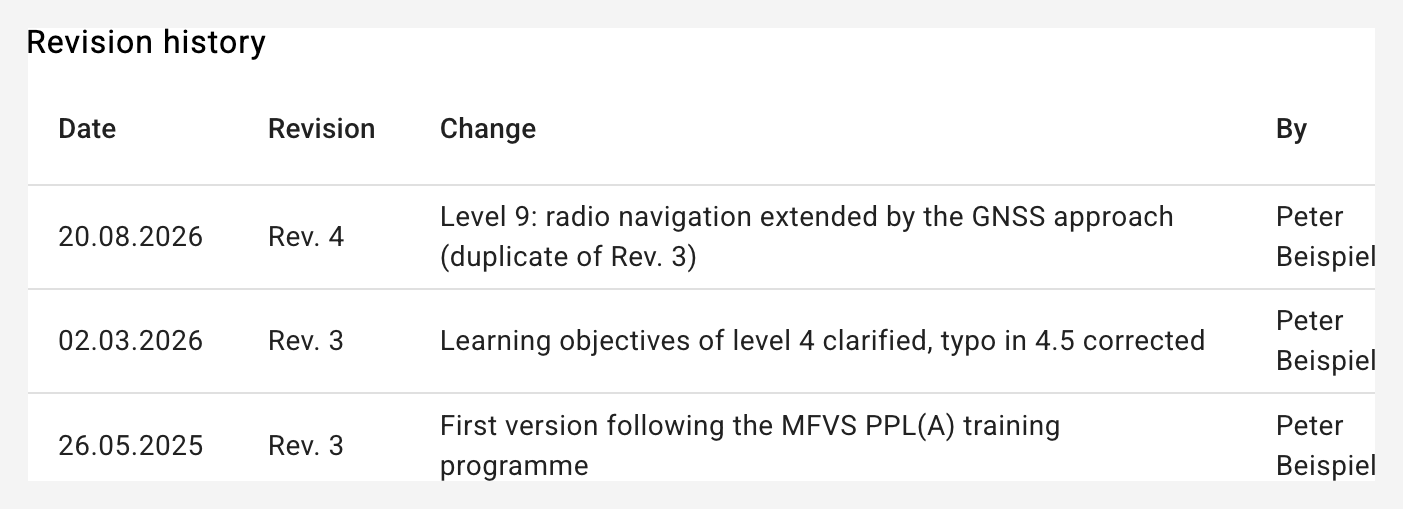
Editorial changes (typos, descriptions, goals) are made in place; a note or a new revision name creates an entry in the revision history of the syllabus. Structural changes (levels or lessons added or removed) go through "Duplicate": this creates a new revision chained to the old one, including the club layer of all clubs and the grants. Running records stay on the revision they started with - it is shown in the record as "started with Rev. X".
11.7 Course requirements check sheet
Every syllabus carries a course type (PPL(A), LAPL(A), familiarisation / difference training, ...) and with it the course requirements of that course: total flight time, dual instruction, solo, solo cross-country, the creditable FSTD time and the solo cross-country flight with a minimum distance in nautical miles and full-stop landings at aerodromes different from the aerodrome of departure. Every row says itself whether it is a minimum or a maximum ("(min.)" or "(max.)"); the two rows of the solo cross-country flight belong together - the regulation requires the distance AND the landings on the same flight (PPL(A): 150 NM with landings at two other aerodromes, LAPL(A): 80 NM with one). For PPL(A) and LAPL(A) they are pre-filled and can be edited in the syllabus administration (step "Course Requirements"). A familiarisation / difference training (the club-internal familiarisation of a licensed pilot on an aircraft type) has no course requirements: the control sheet and "ready for the skill test" are omitted, and the record speaks of the familiarisation instead of a training course with an examination. An experience building (11.15) can carry course requirements, such as 100 hours of total flight time; once all are met, it says "Target reached" instead of "Ready for the skill test". As always, only flights assigned to a task of this syllabus count.
In the record they appear as a check sheet: for each requirement the actual value from the linked flights against the target, ticked as soon as it is met. For the cross-country flight only a day counts on which distance and landings are achieved together - it is named below both rows with date, route and distance in NM. When all requirements are met, the record carries the badge "Ready for the skill test". The check sheet is also the third sheet of the Excel export.
Below the requirements are the documents to be archived with the record; form 01 ticks them off with "All documents to be archived according to the check sheet are present". The list follows the course type (PPL/LAPL with the FOCA forms, familiarisation, renewal SEP, experience building, otherwise a general list for a skill test). If it does not fit - for example for the pinch hitter, a course for companions without a licence and without a test -, the syllabus carries its own: the field "Documents to be archived" in the base data, one document per line. The own list applies to the training record and the blank copy (see 11.5) and travels along with copy, export and import; empty, the list of the course type applies again.
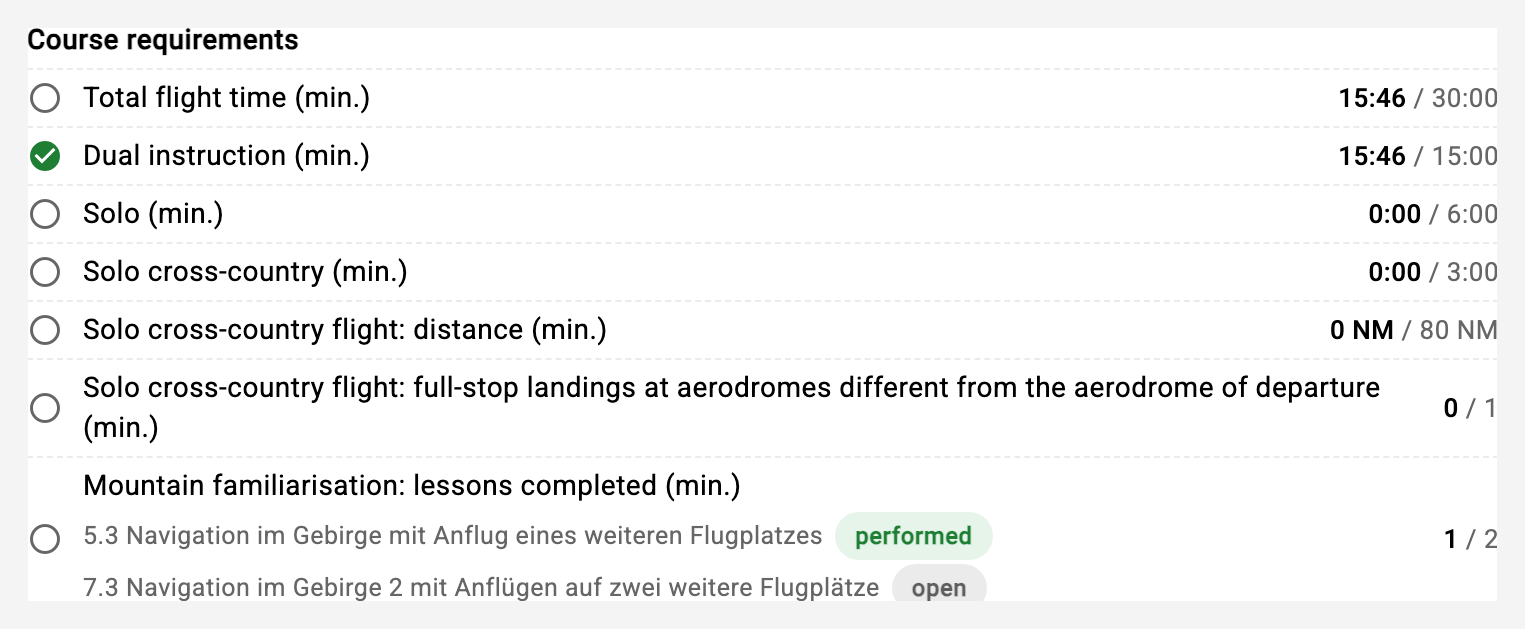
Simulator: hours count only in a certified FSTD (setting on the simulator in the aircraft administration: "Certified FSTD"), and even there only up to the course's cap (PPL(A): 5 hours) and only for lessons marked "May be flown in an FSTD". Lessons cannot be linked to flights on a non-certified simulator; older links stay visible but are marked "not counted" and are not credited.
Mountain familiarisation: the requirement "Mountain familiarisation: lessons completed (min.)" does not depend on flight hours but on lessons: in the syllabus editor a lesson carries the switch "Mountain familiarisation" (flights 5.3 and 7.3 in the association's PPL(A) and LAPL(A)), and the requirement is met as soon as as many marked lessons have been assessed as "performed" by the instructor as the target demands - flown alone is not enough, the assessment is the sign-off. The check sheet names every marked lesson with its state below the row, the lesson dialog shows the badge "Mountain familiarisation". The course requirements editor states how many lessons carry the mark; a target above that is flagged as never achievable. The mark travels with every copy, revision and definition file.
11.8 Solo flight authorization (form 02)
Before a solo flight the instructor issues the solo flight authorization in the record: flight date, aircraft, route or circuits, the authorised solo lessons and restrictions. The server checks that the student's medical is valid on the flight date - it is recorded as a custom validation of the member with the kind "Medical" (member administration, step "Custom Validations"). Without a valid medical no authorization is issued.
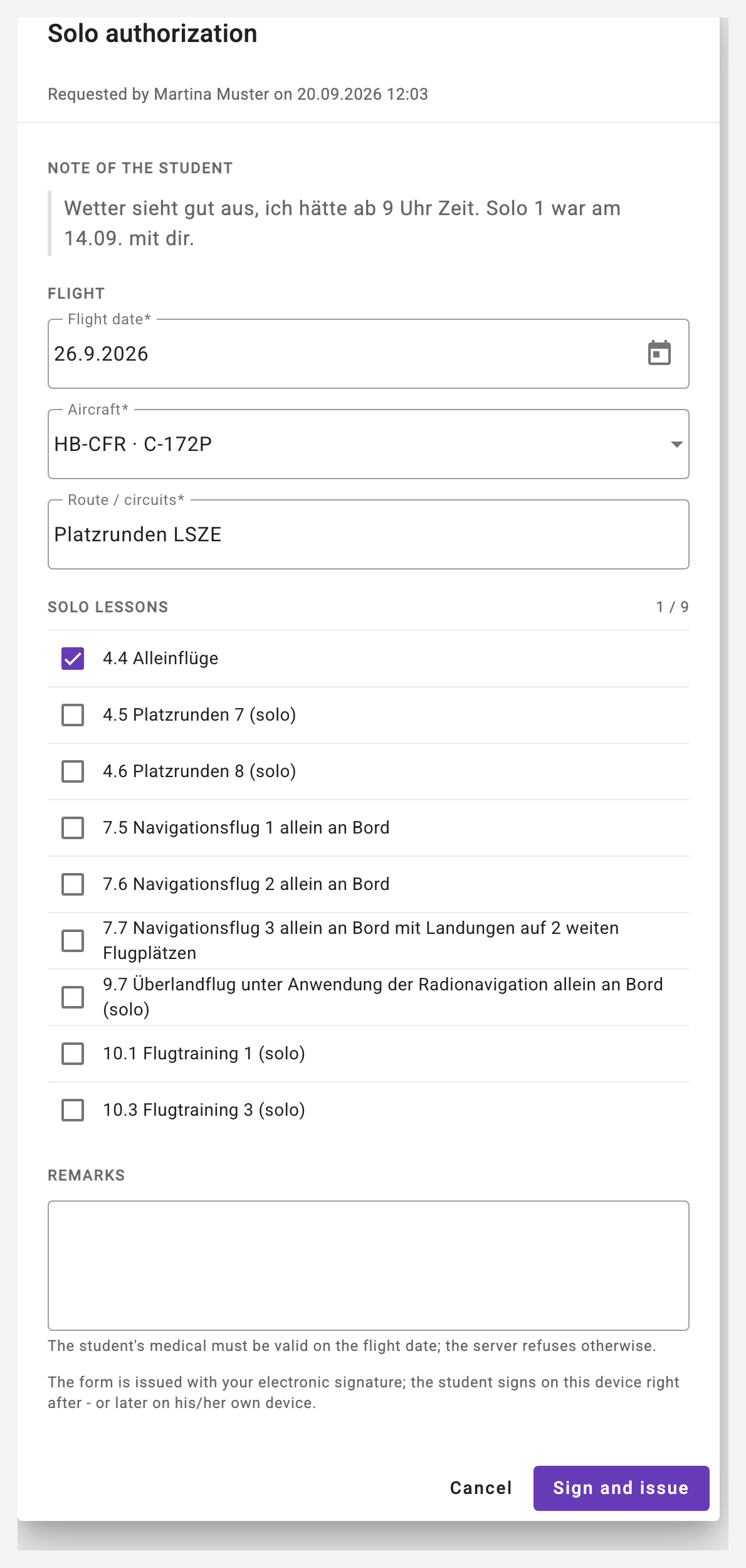
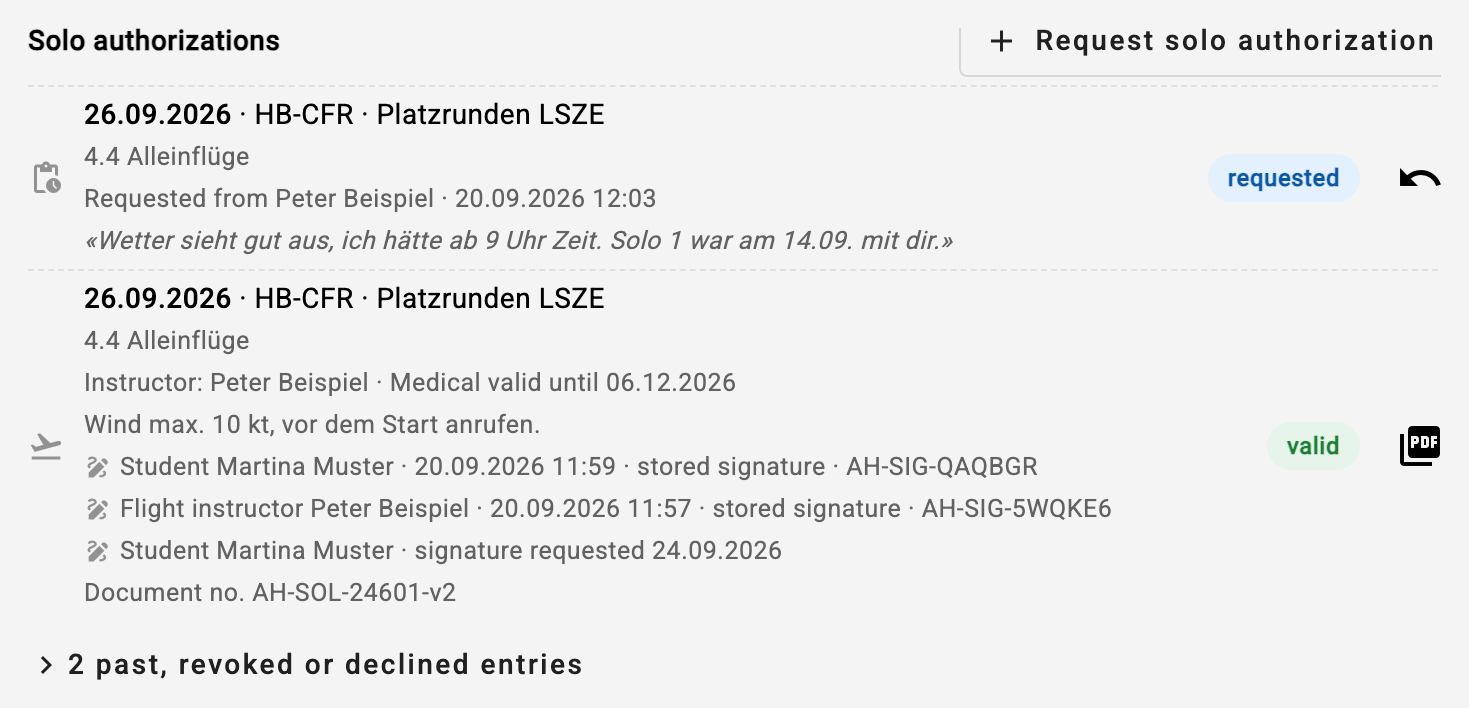
It is issued with the electronic signature of the instructor (see 2.7): "Sign and issue" opens the signature dialog. For the student's signature there are three ways: the student signs now on the same device (at the briefing on the airfield), later on his/her own device - then he/she gets a notification and the card "To sign" on the dashboard - or without, then the student's line on the form stays free for a handwritten one. The authorization is in force from the instructor's signature; the student's signature completes the form as the next archive version. The form is archived as a PDF with signature, proof line and document number (AH-SOL-…); a revocation creates a new archive version. The authorization can be opened as a PDF in the app's preview, downloaded from there and carried along and revoked by an instructor or the club owner; a revocation stays visible as evidence. Below every authorization the record shows who signed when, with verification code. The record shows only the valid authorizations; expired and revoked ones sit behind a toggle with their count, and the PDF stays available there too. If "Allow solo authorizations for reservations" is switched on in the club settings (security rules), the student may reserve the named aircraft on that day without an instructor - on any other day the rule applies as before.
Whether a course provides for solo authorizations at all is a switch in the base data of the syllabus ("Solo authorizations (form 02)"): switched on, the progress card shows the section and the instructor may issue - for basic training (PPL/LAPL) and the renewal of the class rating; switched off for a familiarisation or revalidation, where the pilot flies on his own licence. For a new syllabus the switch follows the chosen course type (only the familiarisation starts switched off); existing syllabi were set by the same rule. Authorizations already issued stay visible and revocable in any case, even if the switch is changed later - only no new ones can be added.
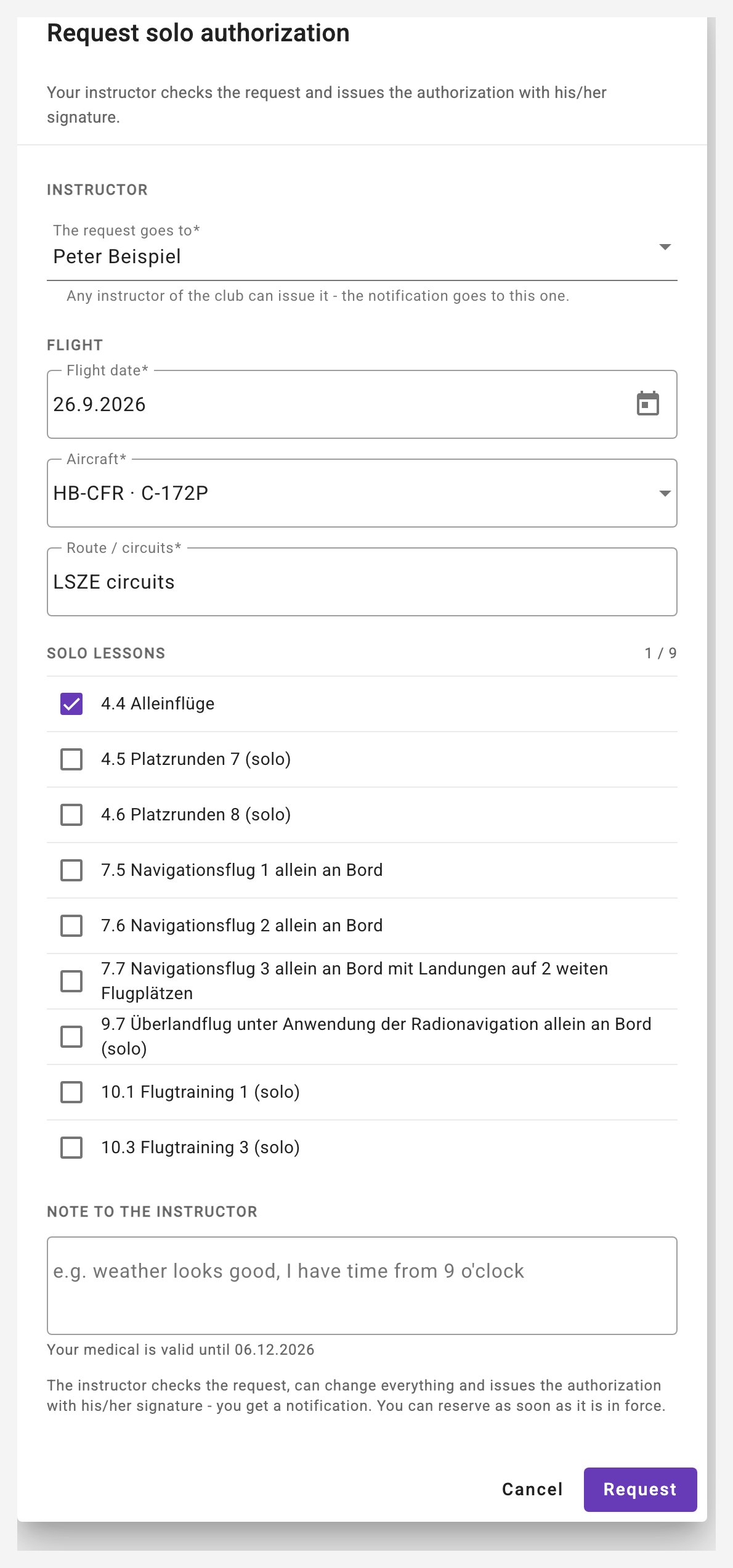
Request instead of waiting. If the instructor is not on the airfield, the student requests the authorization: in the student's progress card the section "Solo authorizations" has the button "Request solo authorization" - instructor (default: the primary instructor, any instructor of the club can be chosen), flight date, aircraft, route or circuits, the wanted solo lessons and a note to the instructor. Restrictions are written by the instructor only. The request appears with the pill "requested" in the record and can be withdrawn while it is open; a request whose flight date has passed counts as expired.
The addressed instructor gets a push notification and sees the request on the dashboard in the card "Requests" (see 10.6) - and in the student's record, where any instructor of the club can take it over. "Check and issue" opens the familiar dialog, prefilled with the student's details: the instructor changes whatever he/she wants, adds the restrictions and issues with his/her signature - the student's signature is then preselected as "later on his/her own device". "Decline" requires a reason; the student sees it in the notification and in the record. Issued or declined: the student learns it by push, with the restrictions or the reason.
11.9 Completing a level and the record
Every level has a level completion: the instructor records that the level goals are achieved (per goal achieved / partially / not achieved, with a comment). Lessons and checks stay as they are; the level can be reopened. When the training is finished, the instructor or owner closes the record (the "…" menu next to the syllabus title); it stays readable and can be reopened if needed ("Reopen record…").
"Close record…" opens a dialog with the check sheet: all course requirements with target and actual values (see 11.7). If requirements are still open, "Close anyway" has to be confirmed - the cover sheet of the record then says "training completed" with the line "course requirements open". If the signed-in person is the Head of Training (or the deputy) of the club, the signature dialog follows (see 2.7): the signature is placed on the cover sheet and in the closing section of the archived record, with proof line and verification code; "Close without signature" leaves the line free for a handwritten one. On closing, the server first renders the full version of the PDF in the student's language and stores it as an archive version, with a document number (AH-DOS-…) and a checksum (SHA-256); only then does the record count as closed - if rendering fails, it stays open. The switch "Send the PDF to the student by e-mail" (on by default) sends it to the student right away - if it is larger than 14 MB, the e-mail goes out without the attachment and points to "Archived records…" (see 11.4). Every closing produces a new version; reopening the record leaves the archive in place.
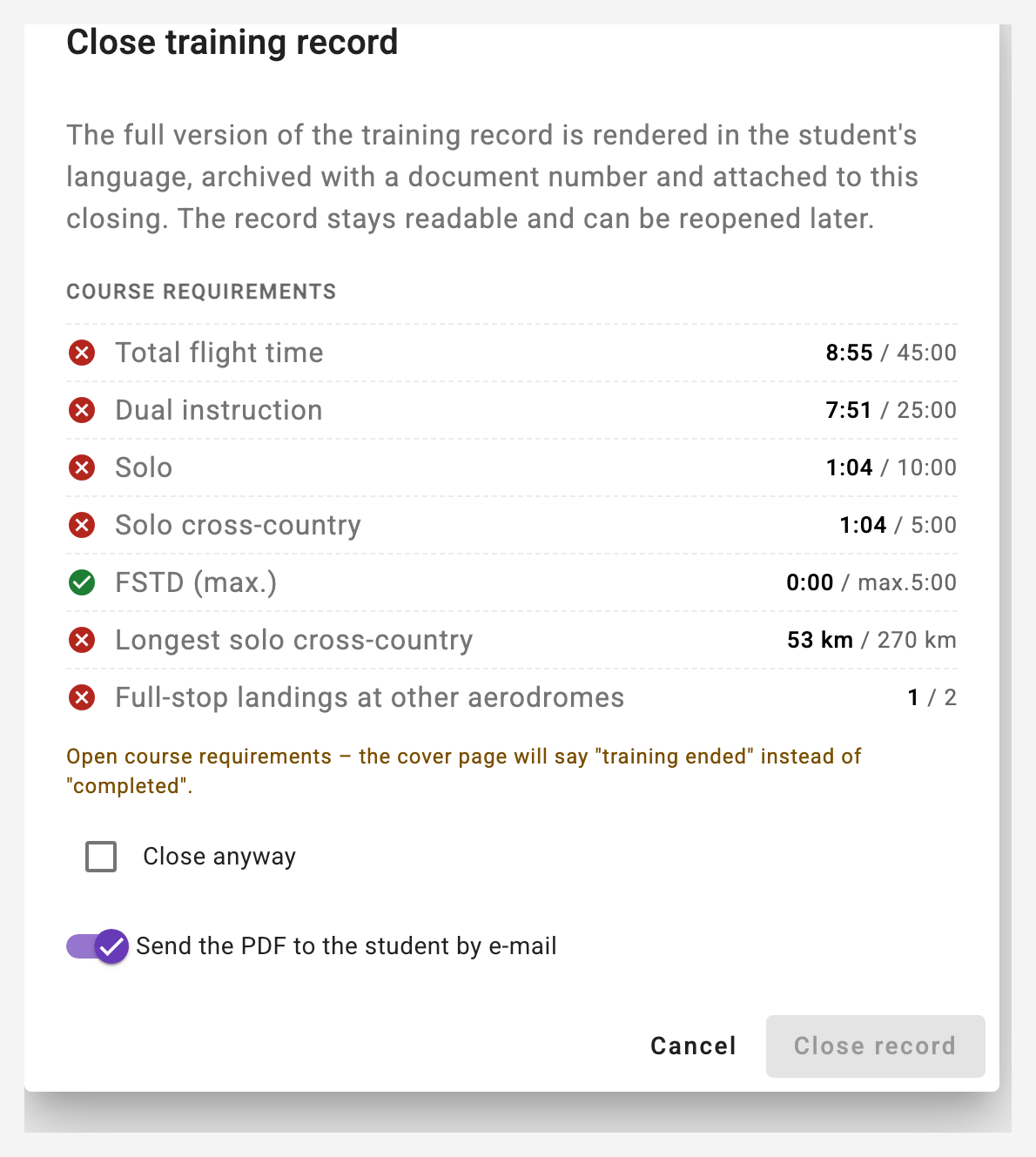
Closed means locked. In a closed or discontinued record, assessments, checks and level completions can no longer be changed - just like photos and the flight path. This applies to everybody, instructors and the club owner included: the archived state is meant to stay the state. To correct something afterwards, reopen the record (menu «…»), change it and close it again; the archive then gets another version.
The archived versions are listed in the menu under "Archived records…" (the entry appears as soon as there are any): with version, reason (closing or on request), date, language, number of pages, document number and checksum; each can be opened and downloaded. A closed record without an archive - closed before the archive existed - gets its archive version with "Archive now".
Discontinuing the training. If a student stops (or the club ends the training), the record is not closed but discontinued - "…" menu → "Discontinue training…". The dialog asks for the discontinuation date (today by default, can be set back to the last activity), the reason (student discontinued, medical reasons, transferred to another training organisation, terminated by the club, other reason) and a free note. The server archives the record with the cover "training discontinued on … - reason" and the history (started, discontinued, …) and revokes open solo authorizations; lessons, assessments and the archive stay. A discontinued record leaves the daily lists: the instructor sees it in the "Syllabus Progress" card only with the switch "Show discontinued trainings", the logbook stepper no longer offers its lessons, and in the DTO annual report the student appears as "discontinued" for the year of the discontinuation. The checkbox "Also deactivate the member" is proposed, never automatic - conversely, the member form asks when deactivating a member with a running record whether the training is discontinued as well.
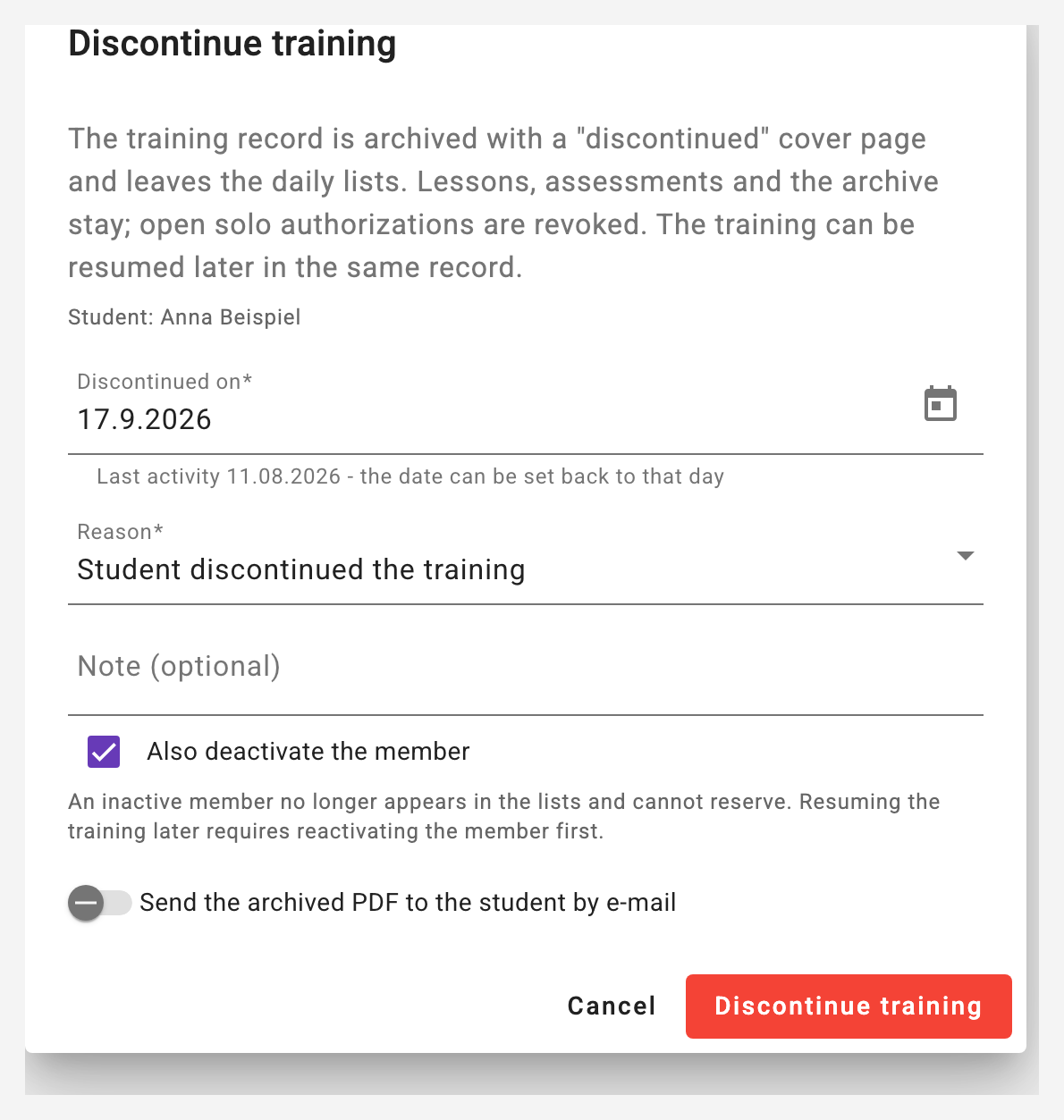
Resuming. If the student returns, the record is continued from the menu with "Resume training…" - in the same record, with all previous lessons; the archive of the discontinuation stays. The member must be active. If a record has been running for six months without a lesson, the card shows the hint "no activity for N months" - there is deliberately no "paused" state. Running records of inactive members (legacy data where a discontinuation was only recorded as a deactivation) are listed by the club tab "Training" as a hint; they are discontinued in the member form (step "Syllabus"). The table there shows every assignment with its state; only an assignment without any activity can be deleted.
The archive belongs to the member and survives the deletion of the assignment; a member with an archived record can therefore not be deleted, only deactivated. In the data protection disclosure (chapter 13) the archived records appear as a section of their own with document number, version, reason, number of pages and checksum - without the PDF itself.
Since Rev. 4 of the programme every lesson carries the preparation (the chapters the student studies before the flight) and the TEM topic for the briefing; both are shown in the lesson dialog. In the assessment the instructor records the threats and errors discussed under "TEM".
11.10 DTO master data and training aircraft
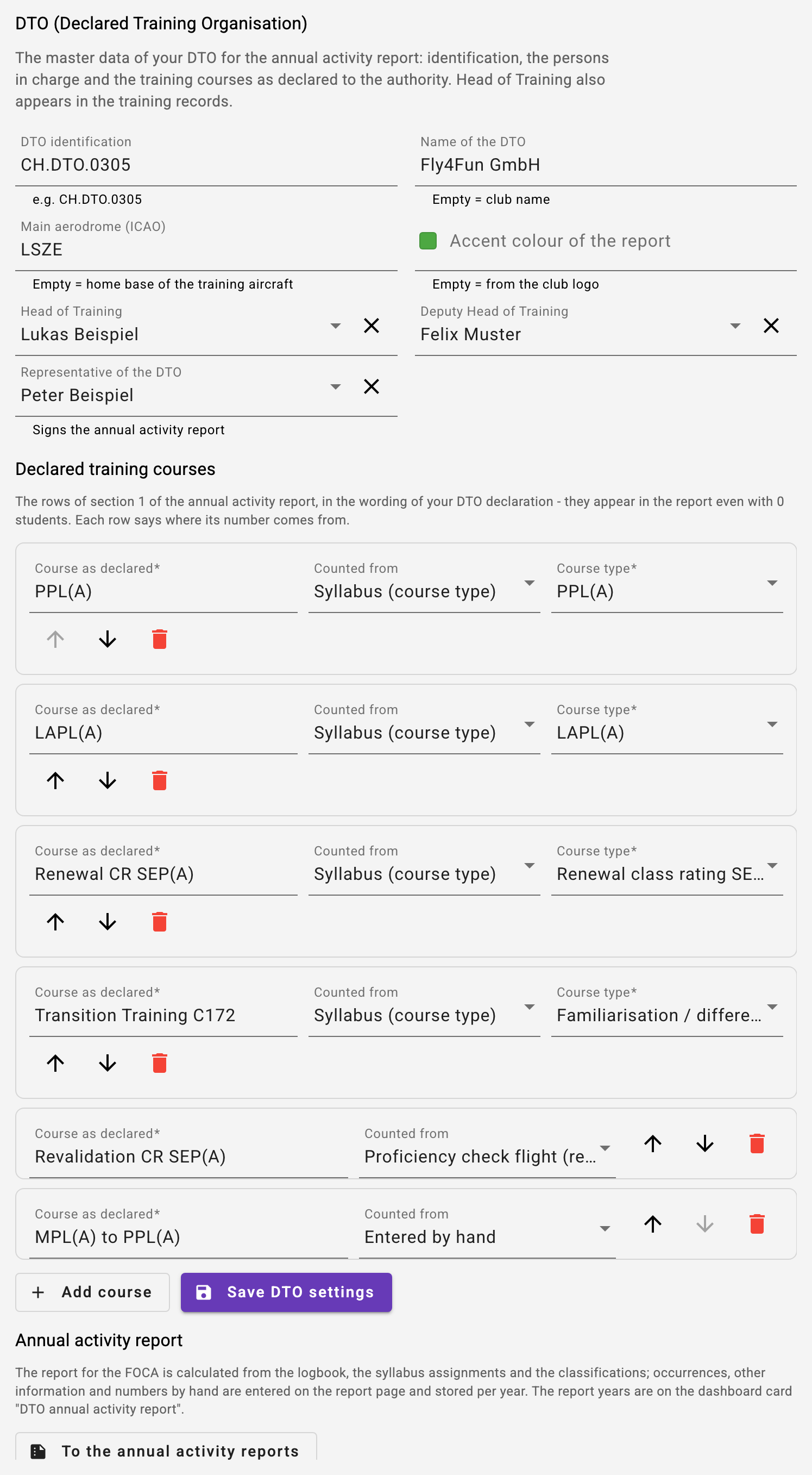
For the annual Annual Activity Report to the FOCA the club keeps its DTO master data in the club settings, step "Training", in the block DTO (Declared Training Organisation): the DTO identification (e.g. CH.DTO.0305), the name of the DTO, the main aerodrome, and Head of Training, Deputy Head of Training and the representative of the DTO as members of the club. The Head of Training thereby also appears on the cover of every training record. Below are the declared training courses - the rows of section 1 of the report in the wording of the DTO declaration ("Transition Training C172", "MPL(A) to PPL(A)"). Each row says where its number comes from: from a course type of the syllabi, from the proficiency check flight (revalidation) or entered by hand. As long as nothing is saved, the app proposes the rows from the syllabi the club uses.
Every aircraft carries the switch "Training aircraft of the DTO" in the aircraft administration (only with the "Training" module, only for real aircraft; on by default). Only aircraft marked this way appear in the annual report, and only flights on them count as training of the DTO. An aircraft that does not belong to the DTO is switched off by the owner - the card in the aircraft list then says "Not a training aircraft of the DTO (familiarisation only)". Two rules depend on it: a student pilot cannot reserve such an aircraft (the form says so before saving), and in the logbook only lessons of a familiarisation or another course can be linked there - not the basic training (PPL, LAPL, ratings, renewal).
The renewal of the class rating SEP(A) is its own course type without course requirements; Fly4Fun keeps the syllabus "F4F Renewal CR SEP(A)" for it (definition file in the repository, see 11.5 import). The revalidation - the rating is still valid - remains the proficiency check flight in the logbook (chapter 6). For instructors on a certified simulator there is the classification SFI (Synthetic Flight Instructor) in the member administration.
11.11 The DTO annual activity report
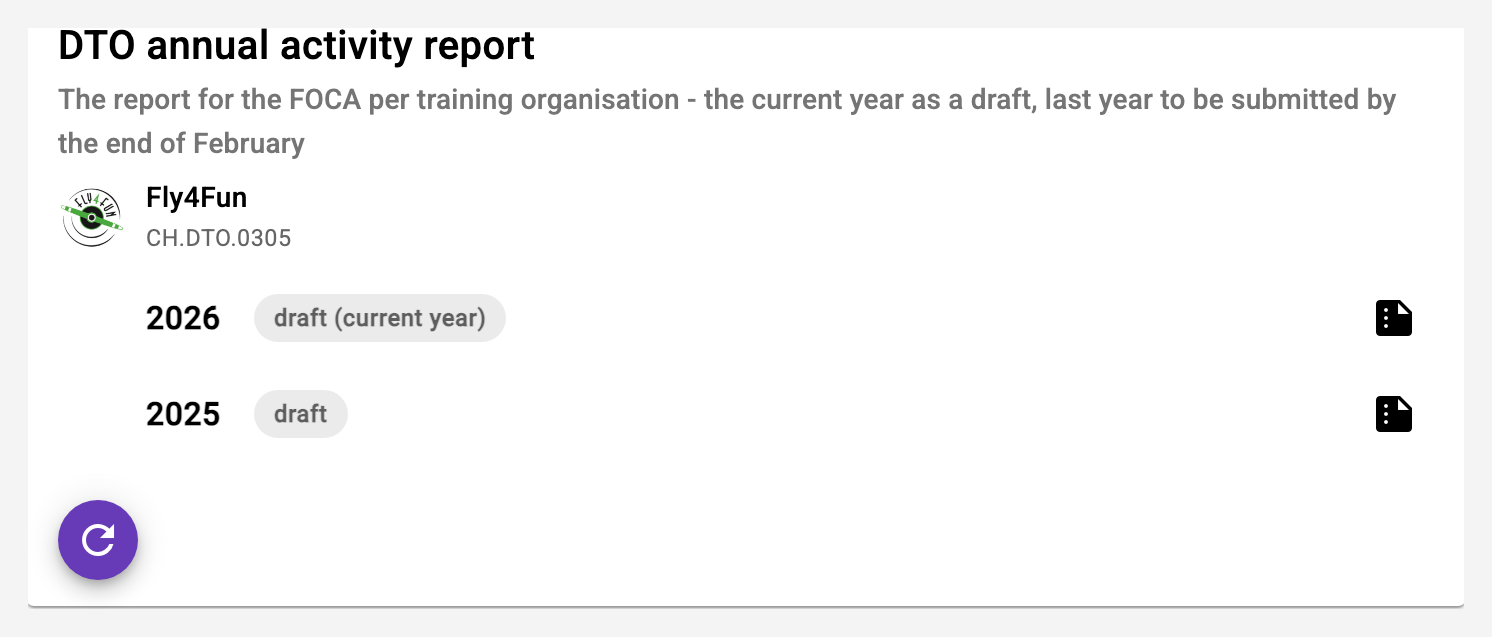
The report itself is produced on its own page. The entry point is the dashboard: the card "DTO annual activity report" in the section "Club statistics" shows, per DTO club, the years that concern you right now - the current year as a draft, last year (to be submitted by the end of February, afterwards as proof with date and number of archived PDFs) and every older year whose report is still open - each with the button "Open report" (document icon at the right of the row); if you own several DTO clubs, you expand a club with the arrow in front of its logo, just like the statistics cards next to it. The card appears only for owners of a club with the training module and a DTO number. On the report page you pick the year in the field "Report year", grouped into "In progress" (drafts and reopened reports) and "Submitted"; "Back" leads to where you came from. The DTO block in the step "Training" of the club settings now carries only the master data and the button "To the annual activity reports" - the report is not a setting. Everything automatic is recalculated each time the page opens, from the logbook, the syllabus assignments and the classifications - the structure is that of the FOCA form (Ver. 1 / Rev. 0), five sections in the same order:
- 1 Training courses: the number of persons per declared row. A syllabus row counts members with an assignment of that course type and at least one training activity in the year - a flight linked to a lesson on a training aircraft, a dual or solo flight, a confirmed theory attendance. The check flight row counts pilots with a proficiency check flight (who had a renewal in the same year counts only there), a row "by hand" takes the number you enter. The button "Names" shows who is behind the number.
- 2 Instructors: holders of the classifications FI, TKI and SFI with a membership in the year, united with everyone who actually instructed. The columns come from the data; in the table you can untick, add a note ("† 27.04.2026", "until 30.06.2026") or leave a person out entirely.
- 3 Aircraft: every training aircraft and every certified FSTD with the training flights of the year - an aircraft without the mark never appears.
- 4 Occurrences: the register of the year ("Record occurrence": date, kind O/A/I, description, report to aviationreporting.eu with reference, mitigation). Without entries the report explicitly says "none".
- 5 Other information: free text, one item per line, stored per year; plus the representative of the DTO who signs the report (default from the DTO master data).
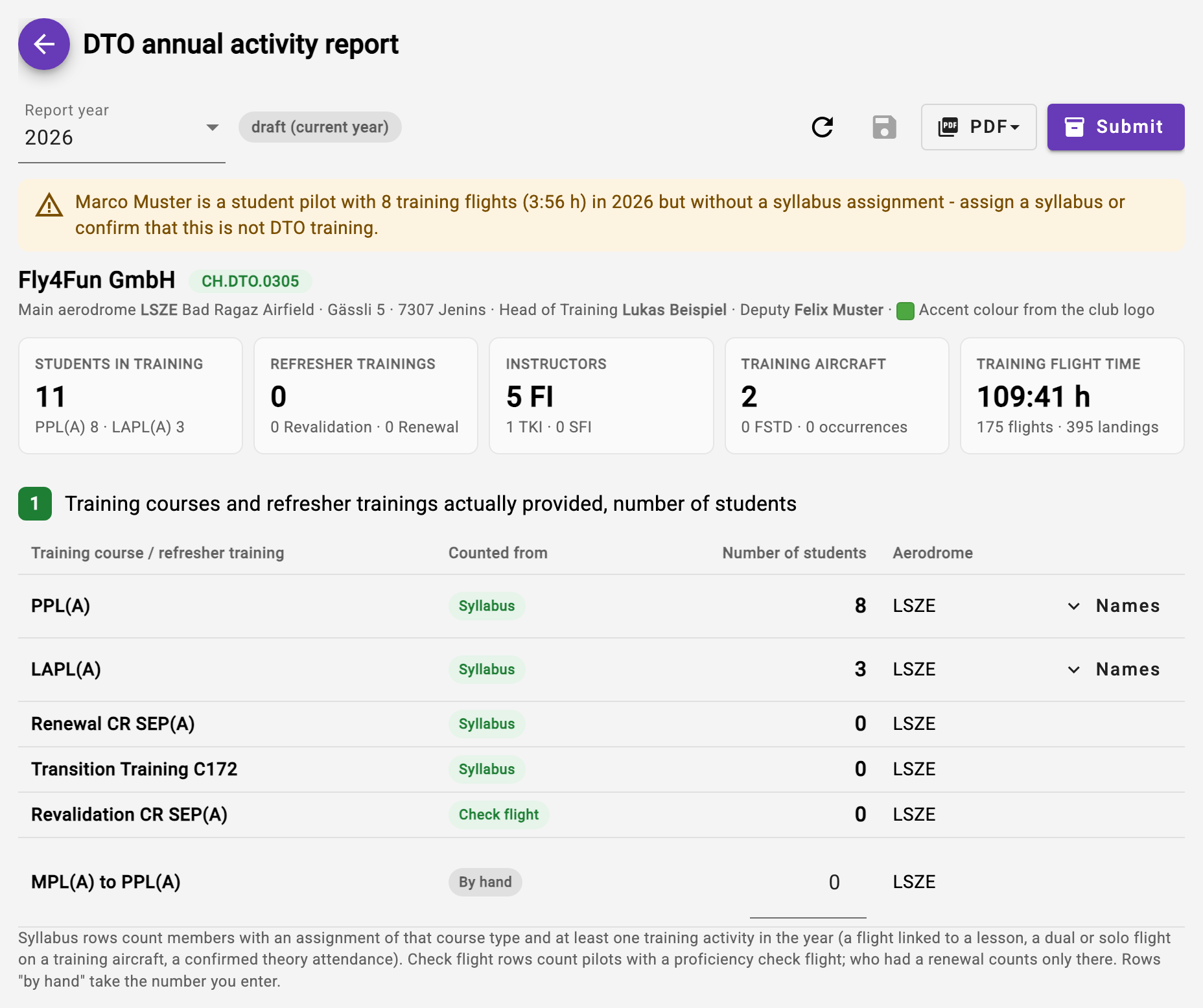
A hint above names student pilots with training flights but without a syllabus assignment - they are missing from the report until a syllabus is assigned. If it was not training (say, a guest who flew once with an instructor), the "Not DTO training" button right in the hint confirms that: the hint turns into a grey note with "Undo", the person still does not count, and they appear only in the internal annex - never in the PDF for the FOCA. The confirmation is per report year; someone who is a student the next year shows up there again. Numbers by hand, notes, other information, the representative and these confirmations are stored with "Save" as the overlay of the year; opening the page again shows the same state.
Two outputs as PDF behind the button "PDF", both in the app's preview: "Version for the FOCA" is pages 1-2 of the form without personal names except the instructors; "Internal version" appends annex A (the persons per course, for the files and for queries of the authority) and annex B (the training year in numbers: training flights per month, hours per aircraft and per instructor). The layout carries the club logo and its colour as accent (can be overridden in the DTO master data); as a draft every page carries the watermark ENTWURF. "Submit" renders both outputs without watermark, stores them in the archive with checksum, version and document ID (AH-AAR-0305-2026-v1) and marks the report as submitted; it is then locked, and from then on the "PDF" menu opens exactly this archived version. If you are the representative of the DTO for that report year yourself, you sign electronically when submitting (see 2.7) - the signature is placed with place, date and verification code in the signature field of the form, and the report page shows it below the submitted report; "Submit without signature" leaves the field free for a handwritten one. "Reopen" turns it into a draft again - the archive stays, the next submission becomes version 2.
Occurrence from the logbook. Whoever was on board records the occurrence where it happened: the logbook entry carries the button "Record occurrence…" in the step "Flight" - for the pilot and the instructor of the entry and for the club owner, once the entry is saved and the club has the training module. Date and flight are prefilled; the entry goes into the club's register with its flight (registration, route, crew) and appears in section 4 of the report - in the PDF for the FOCA only with registration and route, without names. The occurrences recorded for the entry are listed below the button; the owner may change and delete any of them, everyone else only what they recorded themselves. As soon as a new occurrence is saved from the logbook, every owner of the club receives a push message with kind, date, flight and the person who recorded it (never that person themselves, and not for a later change); the message can be switched off on the notifications page.
January reminder. From 15 January the app reminds the owners of a club with the training module and a DTO number once, by push and e-mail, to prepare the report of the previous year - with a link to the report page. If the report is already archived as submitted, no reminder is sent; the push message can be switched off on the notifications page.
11.12 FI briefing before the lesson
An instructor with a lesson ahead gets the overview of the student straight from the reservation - like the patient file at the doctor's: in the timeline "Inbound", a reservation where you are booked as the instructor and whose member has a running training dossier carries the button FI briefing on the right; the same button sits in the reservation dialog and on the reservation card of the agenda. It also works without a reservation: in the card "Syllabus progress" the button sits right next to the member selection - so you can see what would be next for a student before any lesson is reserved; the head of the page then carries no reservation line. It opens its own page, "Back" returns to where you came from.
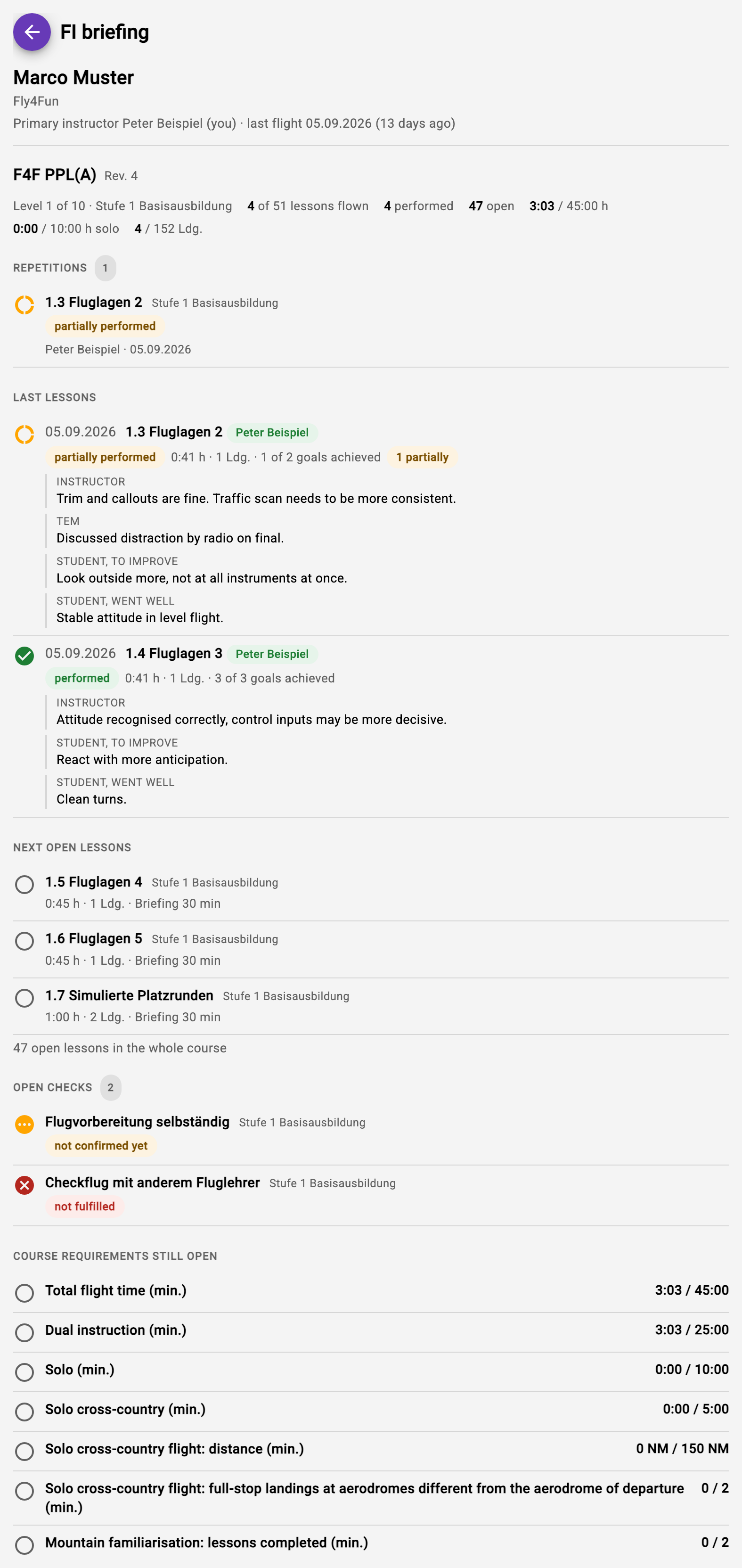
The FI briefing shows at the top who flies when with whom, the primary instructor (and whether you are covering for them) and the student's last flight - a pause of more than six weeks is highlighted. For each running course follow:
- Status: level, lessons flown and performed, open lessons, flight and solo hours, landings.
- Repetitions: lessons rated "partially" or "not performed" and goals that were not or only partially achieved in a performed lesson - with name and date of the assessment.
- Last lessons: the three most recently flown lessons with date, instructor, flight time and landings. Where a lesson has been assessed, its state, the goals achieved and the instructor's remarks, the TEM discussed and the student's self-assessment follow verbatim - as they stand in the lesson dialog; a lesson not yet assessed deliberately carries no state.
- Next open lessons: the first open lessons of the current level in syllabus order (at most three, the rest as a number) with target time, landings, briefing duration, solo, FSTD and mountain markers, and preparation and TEM topic where the syllabus provides them.
- Open checks up to the current level and the course requirements still open from the check sheet.
The FI briefing is read-only: it plans nothing, saves nothing and sends no messages. There is deliberately no line "assessment open" - the assessment belongs to every flight and lives in the progress card. Full dossier opens the progress card with the student preselected. It is visible to whoever sees the progress card: the instructors and owners of the club (training module); the student gets no FI briefing about themselves.
11.13 Flight path and photos for a lesson
Each lesson can keep the route flown as a map image and up to three photos - so months later you can still see where the circuits were or what the weather was like. Both live in the lesson dialog of the progress card (see 11.1): the flight path image right below the flight, the photos in the block Photos.
Switching it on. The app takes the flight path from the Open Glider Network (OGN), an open network of ground stations that receives the signals of FLARM devices and transponders. Three things are needed:
- The owner switches on Record OGN flight paths in the club settings, step "Training", and saves the club (training module only).
- In the aircraft management, step "Aircraft", the aircraft carries its FLARM / ICAO address (six characters 0-9 and A-F) and the switch Record flight paths. The address is listed in the OGN device database and in the aircraft register of the FOCA; Take from OGN device database fetches it via the registration and shows the device type. Below it the app shows when the last position was received.
- In the OGN device database (ddb.glidernet.org) the device must be listed under the registration of the aircraft, and tracking must be allowed - the holder of the device sets this there. Otherwise the aircraft management says so (for another registration also which aircraft the address is listed for), and nothing is recorded.
Without these settings it still works - with your own recording (see below).
After the flight. When the flight is saved in the logbook with a lesson (step "Syllabus") and the OGN has received enough positions, the dialog Flight path for lesson … opens right away - after the question about payment, if there is one. If the instructor entered the flight, the student gets the push notification "Flight path ready: …" with the name of the lesson; tapping it opens the same dialog. If there is still no image a few hours after landing, the app reminds the student once, and a last time four hours before the deadline. The deadline is short: the positions are kept for 24 hours only, counted from the start of the flight - the dialog shows the time left at the top right ("22 h left"). The pilot, the instructor of the flight and the club owner (who corrects logbook entries and lessons) may frame it.
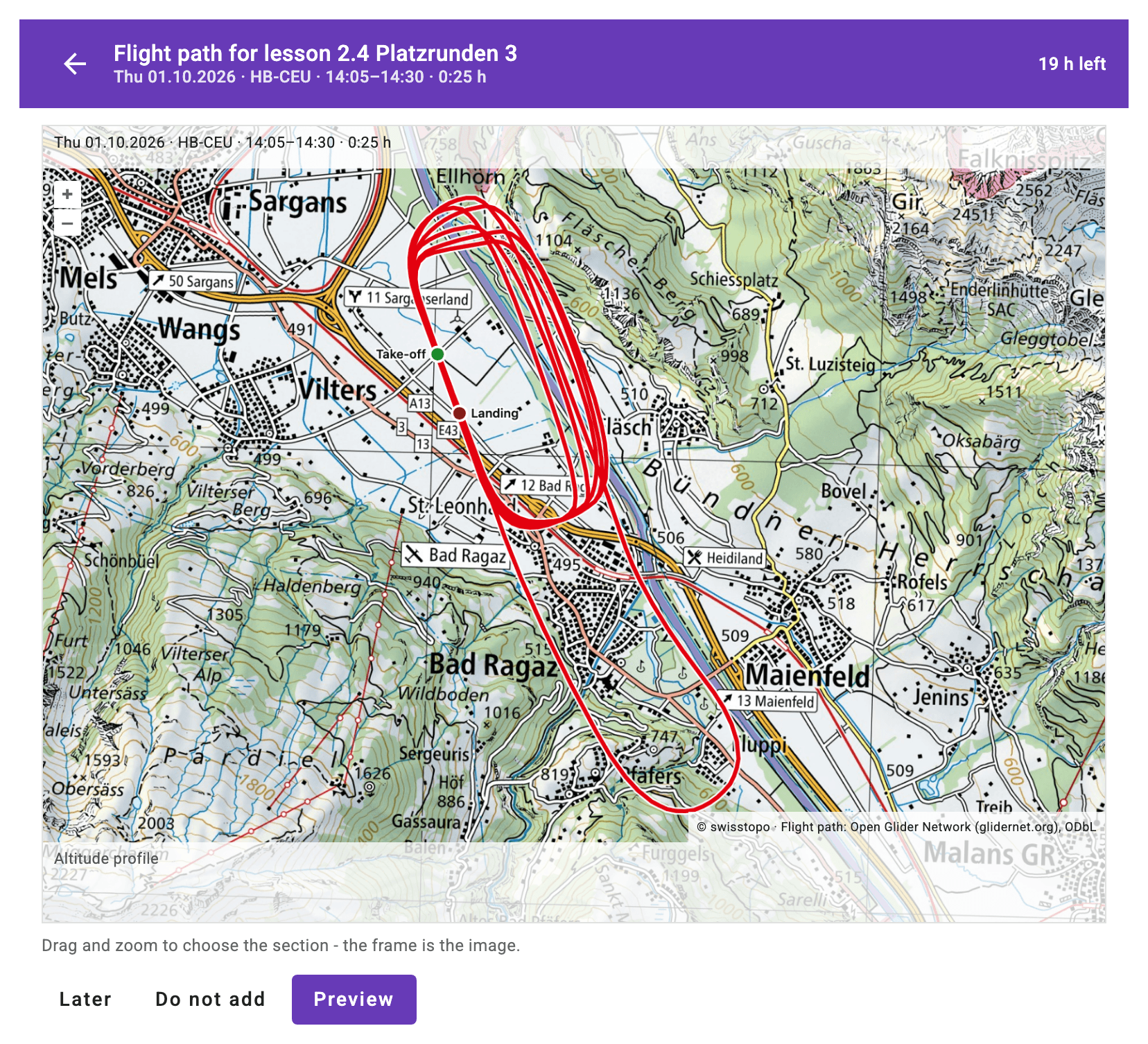
- Map: the national map of swisstopo; outside Switzerland the app draws on OpenStreetMap.
- Frame: the frame is the image. Drag and zoom until the section fits. At the top the image carries the header (date, registration, take-off and landing, duration, the lesson on the right), at the bottom the altitude profile and above it on the right the map credits. The track is red, the take-off green, the landing dark red; where positions are missing it is dashed, and if it covers less than half of the flight, a hint says so.
- Preview creates the image and lays it over the frame; Back returns to the frame, Save adds the image to the lesson. If map tiles are missing, the preview says so with Try again. If saving fails, the error appears next to the buttons - trying again is safe, the image is never stored twice.
- Later closes without changing anything - until the deadline the flight path can still be added. Do not add declines the flight path; no more reminders follow.
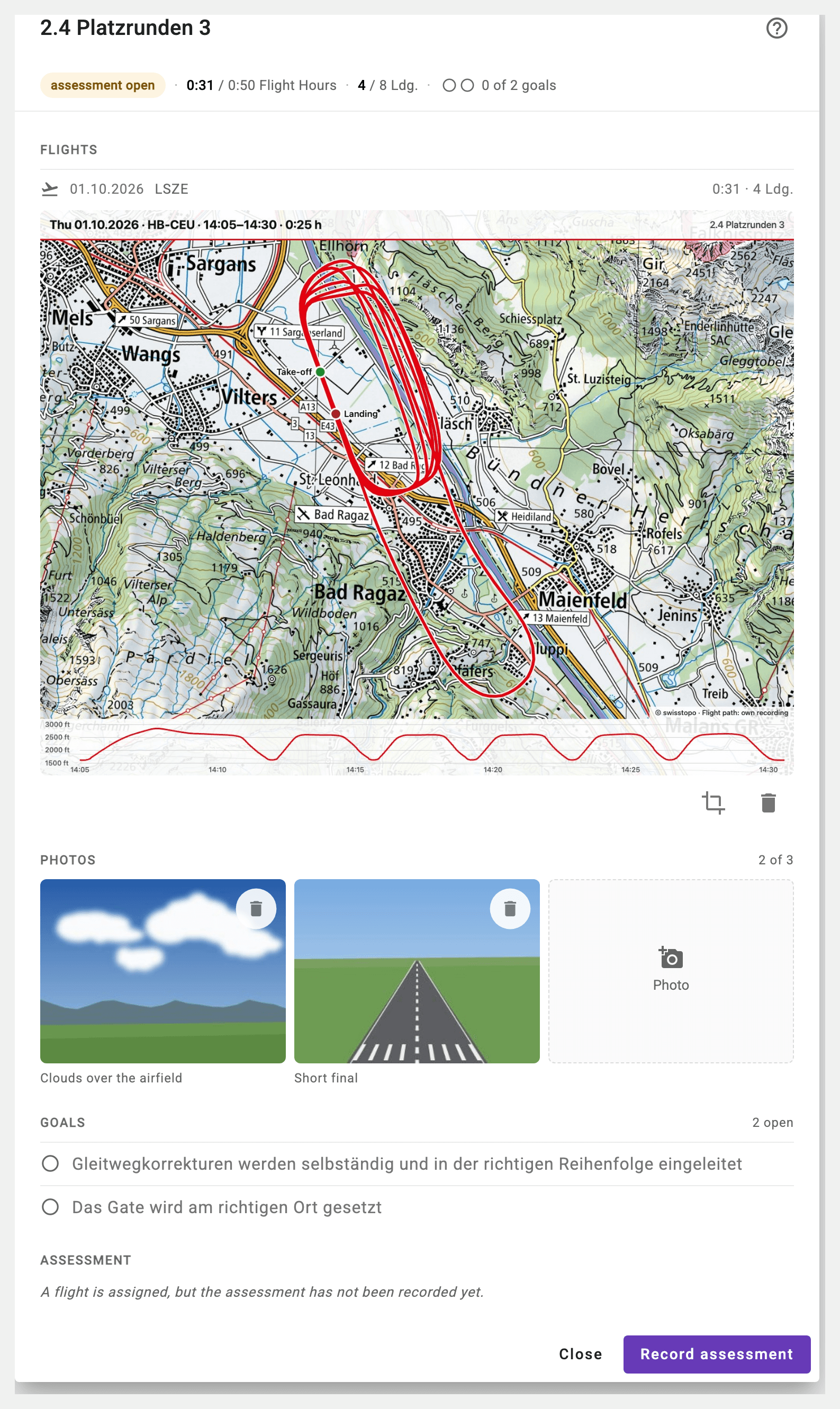
Once saved, the image appears in the lesson dialog across the full width below the flight; tapping opens it large. There you can zoom and move it: with two fingers, the mouse wheel, a double tap or the buttons at the bottom of the image. There is one image per flight. If you do not like the section, Frame again (the crop symbol below the image) frames the flight once more, for example closer to the traffic pattern; the new image replaces the previous one. This works within the 24 hours with the OGN track. Afterwards only the image remains: to frame again, delete it with the bin and choose your own recording. The pilot, the instructor of the flight and the club owner may frame again and delete.
Your own recording. If the aircraft does not record, the deadline has passed or the OGN received too little, Add flight path in the lesson dialog gives the reason and offers Choose recording. The app reads the common formats: GPX (for example the export from SkyDemon or ForeFlight), KML (ForeFlight) and IGC (PowerFLARM and other loggers). It cuts the recording to the time of the flight and opens the same dialog; the credit in the image then reads "Flight path: own recording". There is no deadline for your own recording, and only the framed image is stored, not the file.
Photos. In the block Photos each lesson can keep up to three photos - the clouds over the airfield, say, or the sketch from the briefing; the flight path does not count. The tile Photo opens the picker of the device; the app then shows the photo with the field Caption (optional, at most 120 characters) and uploads it with Upload. The app downscales the photo first (longest edge 1600 pixels), and the server stores it anew - all embedded data is dropped, including the location where it was taken. Tapping opens a photo large. The student, the instructors and the club owner may add photos; whoever uploaded a photo may delete it (bin on the photo), and so may the instructors and the owner. Once the record is closed or the training discontinued (see 11.9), photos and flight path can only be viewed.
Privacy. The app receives positions only for the club's own aircraft with Record flight paths, buffers them for at most 24 hours and links them to no person - only the framed image stays with the lesson. Flight path images and photos are visible only to the student, the instructors and the owners of the club, and the FADP disclosure lists them (see chapter 13). The training record PDF contains them only in the full version, not in the short version for the FOCA (see 11.4).
11.14 One flight, several lessons
If a flight covers several lessons, assign all of them to it in the logbook in the step "Syllabus". The step comes after "Times" and "Landing" - so block time and landings are already entered when you split. From two lessons on, each lesson shows the fields Time and Landings: the app proposes to split block time and landings evenly - a remainder goes to the first lesson (5 landings on two lessons become 3 and 2, 1:15 becomes 0:38 and 0:37). If that does not fit the flight, change the values; the line below shows "Split: 1:23 of 1:23 · 6 of 6 landings" or what is still missing or too much. The entry can only be saved once both sums add up; Split evenly restores the proposal. If a lesson is added or removed, or block time or landings change, the app proposes an even split again - and says so if adjusted values are lost.
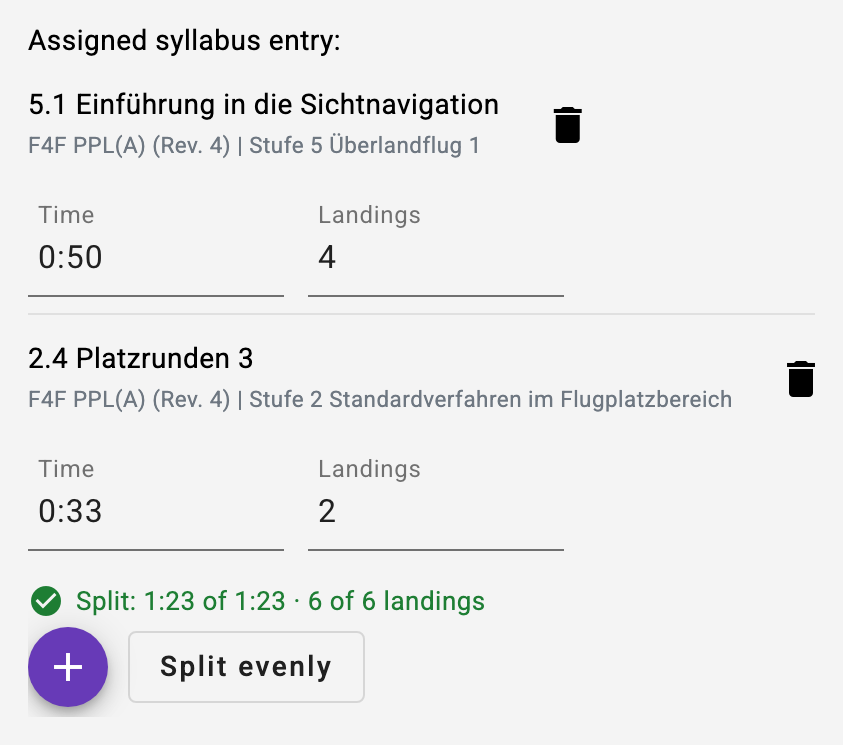
Each lesson only counts its share - in the training progress, in the lesson dialog (the flight then shows, for example, "0:30 of 1:00 · 2 of 5 Ldg."), in Excel and in the training record. The course requirements check sheet (11.7) and the DTO annual report (11.11) still count the flight once and in full, as in the logbook. Flights assigned to several lessons before this feature are split evenly as well - until now their landings counted in full for every lesson.
11.15 Experience building: the self-directed syllabus
A syllabus does not have to be a training course. For licensed pilots who want to build experience on purpose - other aerodromes, controlled airspace, the Alps, flights abroad - the club creates its own syllabus with the course type Experience building (see 11.5). It is self-directed: the pilot ticks off his or her own tasks, without an instructor confirming each one.
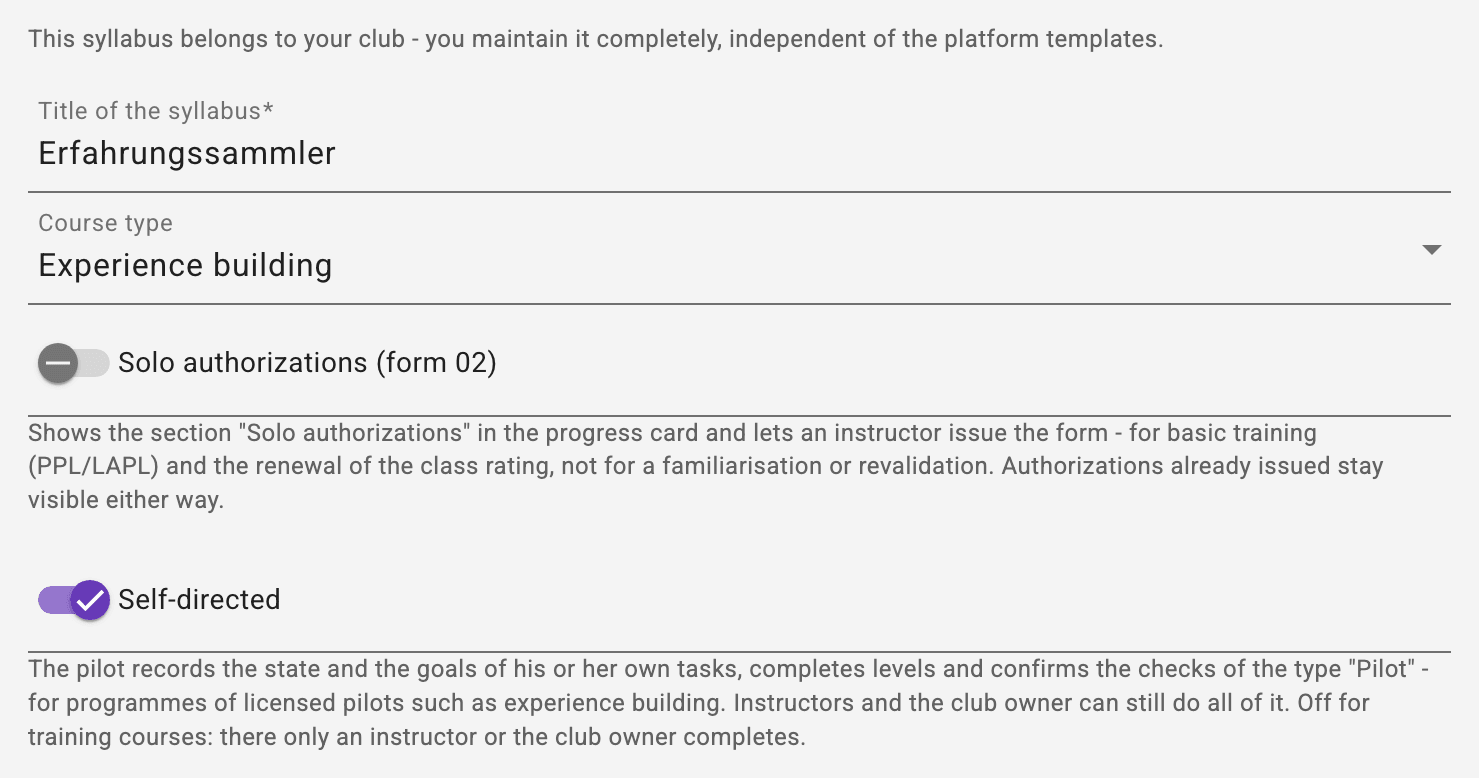
- Switch "Self-directed" in the basic data of the syllabus. It is on for a new syllabus of the type Experience building and off for every other type; it can be changed per syllabus. For PPL, LAPL and the other courses everything stays as it is.
- Checks of the type "Pilot" are confirmed by the pilot. Every other type is still confirmed by an instructor - so the same syllabus can also carry an Alpine familiarisation that an instructor signs off.
- Experience building needs no training aircraft, has no solo flight authorization and never appears in the DTO annual report (11.11).
- Hour target: a target such as 100 hours after the licence belongs in the course requirements (11.7); the card shows the progress, and once all are met it says "Target reached". So that every flight counts, the pilot also assigns it to a task that belongs to every flight, such as the debriefing.
What the pilot does. The club owner assigns the syllabus in the member form; from then on the pilot finds it on the dashboard in the card "My Syllabus Progress". In the logbook the pilot assigns the flight to the task in the step "Syllabus". In the task, Record state sets the state (performed, partially performed, not performed) and the goals; the pilot writes his or her notes and adds photos and the flight path (11.13). The pilot also completes the level. Instructors and the club owner can still do all of this as well.
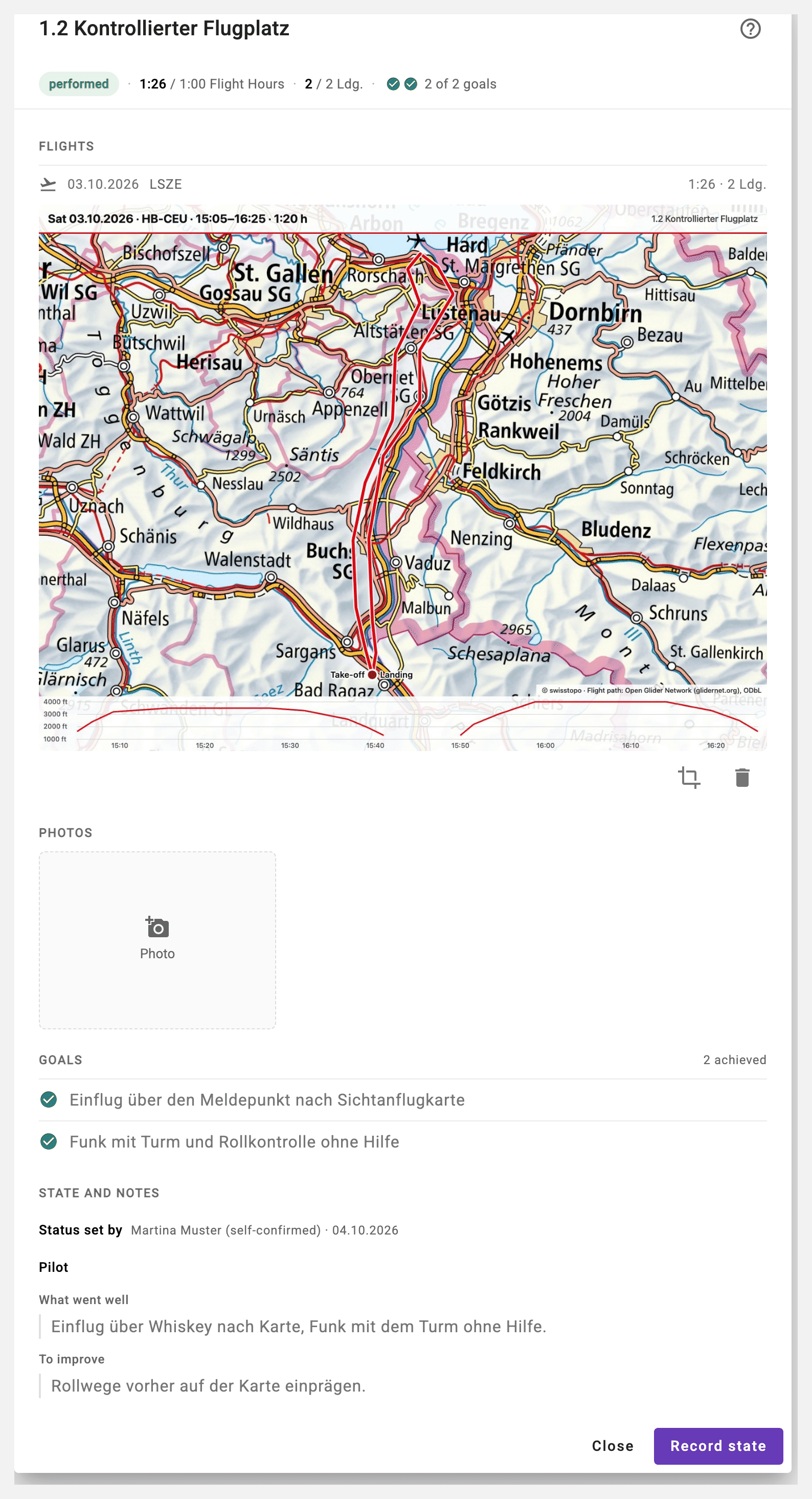
Self-confirmed. Whatever the pilot has set carries the mark "self-confirmed" after the name - in the card, in Excel and in the record PDF. What an instructor confirms carries the instructor's name as always. The mark applies in every syllabus: an instructor working on his or her own record is shown the same way.
Flight path log. Every flight assigned to a task can carry its flight path image; the full version of the PDF shows them one after the other. For flights that do not belong to a particular task, a collecting task such as "Other flights" works well.
As with every syllabus, an instructor or the club owner closes the record (11.9).