
27. Club drive
The club drive is your club's Dropbox folder, shown read-only in the app: checklists, data sheets, OPS infos, the operations manual, handbooks. Once your club has set up the connection, you find the card on the dashboard in the section "My flying". You cannot upload anything in the app - the club maintains the drive directly in Dropbox.
The club drive card
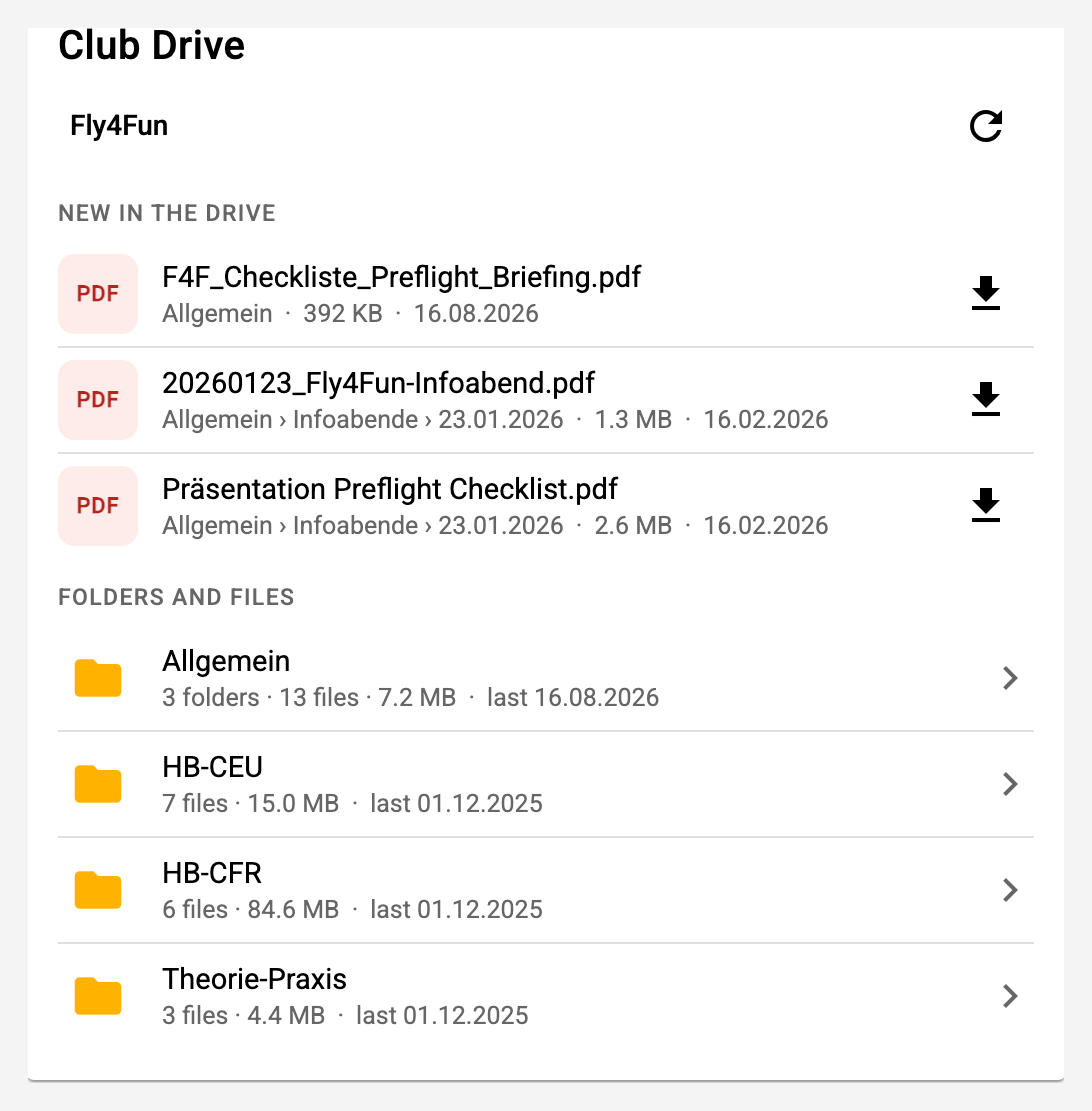
- New in the drive shows the three newest files of the whole drive at the top - with their folder and date. So you spot a new OPS info without searching. A file younger than 14 days carries the NEW pill - in the folders too.
- Folders say what they hold: subfolders, files and size, all including the subfolders, plus the date of the newest file. A tap opens the folder.
- The breadcrumbs at the top (club name › folder › subfolder) lead back - every link is tappable. The arrow next to them reloads the drive.
- Every file carries a tile that shows its kind (PDF, DOC, XLS, PPT, image, SkyDemon aircraft profile), with size and date underneath.
- A long folder folds after twelve entries; Show all N reveals the rest.
Opening or downloading a file
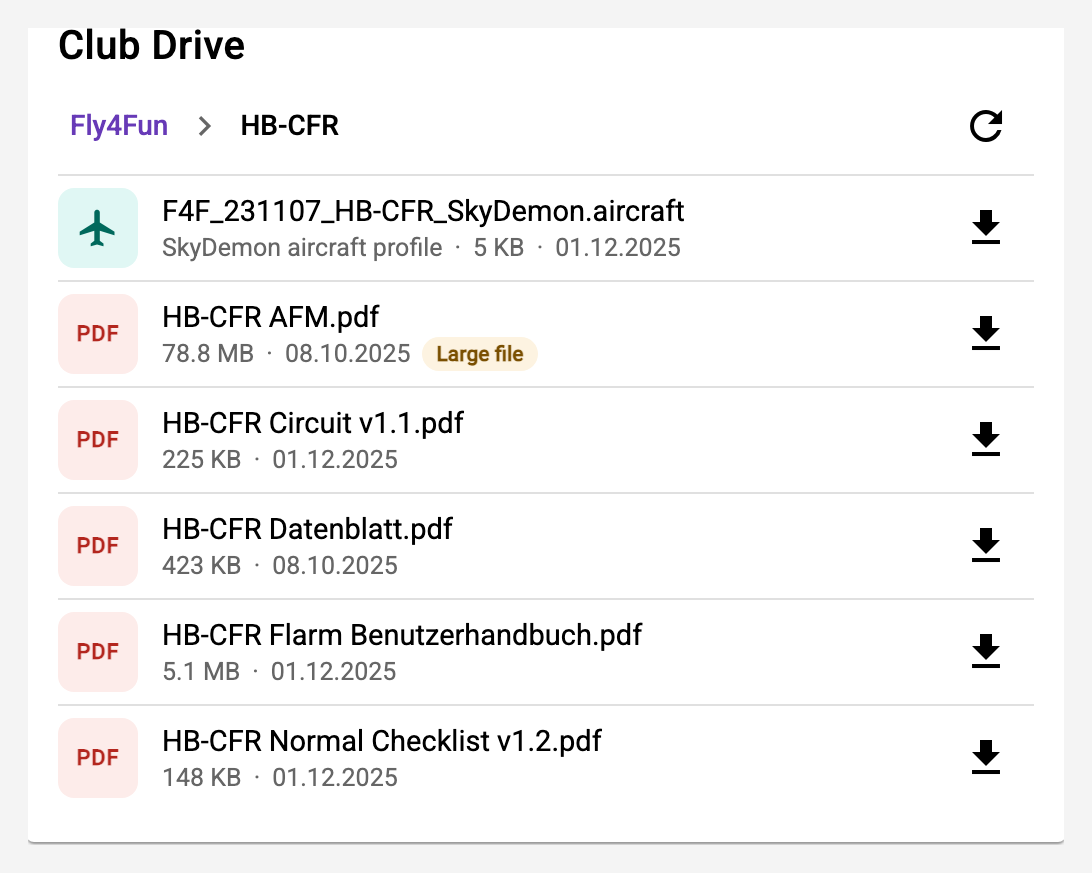
A tap on the row opens the file in the app where that is possible: a PDF in the built-in viewer (see chapter 2), an image in the image preview, a Word or PowerPoint document as a PDF - Dropbox converts it on request. The arrow at the top left goes back; the button at the top right saves the document. The button on the right of the row always downloads the file without showing it. What the app cannot show - spreadsheets, archives, the SkyDemon aircraft profile - it downloads directly on tap.
Large files
A file of 20 MB or more (a flight manual, say) carries the Large file pill - on a phone with mobile data you want to know that before tapping. While it loads, the row shows the progress ("Loading · 23 MB of 78.8 MB"); the button on the right cancels.
When the drive does not answer
If Dropbox is not reachable or the club's connection has expired, the card says so - with the reason and a button to try again. An expired connection can only be renewed by a club owner (see below).
Setting up the club drive (club owner)
You set up the connection in the club settings, step Dropbox Drive. It belongs to the club, not to a person - only a club owner can link, renew or remove it.
- Create an app in the Dropbox App Console: Scoped access, access type App folder (the app only sees its own folder) or Full Dropbox (you choose the folder yourself). Under Permissions it needs
files.metadata.readandfiles.content.read. - Enter the app's App Key and App Secret in the club settings and switch Dropbox Drive Integration on.
- Enter the folder path to be shown in the app, e.g.
/Fly4Fun/F4F Drive. Only this folder and its subfolders are visible to the members - nothing outside it. - Generate the assignment link, open it, sign in to Dropbox with the club's account and allow the app access. Dropbox then shows a code.
- Paste the code into the club settings and confirm. "Dropbox Account Assigned" is on afterwards.
The app reads the folder once and keeps it for a few minutes; new files appear after five minutes at the latest, immediately with the reload arrow. If the connection expires or is revoked in Dropbox, the card reports it - then repeat steps 4 and 5.