10. Instructor Availability and Lesson Requests
Instructors can maintain their available times themselves. The club decides whether reservations honour these times.
10.1 Enabling it in the club
The club owner finds the switch under "Clubs | Edit club | Security-Rules":

ATTENTION: as long as the switch is off nothing changes - the instructor selection stays unrestricted as before. Once it is on, an instructor can only be booked firmly within an entered availability; outside of it the booking goes through a request (see 10.5). It is a good idea to tell the instructors beforehand so they can enter their times.
10.2 Fixed weekdays
Instructors find the page in the menu under "My Availability" (the entry only appears for members with the classification instructor).
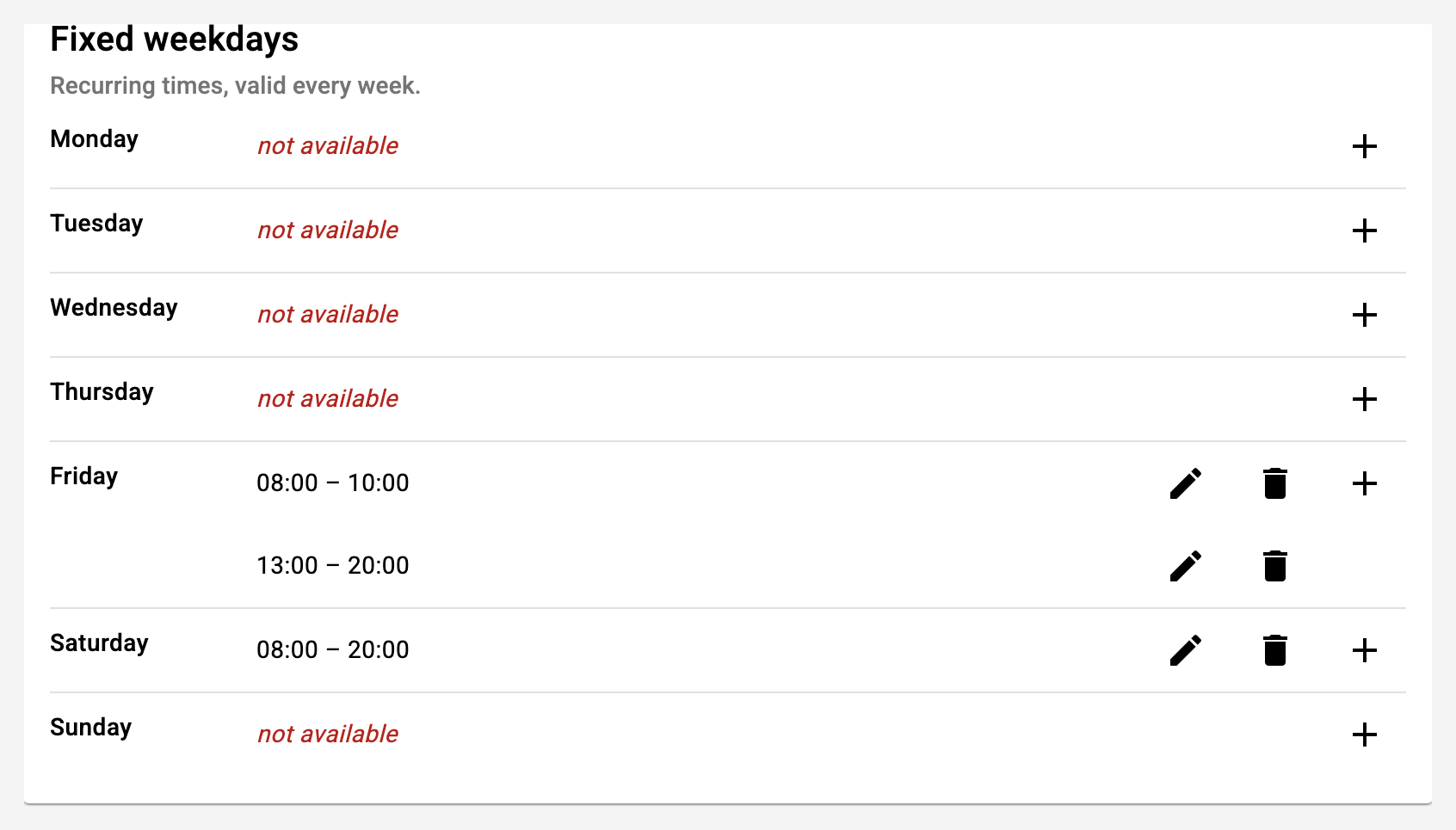
The "+" next to a weekday creates a time window. Several windows per day are possible, for example morning and evening.
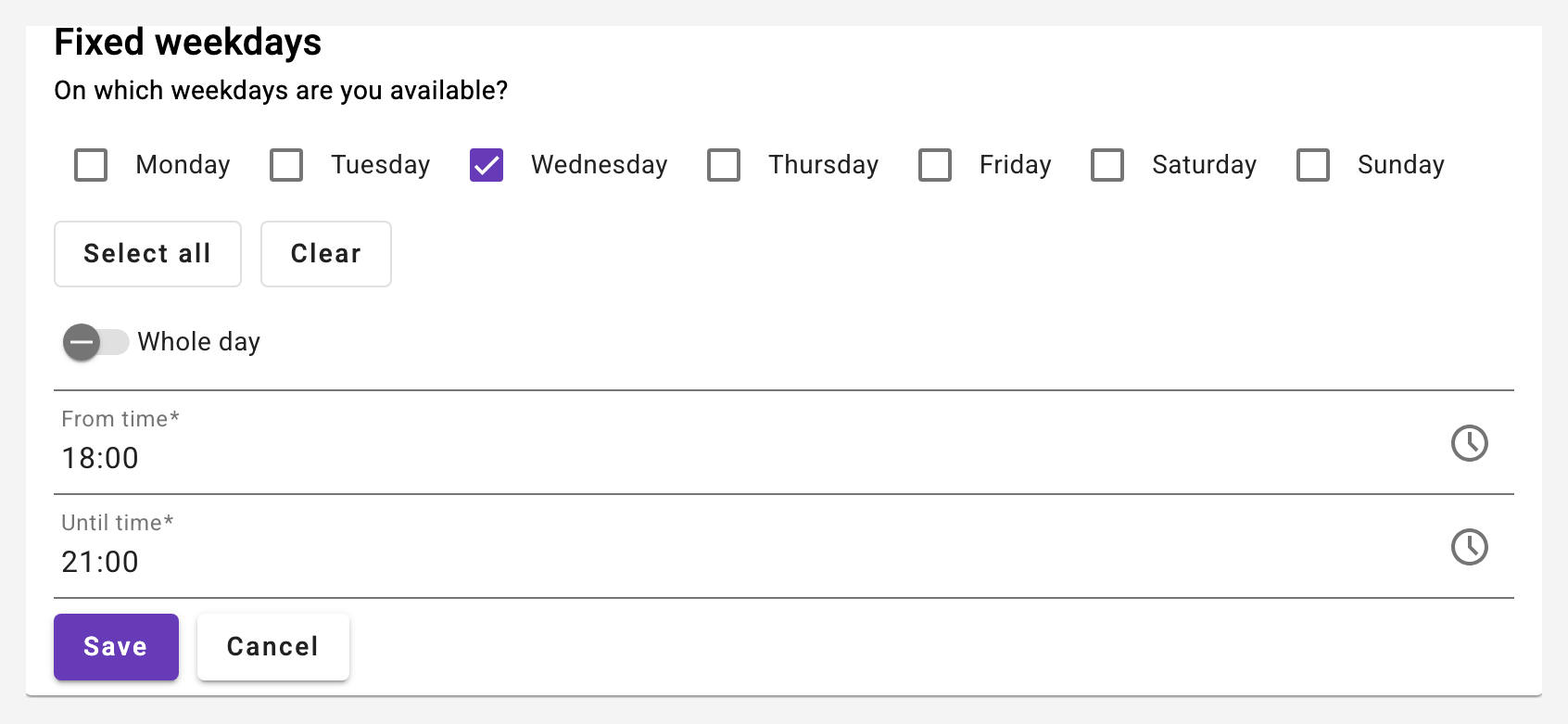
- In the form several weekdays can be ticked at once - one save then covers the whole week ("Select all" takes all seven days).
- "Whole day" replaces the time entry if you are available for the complete day.
- When editing an existing entry the weekday stays unchanged - otherwise one entry would silently turn into a whole series on save.
10.3 Single dates and absences
Below that are the entries for single dates:
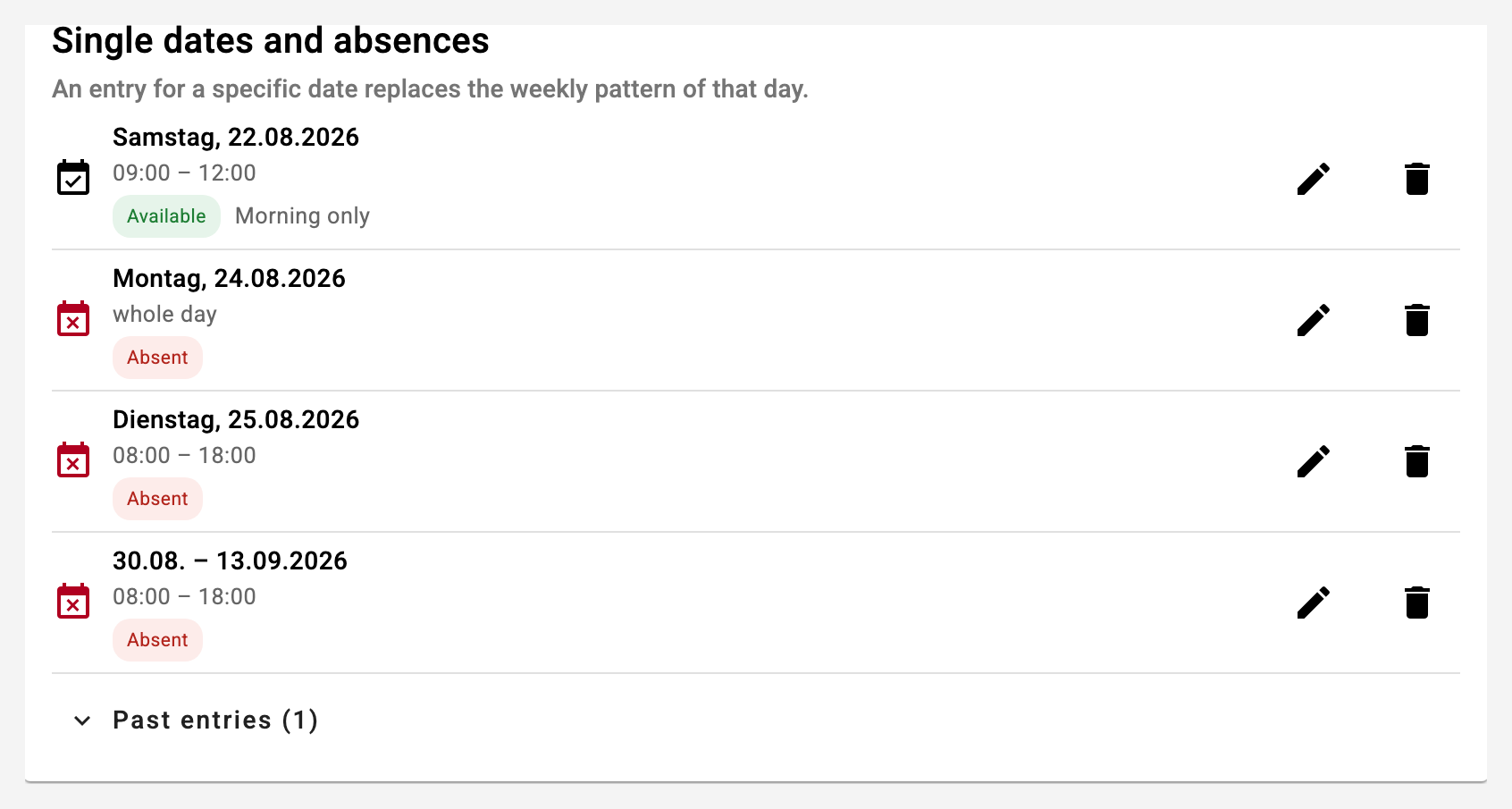
- An entry for a specific date replaces the weekly pattern of that day.
- With "Absent" you are not available on that day even if the weekly pattern says otherwise - that is the way to enter holidays, courses or a single day you cannot make it.
- An entry can cover a period (from and to date). Two weeks of holiday are therefore a single entry.
- Entries whose last day has passed are collapsed under "Past entries" and can be deleted there in one go.
If an availability is deleted or shortened while an existing reservation depends on it, the app lists the affected reservations and asks before saving.
10.4 Overview on the dashboard
Instructors and club owners see on the dashboard who is available when:
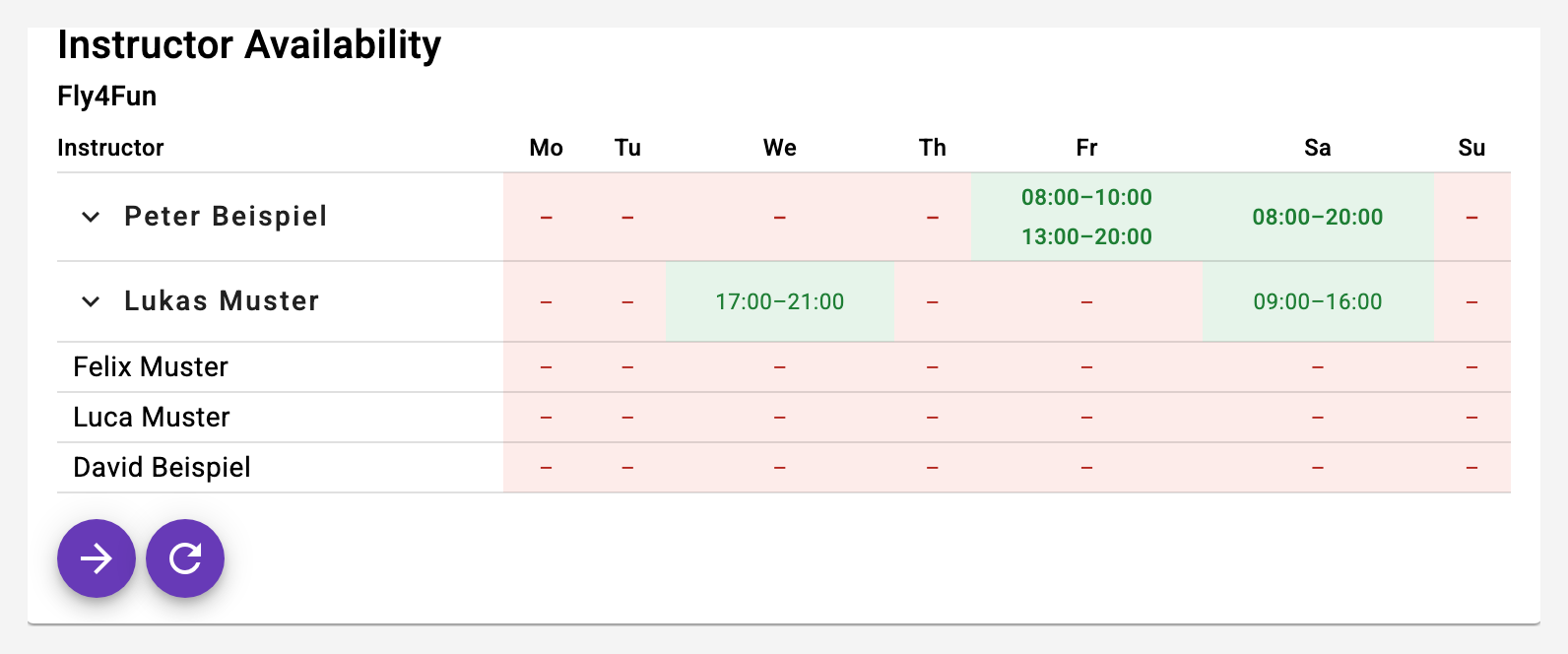
Green with a time means available, red means not available. The single dates and absences can be expanded via the name. The arrow at the bottom leads directly to your own availability.
10.5 Reservation with an instructor
If the club uses the availability calendar, every instructor without an availability for the chosen period carries the suffix "· on request" in the selection:
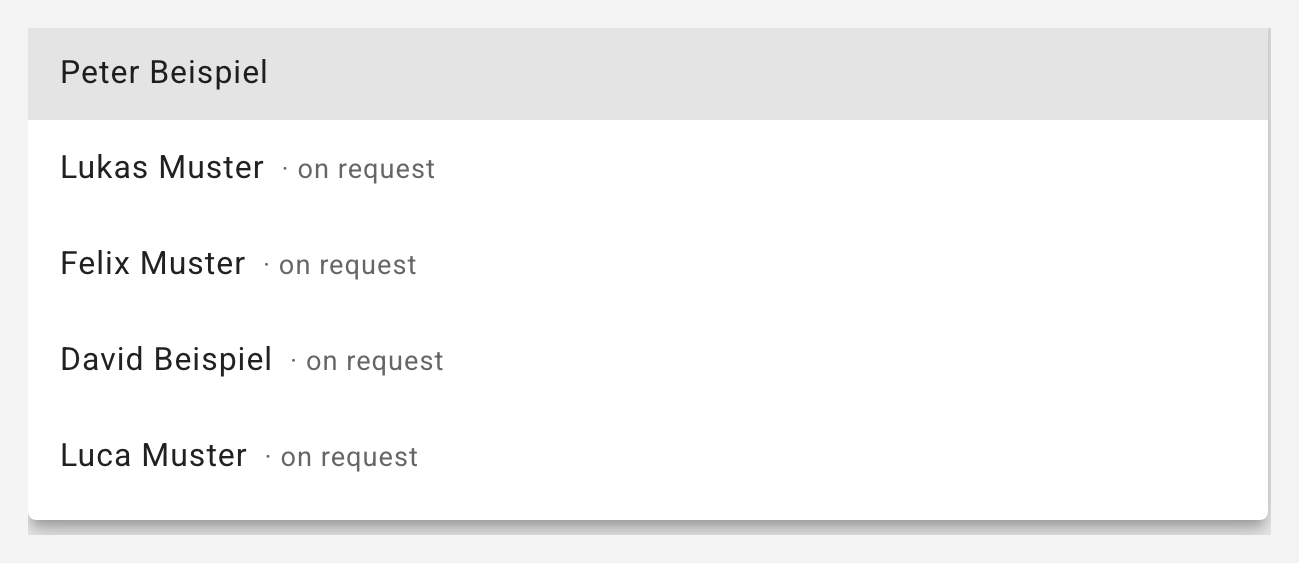
No suffix means the instructor is available for that period and the reservation is confirmed right away. Changing the date or the time re-evaluates the selection.

10.6 Lesson requests
If you pick an instructor "on request", the save button reads "Save and request". The reservation is provisional afterwards:
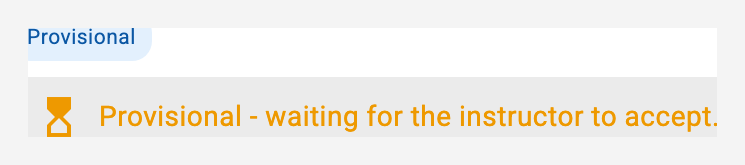
The instructor receives the request - depending on their settings by push and/or e-mail (see chapter 9) - and answers it on the dashboard in the card "Requests". The same card shows at the top the requests for a solo authorization (see 11.8) with "Check and issue" and "Decline":
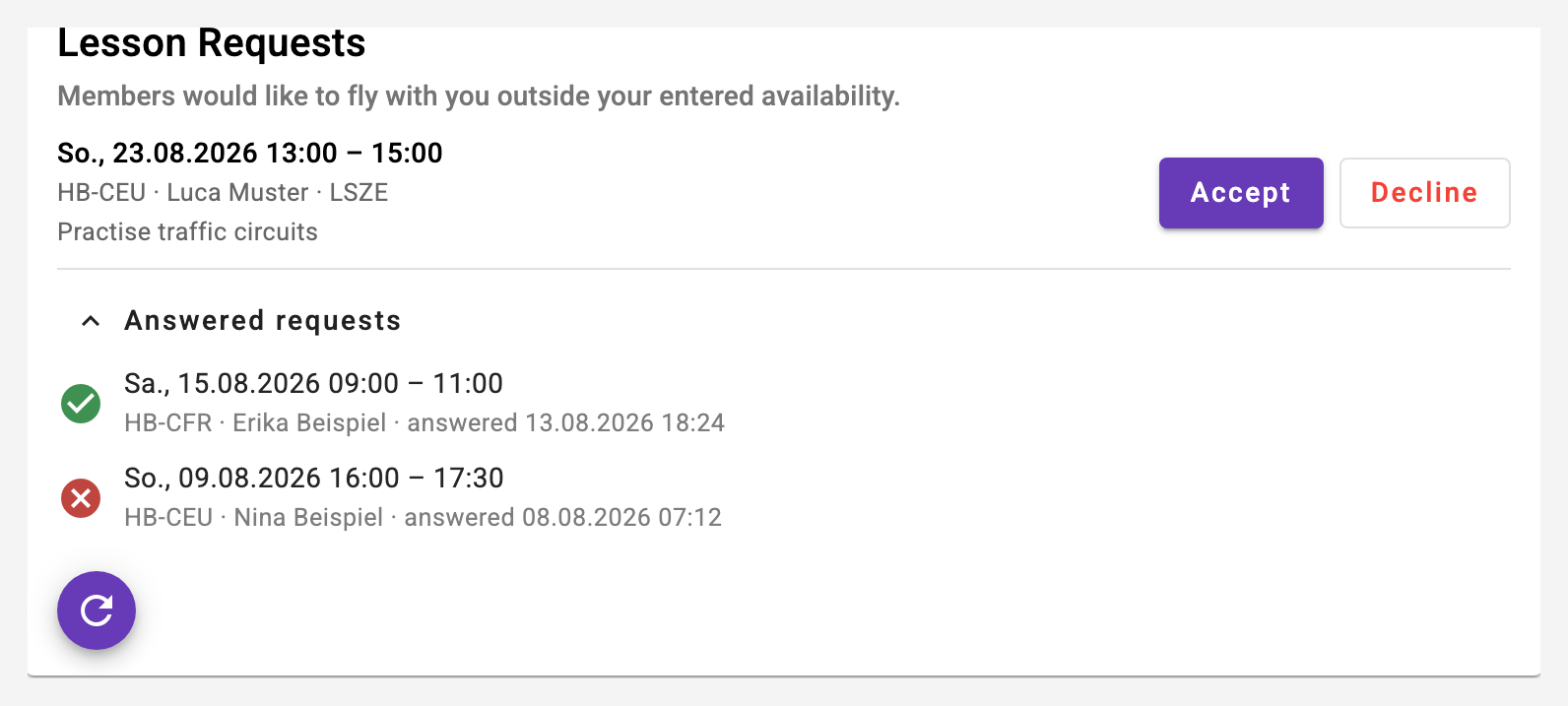
- Accept: the reservation is confirmed.
- Decline: the instructor is removed from the reservation, the reservation itself stays - so the aircraft slot is not lost - and is marked as "Instructor declined". You can then ask another instructor or delete the reservation.
- If a request stays unanswered for 24 hours, the instructor gets a single reminder, provided the flight is still ahead.
- Under "Answered requests" the instructor sees what they decided and when - lesson requests and solo authorization requests.
The requesting member is informed about the answer and additionally sees the state in the agenda and on the dashboard under "My Next Reservations" - every reservation shows whether it is confirmed, provisional or declined by the instructor. Anyone using a calendar subscription (see chapter 4) recognises provisional reservations by the marker in the title.
Moving an accepted lesson: The acceptance applies to the accepted period. If it stays the same or gets shorter - for example a new remark -, the reservation stays confirmed, even without entered availability. If the member moves it to another time when the instructor has no availability, the instructor is asked again.
The instructor adjusts: The instructor assigned to a reservation may edit and delete it - for example move or cancel the lesson because of the weather -, even without being club owner. The booked member stays the same. The instructor need not ask themselves: they can also put the lesson on a day without availability, and a request still open counts as accepted. The member receives a message with the new time or the reason for the deletion (see 9.3).
10.7 Primary instructors for student pilots
When the club owner switches on "Use primary instructors for student pilots" in the club settings, every student pilot gets a fixed primary instructor assigned (member administration, step "Role / Classification" - only the owner can assign). From then on:
- The student generally flies with their primary instructor - in the reservation form the instructor appears at the top, marked with ★, and is preselected for new reservations.
- Any other instructor can only be chosen as a request - the reservation stays provisional until they accept (the same request mechanism as the availability calendar, even if their calendar would be free).
- The syllabus progress shows the primary instructor in its header; without an assignment a red badge appears and the member administration shows the owner which students are still open.
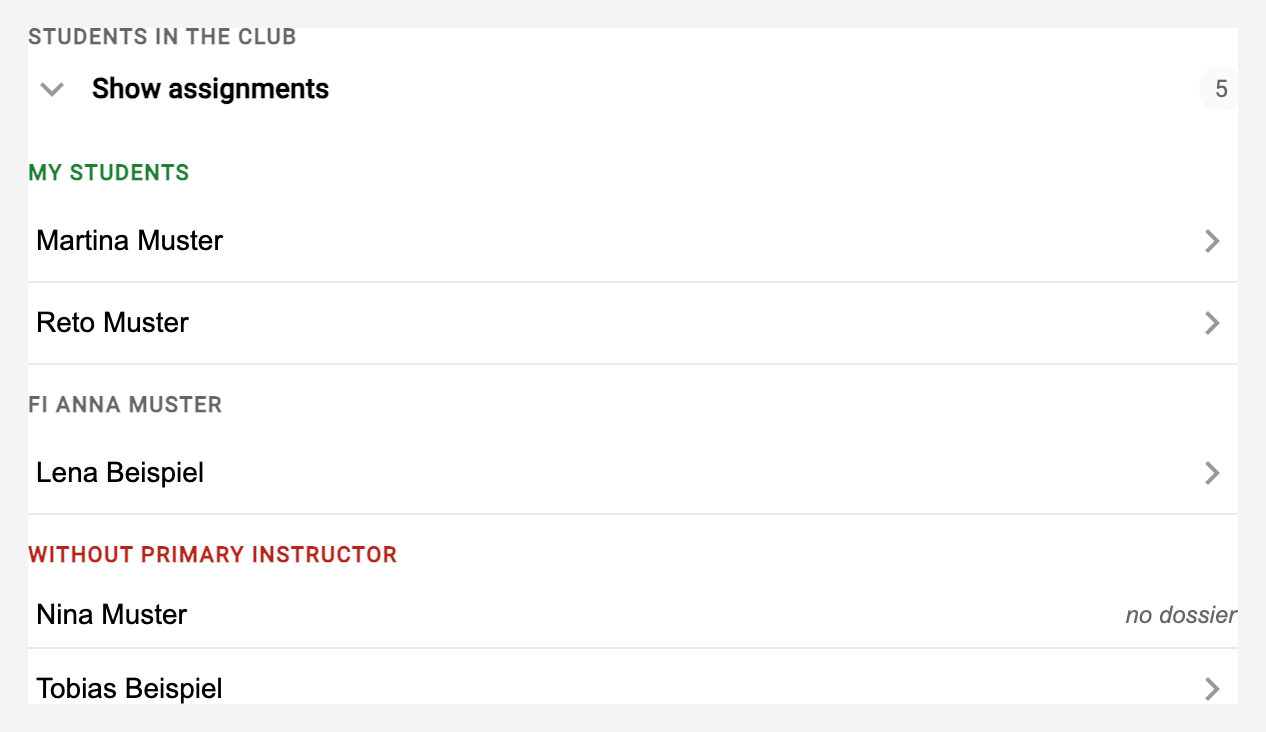
- In the dashboard card "Syllabus Progress", instructors expand the assignments under "Students in the club": their own students on top, below them the colleagues' and finally those without an assignment. Tapping a student selects them right in the same card; anyone without a training dossier is listed but cannot be opened.
Students without an assignment reserve as before - assigning is the owner's job, an omission blocks nobody. With the switch off, everything behaves as before.